Forgetting your Windows password can be frustrating, especially when you need immediate access to your computer.
You may have already tried using Advanced Startup Options, only to discover another problem: when you select Command Prompt from the recovery menu, Windows asks for the very password you’ve forgotten.
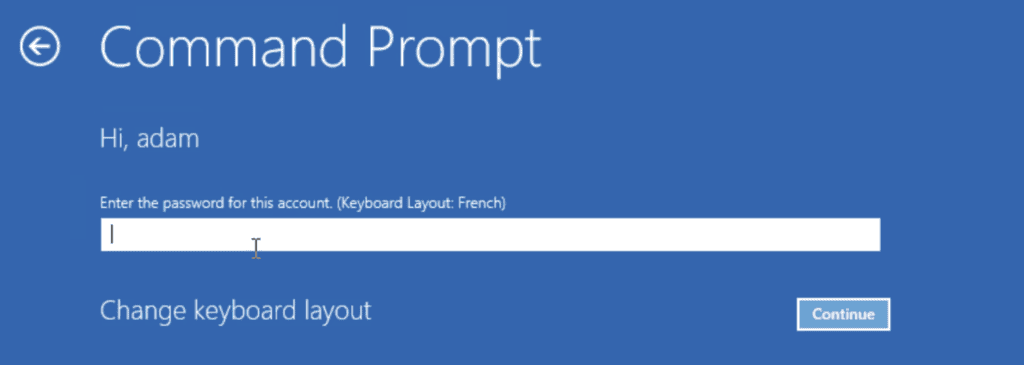
It feels like an endless loop.
Fortunately, there’s another method that works in this situation.
Using a bootable Windows USB drive and tools already built into Windows, you can reset the password for a local account without installing any third-party software.
In this guide, you’ll learn the complete process, from booting into the Windows Recovery Environment to restoring all modified system files after regaining access to your account.
Important: This method only works for local Windows accounts. If you use a Microsoft account, you should reset your password online through Microsoft’s account recovery page.
Before You Begin
This recovery method should only be used on a computer you own or have permission to access.
It is intended as a legitimate recovery procedure for recovering access to your own Windows installation, not for bypassing security on someone else’s device.
What You’ll Need
Before starting, make sure you have:
- A bootable Windows 10 or Windows 11 USB drive (8GB or larger)
- The Windows computer whose local account password you’ve forgotten
See also: Ventoy – The Last Bootable USB Drive You’ll Ever Need
If you don’t already have a bootable USB installer, create one before continuing.
Boot the Computer from the Windows USB Drive
Insert the bootable USB drive into the locked computer.
Restart the PC and open the Boot Menu.
The key varies depending on your computer manufacturer. Common examples include:
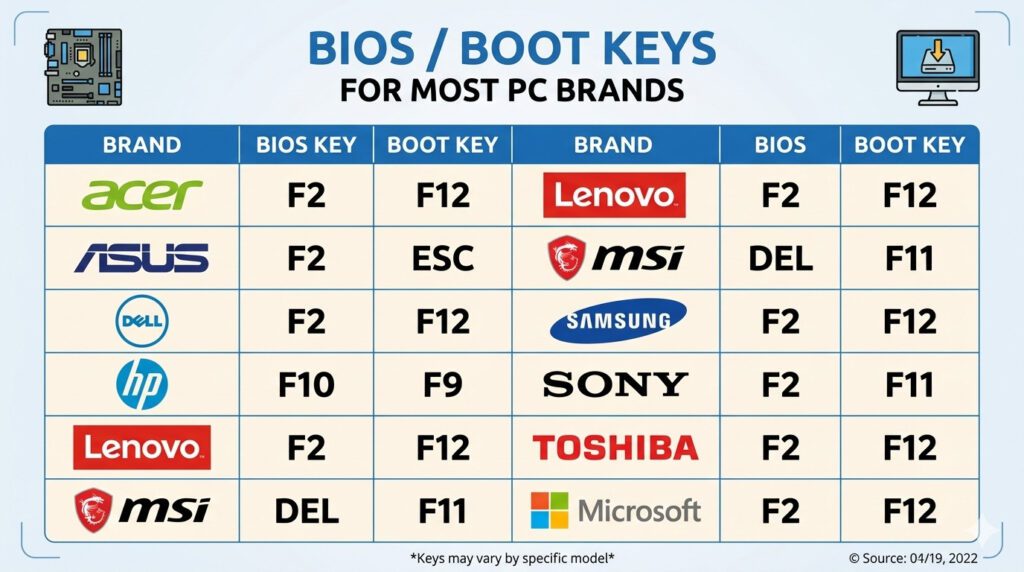
Select the USB drive and allow Windows Setup to load.
When the Windows installation screen appears:
- Choose your language and keyboard layout.
- Click Next.
- Instead of selecting Install now, click Repair your computer in the lower-left corner.
- Navigate to:
Troubleshoot
→ Advanced options
→ Command Prompt
Because Windows has not yet loaded, Command Prompt opens with administrative privileges and does not ask for your forgotten password.
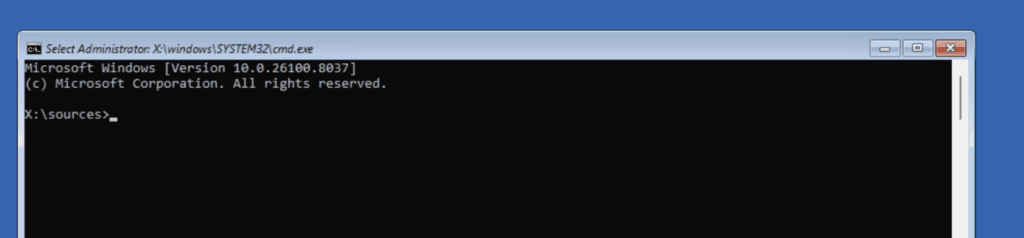
Find the Windows Installation Drive
Inside the recovery environment, Windows may not be installed on drive C:.
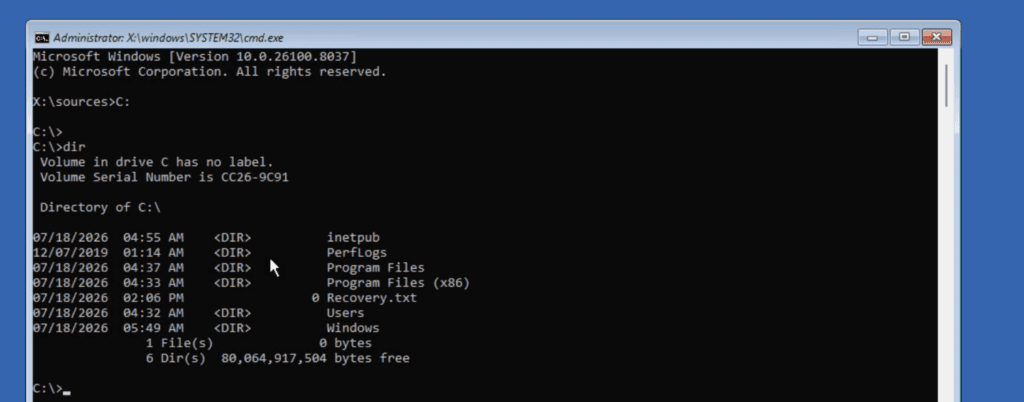
To locate the correct drive, type:
C:
dir
If you see folders such as:
- Windows
- Program Files
- Users
then you’ve found the correct partition.
If not, repeat the process with another drive letter:
D:
dir
Continue until you locate the Windows installation.
Once you’ve found it, navigate to the System32 folder:
cd Windows
cd System32
Replace Utility Manager with Command Prompt
Windows includes an accessibility tool called Utility Manager (utilman.exe).
Normally, clicking the Ease of Access icon on the login screen opens this utility.
For this recovery procedure, you’ll temporarily replace Utility Manager with Command Prompt.
Run the following commands:
ren utilman.exe utilmanbk.exeren cmd.exe utilman.exeHere’s what each command does:
- The first command renames the original Utility Manager to create a backup.
- The second command temporarily renames Command Prompt so Windows launches it when the Ease of Access button is clicked.
After running both commands:
- Close Command Prompt.
- Turn off the computer.
- Remove the USB drive.
- Boot Windows normally.
Reset the Forgotten Password
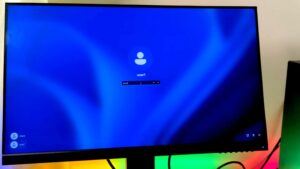
When Windows reaches the login screen, click the Ease of Access icon in the lower-right corner.
Instead of opening accessibility tools, Command Prompt will appear with administrative privileges.
Now run:
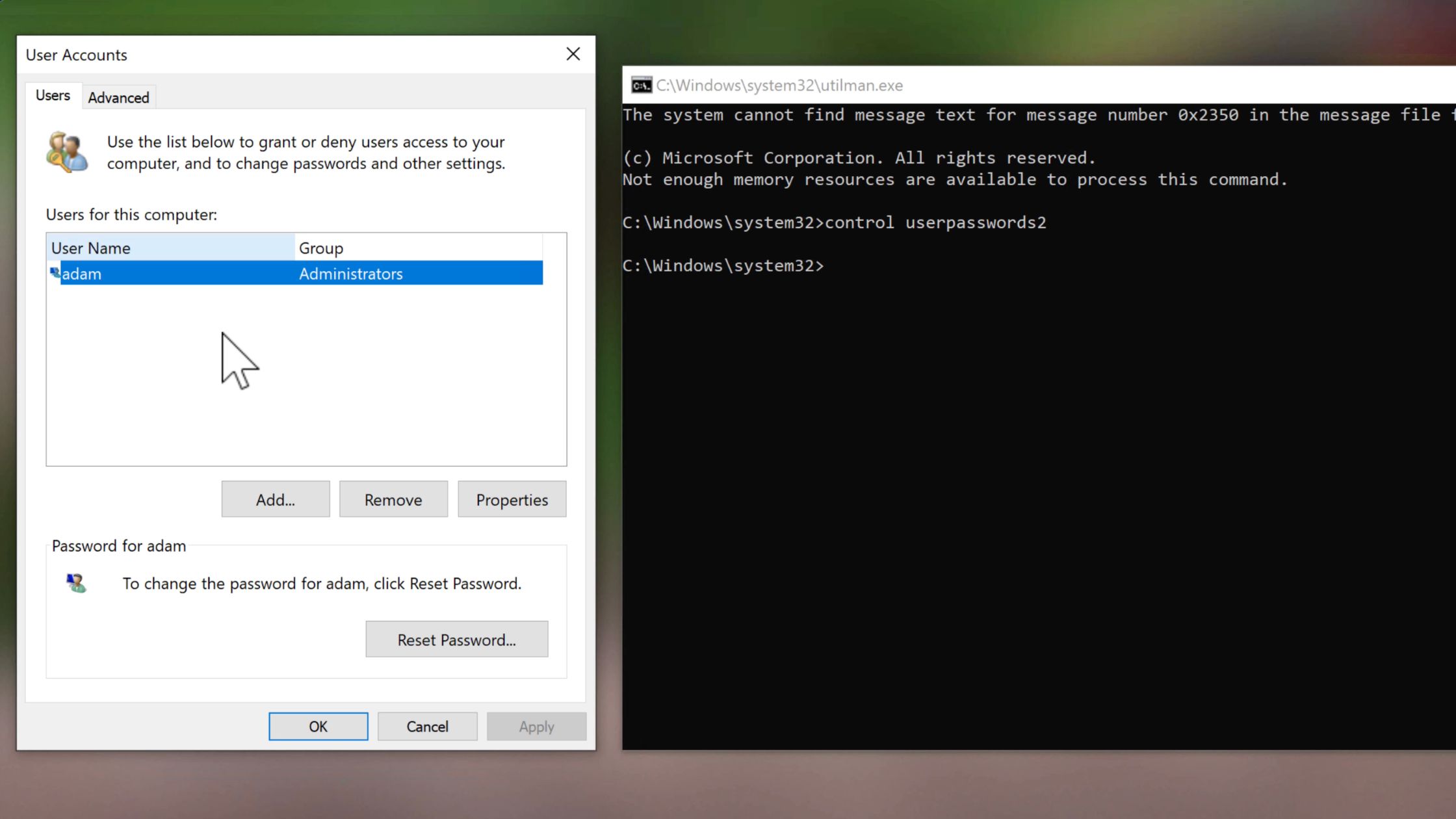
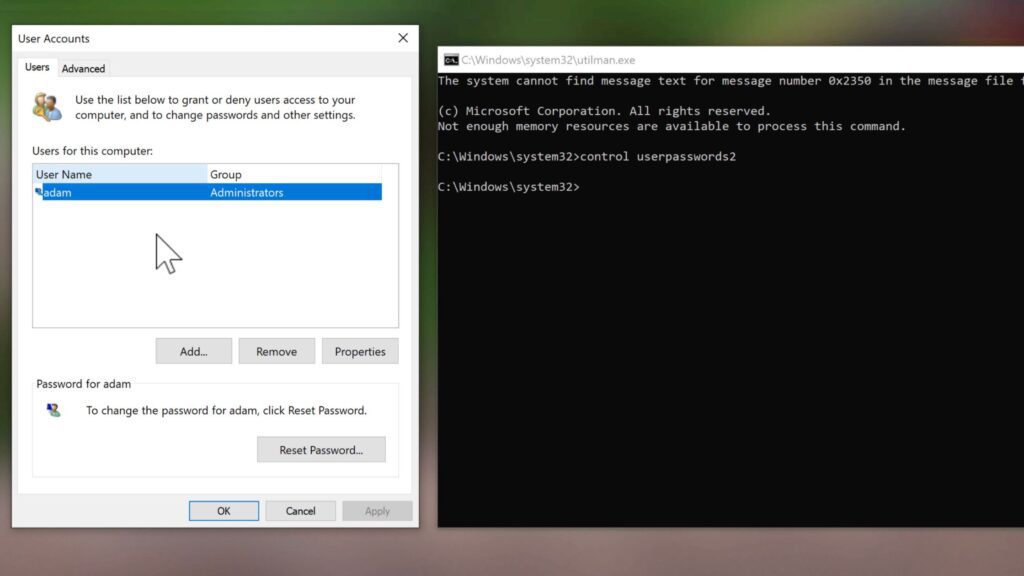
control userpasswords2The User Accounts window opens.
From there:
- Select the local account you want to recover.
- Click Reset Password.
You now have two choices.
Option 1: Create a New Password
Enter a new password in both fields and confirm.
Option 2: Remove the Password
Leave both password fields blank and click OK.
This removes the password entirely, allowing you to sign in without one.
Close the User Accounts window and Command Prompt.
Return to the login screen and sign in using your new credentials, or leave the password field blank if you have removed it.
Restore the Original Windows Files
Many tutorials stop after resetting the password.
However, there’s one important step remaining.
At this point, the Ease of Access button still launches Command Prompt instead of Utility Manager.
To restore Windows to its original state, you’ll need to boot from the USB drive one more time.
Repeat the earlier steps:
Repair your computer
→ Troubleshoot
→ Advanced options
→ Command Prompt
Navigate back to the System32 directory:
cd Windows
cd System32
Now reverse the changes using these commands:
ren utilman.exe cmd.exeren utilmanbk.exe utilman.exeThese commands restore the original Utility Manager and return Command Prompt to its proper filename.

Afterward:
- Close Command Prompt.
- Turn off the PC.
- Remove the USB drive.
- Boot Windows normally.
Verify Everything Is Back to Normal
Once Windows starts:
- Open Command Prompt from the Start menu to confirm it launches normally.
- Lock or sign out of Windows and click the Ease of Access button.
It should now display the standard accessibility options instead of opening Command Prompt.
Your system has been fully restored, and the only change is that you now have access to your account again.
Troubleshooting Tips
If the method doesn’t work, check the following:
Windows Is Installed on a Different Drive
The recovery environment often assigns different drive letters than your normal Windows installation.
Always verify the correct partition before renaming any files.
The USB Doesn’t Boot
Make sure:
- USB boot is enabled in BIOS/UEFI.
- The USB was created correctly using Microsoft’s Media Creation Tool or Rufus.
- Secure Boot settings are compatible with your installation media.
“The System Cannot Find the File Specified”
This usually means you’re in the wrong drive or directory.
Verify you’re inside:
Windows\System32before running the rename commands.
Microsoft Account Users
This method does not reset Microsoft account passwords.
If your Windows account uses a Microsoft account, reset the password through Microsoft’s official account recovery website from another device.
Frequently Asked Questions
Does this method work on Windows 11?
Yes. It works on both Windows 10 and Windows 11 for local accounts.
Will this erase my files?
No.
This procedure changes only two system filenames temporarily and does not affect your personal files or installed applications.
Does it work with Microsoft accounts?
No.
Microsoft account passwords are stored online and must be reset through Microsoft’s account recovery service.
Do I need third-party software?
No.
Everything used in this guide is already included in Windows.
Why should I restore the original files afterward?
Leaving Command Prompt linked to the Ease of Access button creates a security risk.
Restoring the original Utility Manager ensures Windows functions normally and maintains its intended security behavior.
Final Thoughts
Being locked out of your Windows computer doesn’t necessarily mean you’ve lost access permanently.
If you’re using a local account, a bootable Windows USB drive provides everything needed to recover access without downloading additional software.
Just remember that the process isn’t complete until you’ve restored the original system files. This final step keeps your Windows installation secure and ensures all accessibility features continue to work as intended.
To avoid similar situations in the future, consider using a password manager or creating a password reset disk while you still have access to your account.