Have you ever tried copying a large file to a USB drive, only to see Windows display this frustrating message?
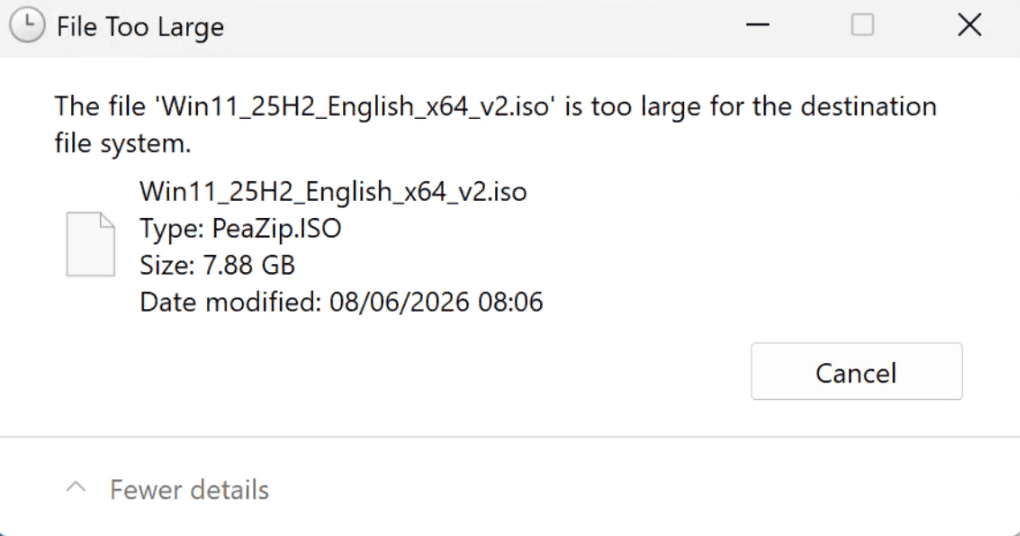
The confusing part is that your USB drive may still have plenty of free storage space. A 128GB or even 1TB drive can show this error when copying a single large file.
So, what is causing the problem?
The answer is not the available storage space. The problem is the file system format used by your drive.
In most cases, your USB drive is formatted with FAT32, a file system with a maximum single-file size limit of 4GB.
The solution is simple: convert the drive from FAT32 to NTFS.
In this guide, you will learn how to fix this error using a built-in Windows command — without formatting your drive and without deleting your files.
Why Does Windows Say “The File Is Too Large for the Destination File System”?
The error happens because of a limitation in the FAT32 file system.
FAT32 (File Allocation Table 32) was introduced in the 1990s and became popular because of its excellent compatibility. USB drives, SD cards, cameras, game consoles, and many other devices support FAT32.
However, FAT32 has one major limitation:
Maximum size of a single file: 4GB
This means:
- A USB drive with 500GB of free space can still reject a 6GB ISO file.
- A 10GB video file cannot be copied.
- Large backup archives will fail.
- Virtual machine images may not transfer.
Examples of files that commonly trigger this error:
- Windows ISO files
- 4K videos
- Large ZIP/RAR archives
- Virtual machine disks (VMDK, VHDX)
- Database backups
- Large software installers
The drive is not full. The file system simply cannot handle files larger than 4GB.
Check If Your USB Drive Uses FAT32
Before fixing the problem, you can confirm the file system:
- Open File Explorer.
- Right-click your USB drive.
- Select Properties.
- Look for the File System field.
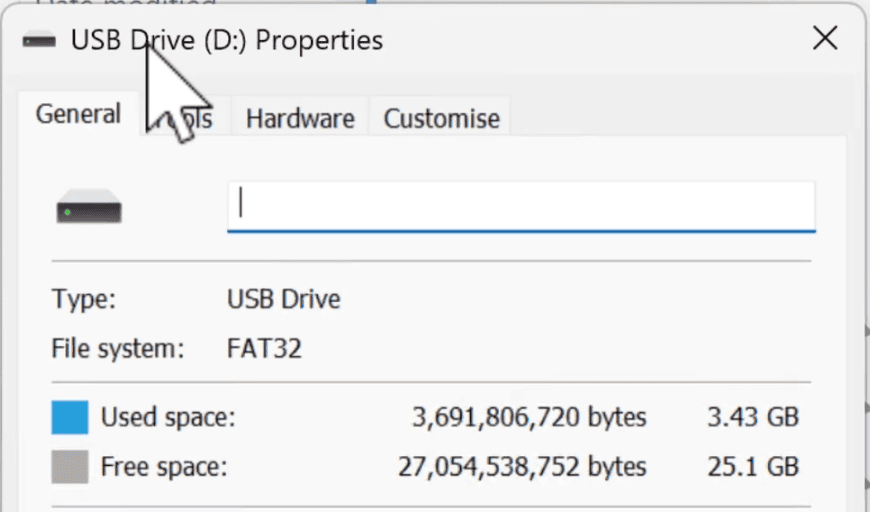
If you see:
- FAT32 → This is the cause of the error.
- NTFS → The issue is likely caused by something else.
- exFAT → The drive already supports large files.
The Best Solution: Convert FAT32 to NTFS Without Formatting
Windows includes a built-in command called convert that allows you to change a drive’s file system from FAT32 to NTFS without deleting existing data.
Unlike formatting, this process keeps your files intact.
However, before modifying any storage device, it is always recommended to create a backup of important files.
Storage operations are generally safe, but unexpected interruptions such as power loss or hardware failure can still cause problems.
Convert FAT32 to NTFS Using Command Prompt
Follow these steps:
Step 1: Find Your USB Drive Letter
Open File Explorer and check the letter assigned to your USB drive.
For example:
- USB drive → G:
- External hard drive → D:
- SD card → E:
Make sure you use the correct drive letter.
Step 2: Open Command Prompt as Administrator
- Click the Windows Search button.
- Type: cmd
- Right-click Command Prompt.
- Select: Run as administrator
- Click Yes when Windows asks for permission.
Step 3: Run the Convert Command
Type the following command:
convert G: /FS:NTFSReplace G: with your actual USB drive letter.
Example:
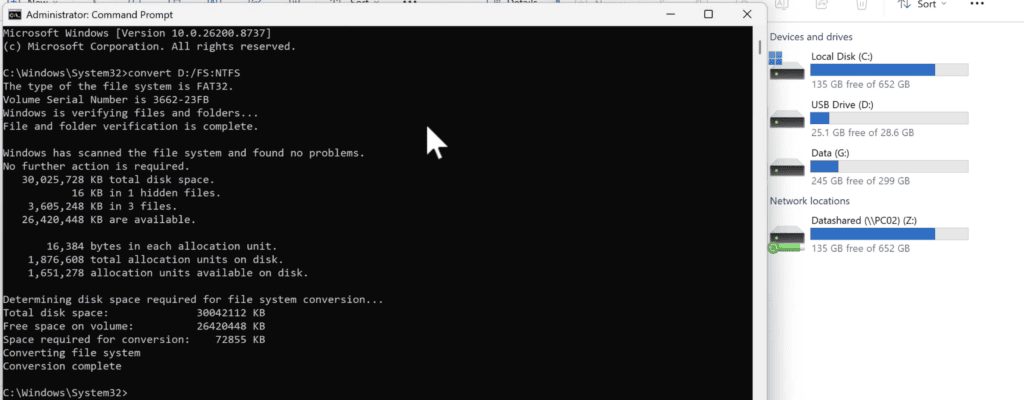
convert D: /FS:NTFSPress Enter.
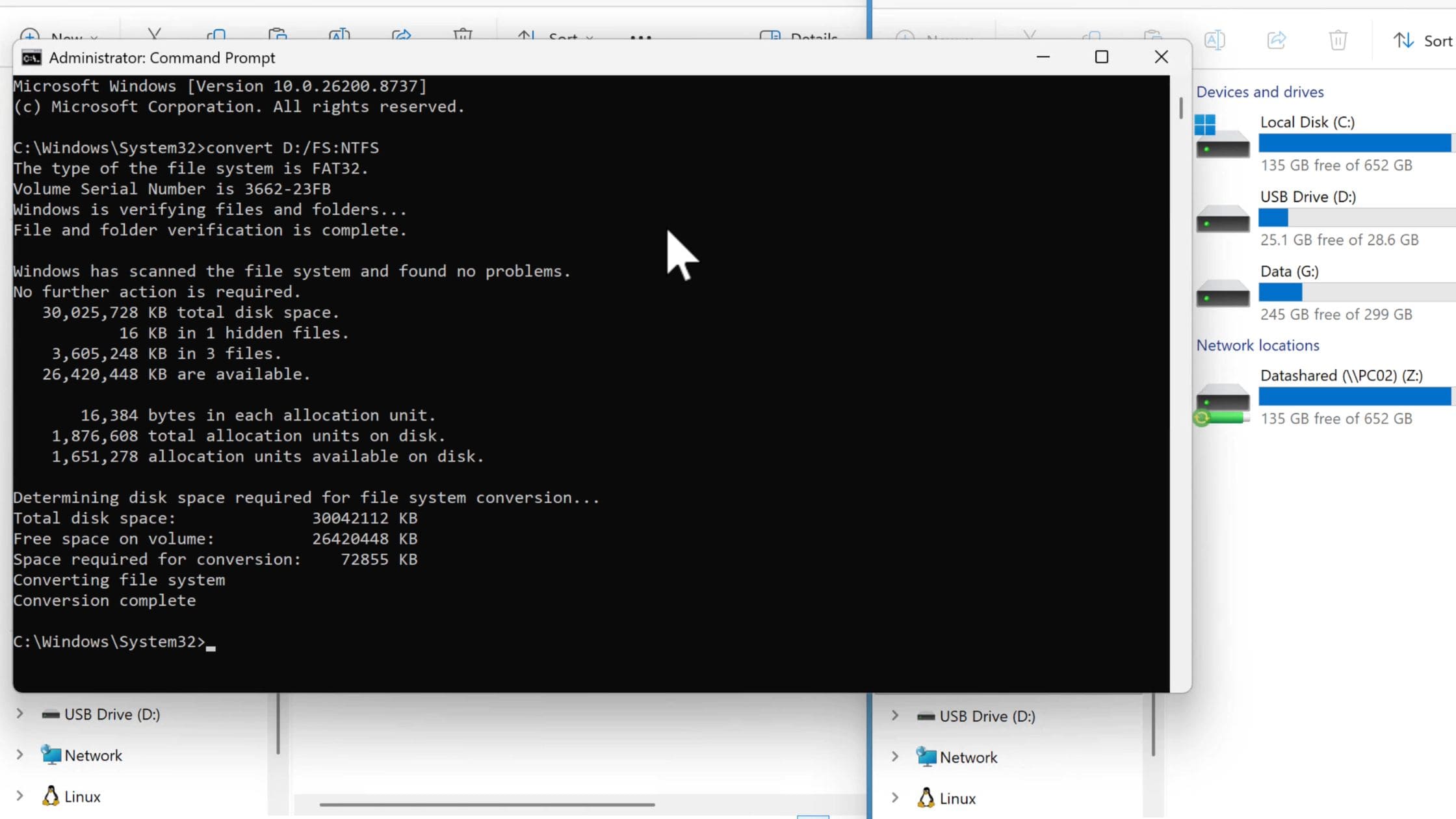
Windows will analyze the drive and start converting the file system.
You should eventually see a message similar to:
The process usually takes only a few seconds or a few minutes depending on:
- Drive size
- Number of files
- USB speed
Verify That the Conversion Worked
After the process finishes:
- Open File Explorer.
- Right-click your USB drive.
- Select Properties.
- Check the File System field.
It should now show:
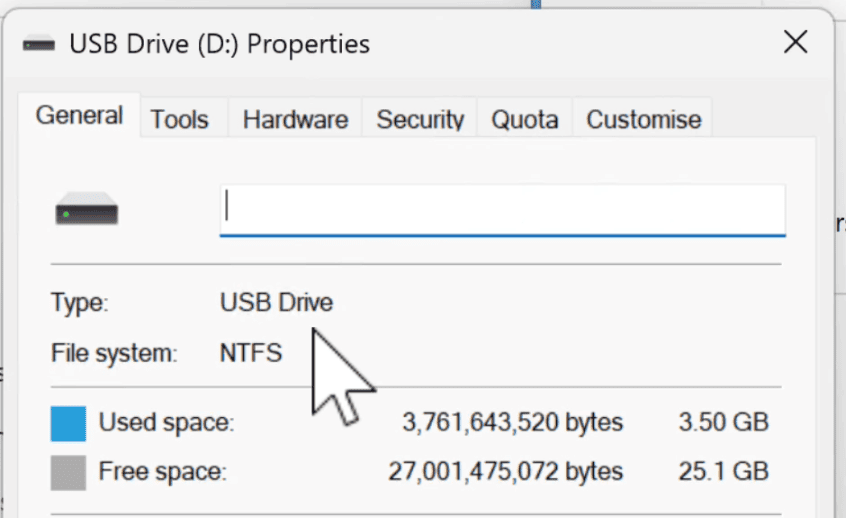
You can now try copying your large file again.
The 4GB FAT32 limitation is removed, and files much larger than 4GB can be transferred normally.
See also: Convert MBR to GPT Without Data Loss
Convert or Format? Which Option Should You Choose?
There are two ways to switch from FAT32 to NTFS.
Option 1: Convert FAT32 to NTFS
Use:
convert X: /FS:NTFSAdvantages:
✅ Keeps your existing files
✅ No need to reinstall or copy data back
✅ Fast and convenient
Best choice when your USB drive contains important files.
Option 2: Format the Drive as NTFS
If your USB drive is empty, formatting is usually faster.
Steps:
- Right-click the drive.
- Select Format.
- Choose: File System: NTFS
- Click Start.
Important:
Formatting deletes all files on the drive.
Use this option only when:
- The drive is empty.
- You already backed up your files.
- You want a clean start.
FAT32 vs NTFS: Which File System Should You Use?
| Feature | FAT32 | NTFS |
|---|---|---|
| Maximum single file size | 4GB | Very large files supported |
| Windows compatibility | Excellent | Excellent |
| macOS compatibility | Excellent | Limited write support |
| Linux support | Good | Good |
| Permissions/security | No | Yes |
| Best for Windows USB drives | Sometimes | Recommended |
For a USB drive mainly used with Windows computers, NTFS is usually the better choice.
If you need compatibility with TVs, cameras, consoles, or multiple operating systems, exFAT may be a better option.
Final Thoughts
The “File too large for destination file system” error does not mean your USB drive is full. It simply means the drive is using FAT32, which has a built-in 4GB file size limitation.
With a single Command Prompt command, you can upgrade your drive to NTFS and continue transferring large files without formatting or losing your data.
This small Windows trick can save you time whenever you need to move large ISO files, videos, backups, or virtual machines.
FAQ
Can I convert FAT32 to NTFS without losing files?
Yes. The Windows convert command changes the file system without formatting the drive. However, backing up important data is always recommended.
Will converting FAT32 to NTFS delete my files?
No. The conversion process keeps existing files and folders.
What is the maximum file size supported by FAT32?
FAT32 supports files up to approximately 4GB minus 1 byte.
Should I use NTFS or exFAT for a USB drive?
Use NTFS if the drive is mainly used with Windows. Use exFAT if you need compatibility with Windows, macOS, Linux, cameras, and other devices.