
Imagine carrying your own Windows 11 computer in your pocket.
Instead of using the operating system installed on someone else’s PC, you simply connect an external SSD, boot from it, and instantly have access to your Windows installation, your applications, your settings, and your files.
When you’re finished, unplug the drive, and the computer returns to its original operating system as if nothing happened.
This is exactly what Windows To Go offers.
Although Microsoft officially discontinued Windows To Go, Rufus still allows you to create a modern portable Windows 11 installation that works remarkably well on compatible hardware.
In this guide, you’ll learn how to:
- Create a portable Windows 11 installation
- Use Rufus to install Windows To Go
- Choose the right storage device
- Boot Windows 11 on different computers
- Install portable applications for maximum flexibility
Why You Should Use an External SSD Instead of a USB Flash Drive
The most important decision isn’t choosing Rufus or Windows.
It’s choosing the right storage device.
Many people assume a regular USB flash drive is sufficient.
Technically, it works.
Practically, it doesn’t.
Windows constantly reads and writes thousands of small files while running.
Most USB flash drives offer sustained write speeds of only 10–30 MB/s, making Windows painfully slow.
You’ll experience:
- Long boot times
- Slow application launches
- Frequent freezing
- Poor responsiveness
- Reduced drive lifespan
Instead, use an M.2 SSD inside a USB enclosure.
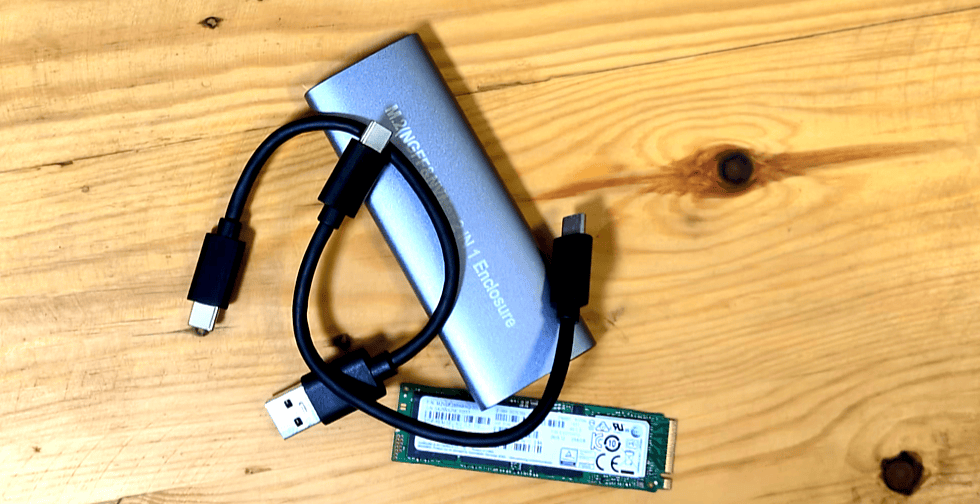
Whether you choose an NVMe or SATA SSD, you’ll typically see transfer speeds between 300 MB/s and 500+ MB/s, depending on your enclosure and USB interface.
The difference is dramatic.
A portable Windows installation stored on an external SSD feels much closer to running Windows from an internal drive.
Recommended Hardware
For the best experience, consider:
- 256 GB or larger M.2 SSD
- USB 3.1 or USB-C enclosure
- USB 3.1, USB 3.2, or USB-C port
A 256 GB SSD provides enough space for:
- Windows 11
- Office applications
- Development tools
- Virtual machines
- Personal documents
- Portable applications
What You’ll Need
Before getting started, prepare the following:
- A Windows computer
- An external SSD (recommended)
- Windows 11 ISO
- Rufus
- Internet connection
Remember that creating Windows To Go erases everything on the external drive.
Back up any important files first.
Download the Windows 11 ISO
Open your web browser and visit Microsoft’s Windows 11 download page.
Scroll to the Download Windows 11 Disk Image (ISO) section.
Select:
- Windows 11 (Multi-edition ISO)
Click Download.
Choose your preferred language.
Then download the 64-bit ISO.
The file size is approximately 7–8 GB, so download time depends on your internet connection.
Download Rufus
Next, download the latest version of Rufus from its official website.
Rufus is completely portable, meaning it doesn’t require installation.
Simply launch the executable when the download finishes.
Connect Your External SSD
Plug your external SSD into your computer.
Open Rufus.
At first, you may not see your external SSD listed.
This is intentional.
To help prevent accidental data loss, Rufus hides external hard drives by default.
To display them:
- Open Advanced Drive Properties
- Enable List USB Hard Drives
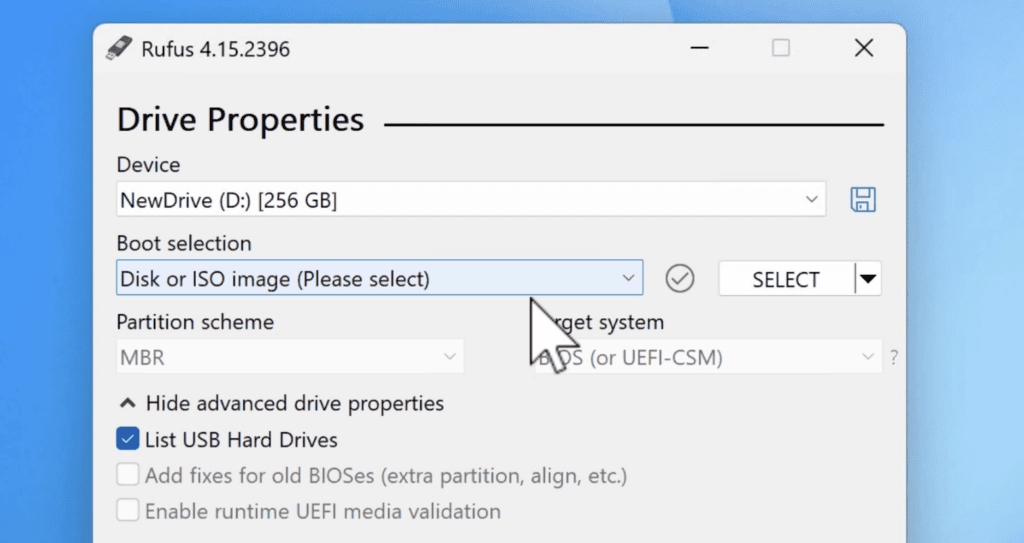
Your external SSD should now appear in the Device list.
Double-check:
- Drive letter
- Capacity
- Model name
to ensure you’ve selected the correct drive.
Configure Rufus for Windows To Go
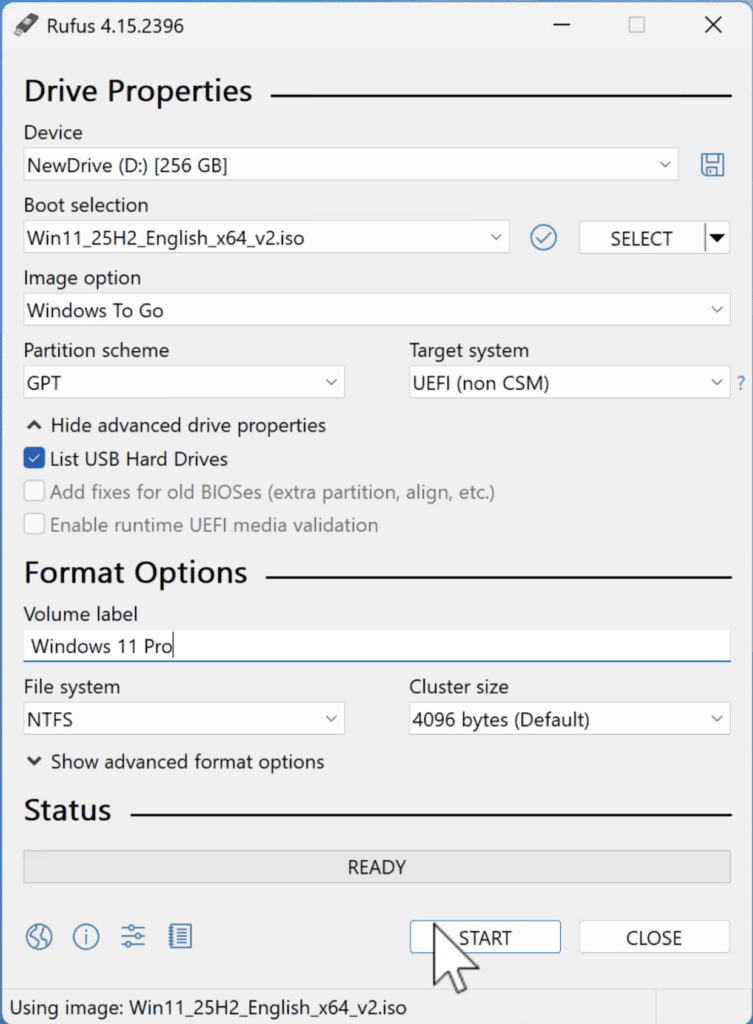
With the external SSD selected, configure Rufus as follows.
Boot Selection
Click Select and browse to your downloaded Windows 11 ISO.
Image Option
This is the most important setting.
Instead of selecting:
Standard Windows Installation
choose:
Windows To Go
This tells Rufus to install a complete Windows operating system directly onto the SSD instead of creating a standard installation USB.
Your SSD becomes an actual Windows system capable of booting independently.
Leave the remaining options at their default values unless you have specific requirements.
Start the Installation
Click Start.
Rufus asks which Windows edition you’d like to install.
For most users, Windows 11 Pro is the best choice because it includes additional administrative and networking features.
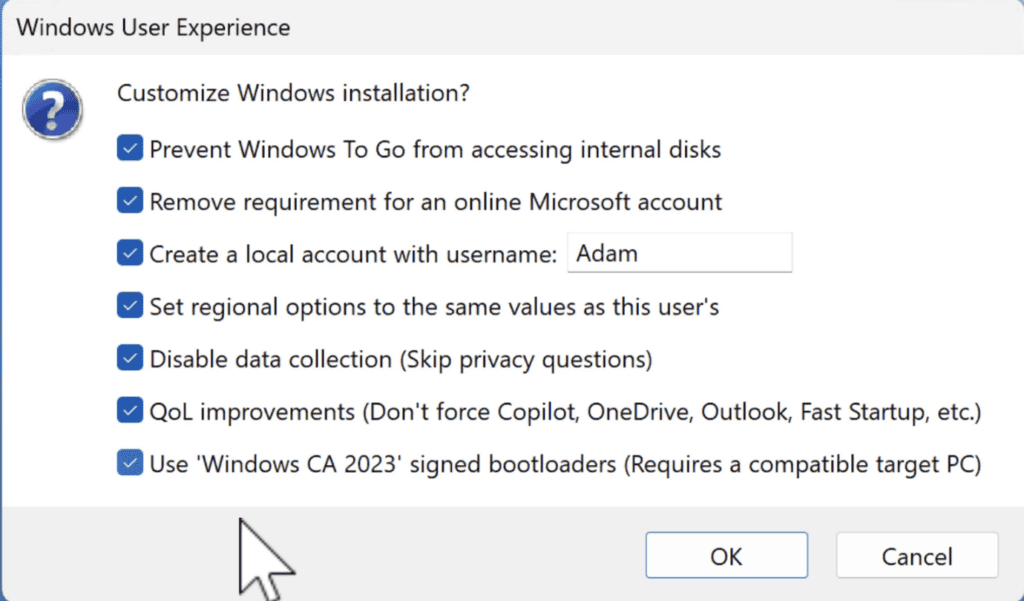
Afterward, the Windows User Experience dialog appears.
This screen allows you to customize the installation.
Common options include:
- Remove Microsoft account requirement
- Skip privacy questions
- Automatically configure regional settings
- Disable data collection prompts
One particularly useful option is:
Remove pre-installed Windows apps (Quality of Life improvements)
Enabling this option reduces unnecessary software and frees additional storage space.
After reviewing your selections, click OK.
Rufus warns that the external SSD will be erased.
Confirm the operation.
The installation usually takes between 10 and 20 minutes, depending on the SSD and USB connection speed.
When the status changes to Ready, your portable Windows installation is complete.
Boot Windows 11 from the External SSD
Disconnect the SSD from your current computer.
Connect it to the PC where you want to use portable Windows.
Power on the computer and open the Boot Menu.
Common boot keys include:
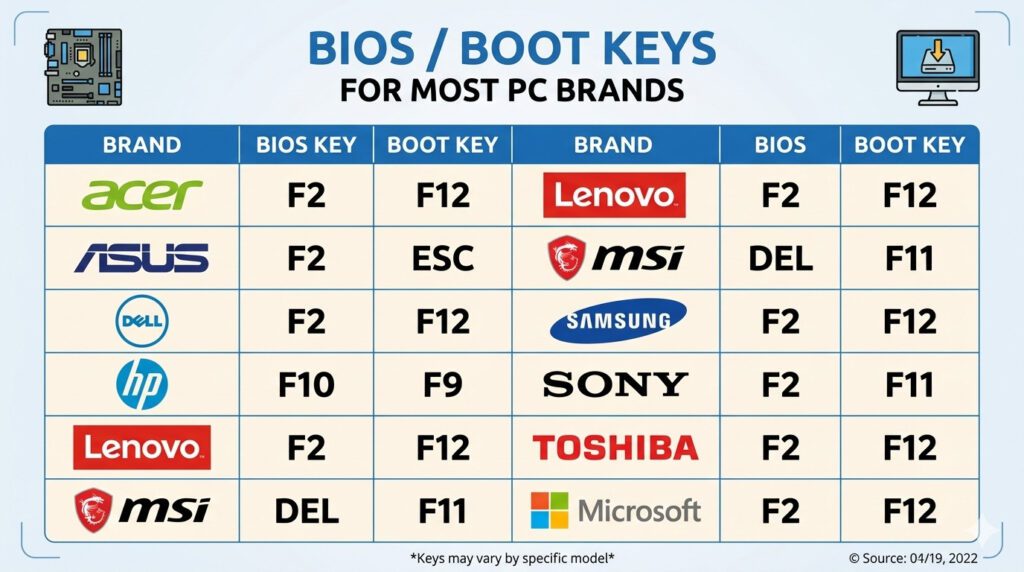
Choose your external SSD.
Windows 11 starts loading.
The very first boot usually takes longer because Windows detects the computer’s hardware and installs the necessary drivers automatically.
Future boots on the same computer will be much faster.
See also: How to Use Your Laptop as a Monitor for Any PC
Complete Windows Setup
If you didn’t enable Rufus’ local account option, Windows may ask you to sign in with a Microsoft account.
Otherwise, simply complete the initial setup:
- Region
- Keyboard layout
- Privacy settings
- User account
Once setup finishes, you’ll arrive at the Windows 11 desktop running entirely from your external SSD.
Windows To Go Automatically Adapts to Different Computers
One of the biggest advantages of Windows To Go is its flexibility.
Each time you connect the SSD to another compatible computer, Windows automatically detects the new hardware and installs the required drivers.
Your:
- Desktop
- Documents
- Applications
- Settings
- Browser data
- Personal files
remain exactly the same regardless of which PC you’re using.
This makes portable Windows ideal for:
- IT administrators
- Students
- Developers
- Consultants
- Cybersecurity professionals
- Technical support engineers
Install Portable Applications
To make your portable Windows environment even more self-contained, consider using portable applications.
Unlike traditional software, portable applications don’t rely heavily on Windows registry entries or user profile folders.
Instead, everything stays inside a single application folder on your external SSD.
Advantages include:
- Easy to move between computers
- Cleaner system
- No software installation required
- No leftover files on the host computer
One of the most popular collections is PortableApps Platform.
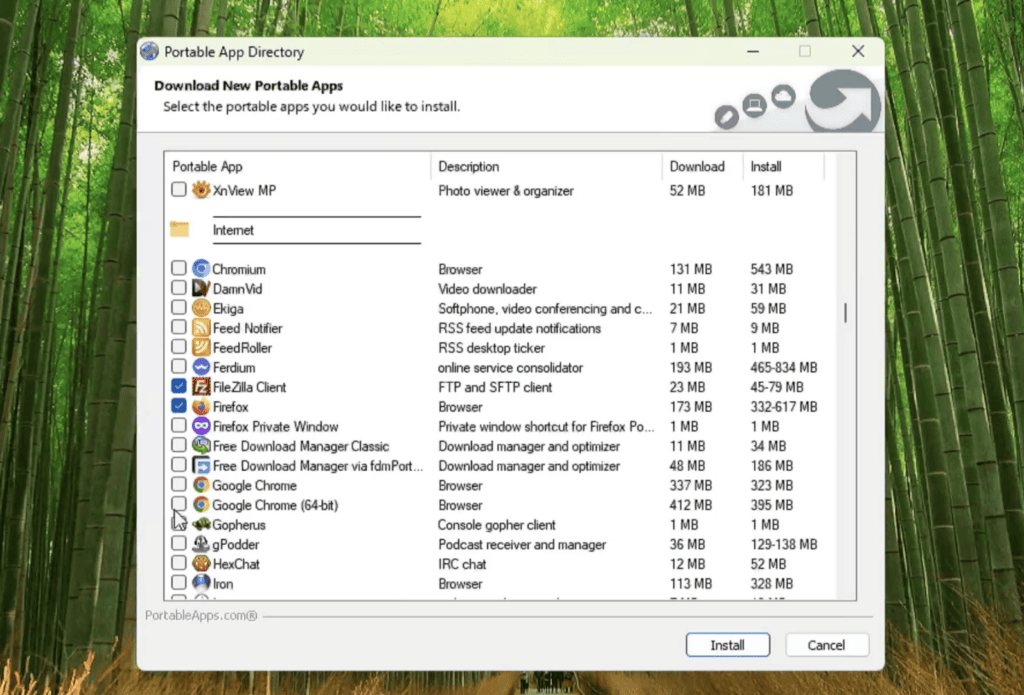
After installing the platform onto your external SSD, you can download hundreds of portable programs, including:
- Firefox
- LibreOffice
- VLC Media Player
- Notepad++
- GIMP
- FileZilla
- 7-Zip
- KeePass
- Thunderbird
All applications launch directly from the external SSD and travel with your portable Windows installation.
Best Uses for Portable Windows 11
A Windows To Go drive is useful in many situations.
Some common use cases include:
- Carrying your work environment between home and office
- Running Windows on borrowed computers
- Testing software safely
- Demonstrating applications to clients
- Traveling with your own operating system
- Maintaining a secure recovery environment
- IT support and troubleshooting
- Booting Windows without modifying the host PC
Frequently Asked Questions
Can I install Windows To Go on a USB flash drive?
Technically yes.
However, it is strongly discouraged because flash drives are significantly slower and wear out much faster than SSDs.
An external SSD provides a much better experience.
Will Windows To Go change the computer I’m using?
No.
Windows runs entirely from the external SSD.
Once you disconnect it, the computer boots into its normal operating system.
Can I use the same portable Windows installation on multiple computers?
Yes.
Windows automatically detects new hardware and installs compatible drivers the first time it boots on each computer.
Is Windows To Go still supported by Microsoft?
Microsoft officially discontinued Windows To Go.
However, Rufus continues to provide an excellent implementation that works with modern Windows versions.
Do Windows updates still work?
Yes.
Your portable Windows installation can receive Windows updates just like a normal installation, provided the hardware and Windows version support them.
Final Thoughts
Creating a portable Windows 11 installation is one of the most practical projects you can build with Rufus.
Combined with a fast external SSD, Windows To Go lets you carry an entire operating system, including your applications, settings, and files, in your pocket and boot it on almost any compatible computer.
Whether you’re an IT professional, student, developer, or simply want a portable workspace, Windows To Go offers flexibility that a standard bootable USB installer simply can’t match.
For the best performance, avoid inexpensive flash drives and invest in a quality external SSD. The difference in speed, responsiveness, and reliability is well worth it.


Pingback: How to Lock Down a Shared Windows PC and Prevent Unauthorized Changes