
How many bootable USB drives do you own?
Maybe one for Windows, another for Ubuntu, one for password recovery, and another for disk tools. Every time you need something new, you format the USB and start over.
Ventoy changes everything.
With Ventoy, you install the software once on a USB drive, then simply copy any ISO files you want onto it. No formatting, No rewriting and No hassle.
One USB drive can hold Windows installers, Linux distributions, antivirus rescue disks, partition managers, memory diagnostic tools, and much more.
What Is Ventoy?
Ventoy is a free and open-source tool that turns a USB drive into a multi-boot device.
Unlike traditional tools like Rufus, Ventoy doesn’t write a single ISO to the USB. Instead, it creates a boot menu that automatically detects every ISO file stored on the drive.
Adding a new operating system is as simple as:
- Copy the ISO file.
- Paste it onto the USB.
- Boot from the USB and select it from the menu.
That’s it.
What You’ll Need
Before starting, you’ll need:
- A USB flash drive.
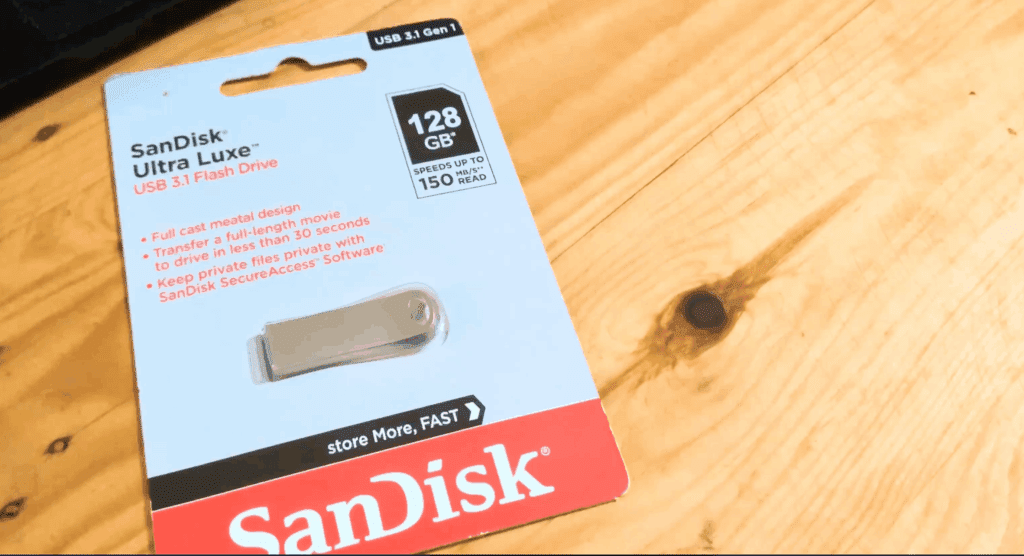
- At least 64 GB of storage is recommended.
- ISO files you want to boot.
A 32 GB drive can work, but you’ll run out of space quickly if you store multiple Windows and Linux ISOs.
Personally, I use a 128 GB USB drive, and it’s more than enough for Windows, Linux, and rescue tools.
Download and Install Ventoy
Go to the official Ventoy website and download the Windows version.
Extract the ZIP file and open: Ventoy2Disk.exe
Insert your USB drive and click Refresh if it doesn’t appear automatically.
Important: Installing Ventoy will erase everything on the USB drive. Back up your files first.
Choose MBR or GPT?
Before clicking Install, open the Options menu.
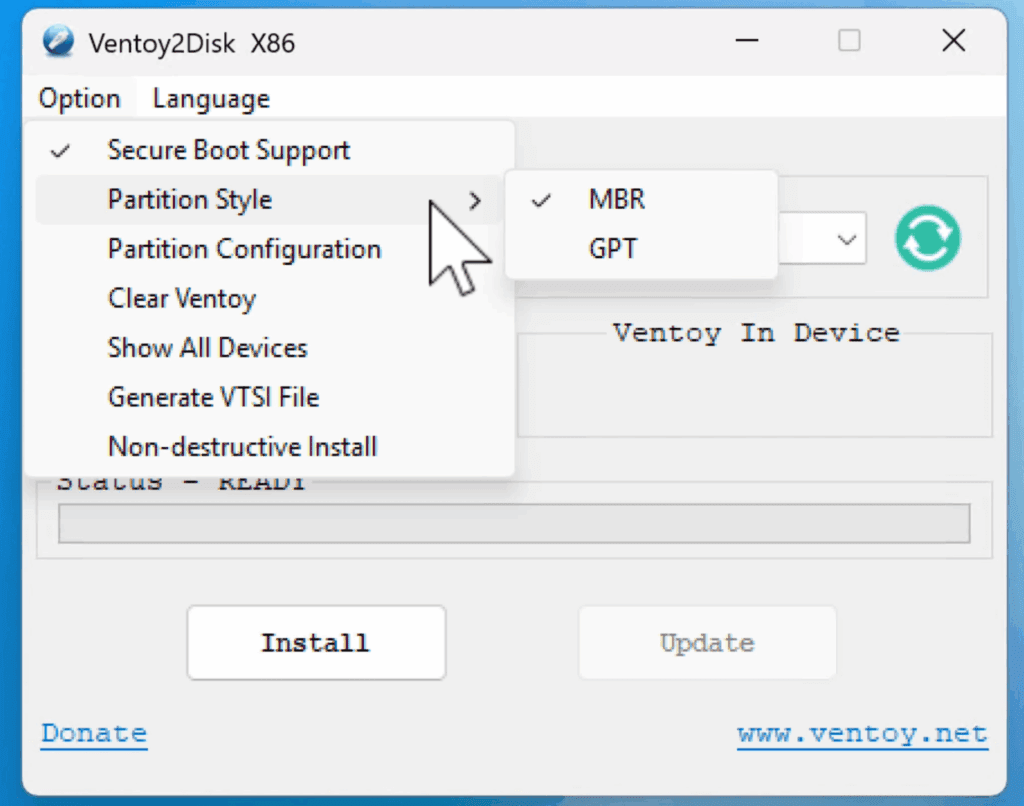
You have two partition styles:
MBR
Choose MBR if:
- You need compatibility with older BIOS systems.
- You also want it to work on modern UEFI PCs.
The downside is that Secure Boot support is limited.
GPT
Choose GPT if:
- You mostly use modern computers.
- You want Secure Boot compatibility.
- You have very large USB drives.
For most users today, GPT is the best choice.
Which File System Should You Use?
Ventoy supports:
- exFAT
- NTFS
- FAT32
- UDF
I recommend exFAT.
Why?
Because Windows ISO files are often larger than 4 GB, and FAT32 cannot store files larger than that.
exFAT offers:
- Excellent compatibility
- No file size limit
- Fast file transfers
Install Ventoy
Once your options are selected:
- Click Install.
- Confirm the warning messages.
- Wait a few seconds.
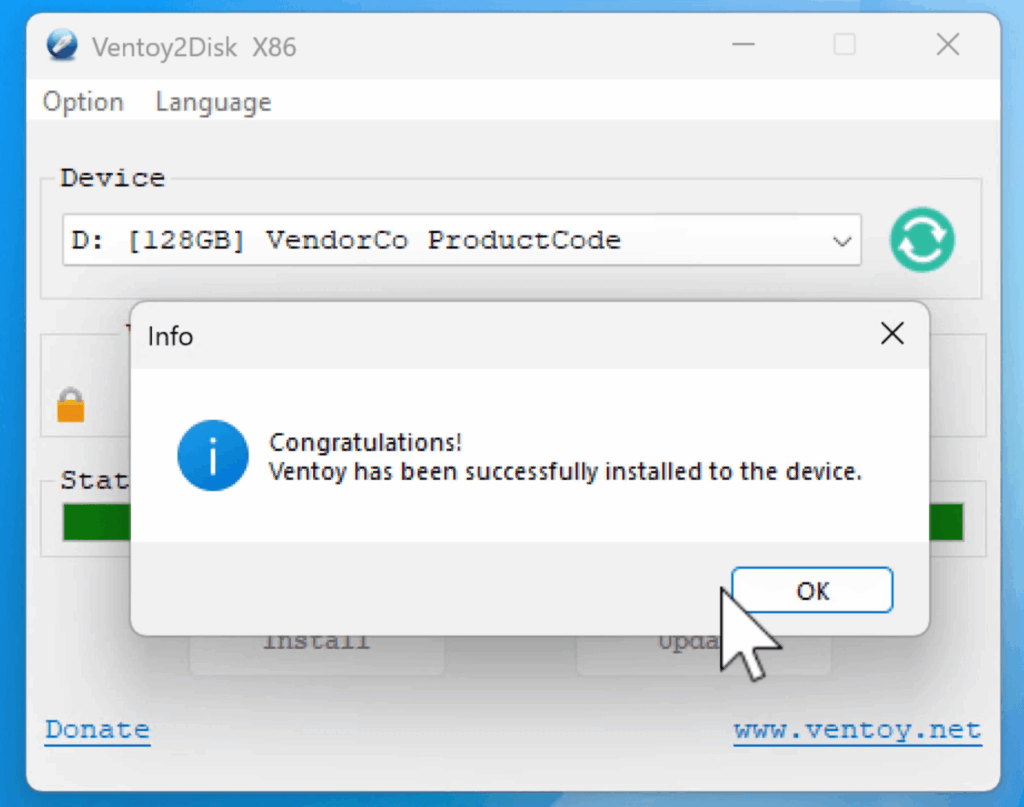
Ventoy will create two partitions:
- A small hidden boot partition.
- A large partition named Ventoy where you’ll store your files.
The installation usually takes less than a minute.
Add Your ISO Files
Open File Explorer.
You’ll see a partition named Ventoy.
Simply copy your ISO files onto it.
You can organize them however you want.
Ventoy scans folders automatically, so nested folders work perfectly.
You can also store:
- Drivers
- Documents
- Portable applications
- Installation files
Your USB behaves like a normal storage device.
Boot From Ventoy
Insert the USB drive into the target computer.
Open the boot menu:
- F12 on Dell
- F11 on HP
- F9 on ASUS
- Or the key specified by your manufacturer
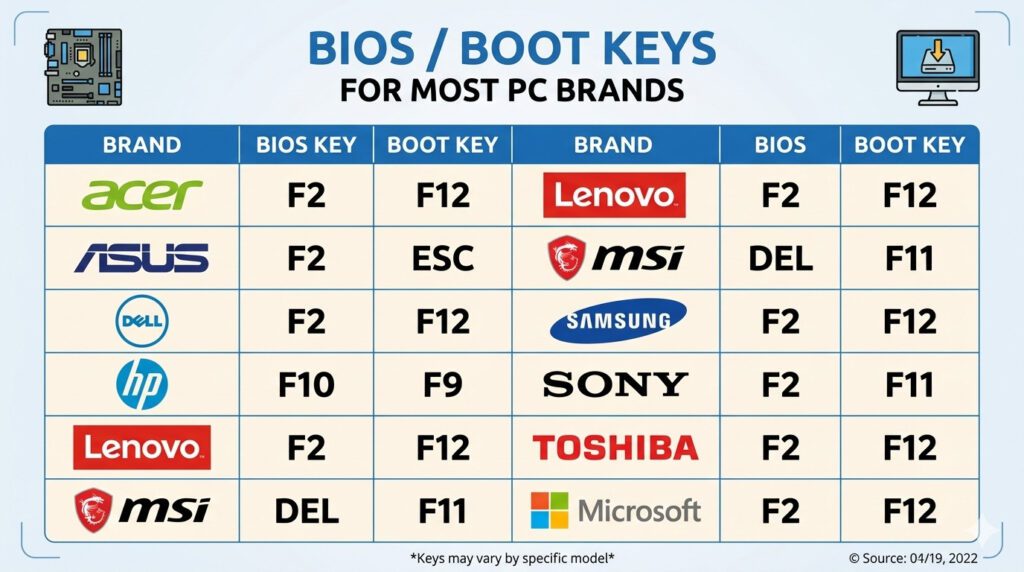
Select the Ventoy USB.
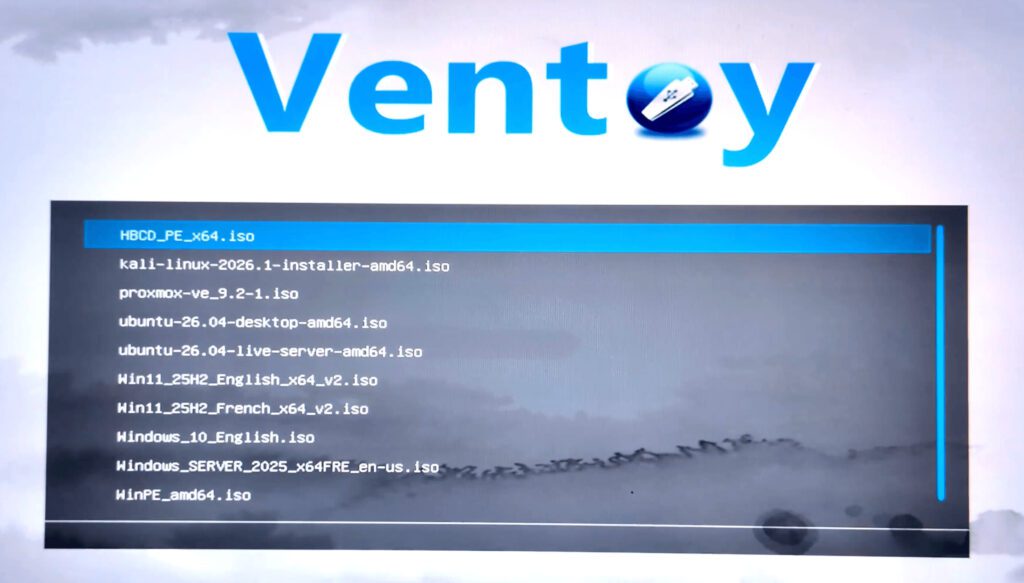
A menu will appear showing every ISO file stored on the drive.
Use the arrow keys to select one and press Enter.
Ventoy then boots the selected ISO exactly as if it had been written directly to the USB.
What About Secure Boot?
If Secure Boot is enabled, Ventoy may show a Security Violation message the first time you boot on a computer.
Don’t panic.
This only happens once per machine.
Simply follow the on-screen instructions to enroll the Ventoy key in the system’s MOK manager.
After rebooting, Ventoy will work normally on that PC without repeating the process.
Why I Use Ventoy
Ventoy replaced an entire drawer full of USB drives for me.
Instead of carrying:
- A Windows 11 installer
- Ubuntu
- Linux Mint
- Disk recovery tools
- Memory diagnostics
- Antivirus rescue disks
I carry one USB drive.
When I need a new tool, I just drag and drop the ISO file.
No formatting, No rewriting, No waiting.
See also: Windows 11 Installation Freezing? Rufus 4.15 Silent Mode Just Solved It
Final Thoughts
Ventoy is one of those rare tools that completely changes how you work.
Install it once, copy your ISO files, and your USB becomes a portable toolbox that can boot almost anything.
If you regularly install Windows, test Linux distributions, or troubleshoot computers, Ventoy is easily one of the most useful USB tools you can own.
After using it for a while, you’ll wonder why you ever kept multiple bootable USB drives in the first place.
Pingback: How to Reset a Forgotten Windows 10/11 Password Using a Bootable USB