
If you’ve ever tried installing Windows 11 on an unsupported PC, you’ve probably heard of Rufus.
The latest release, Rufus 4.15, brings an important fix: it solves the frustrating issue where silent Windows installations would freeze at 75%. It also introduces stronger safety warnings to help users avoid accidental data loss.
In this guide, I’ll show you what’s new in Rufus 4.15 and how to create a Windows 11 installation USB with hardware requirement bypass and silent installation enabled.
What’s New in Rufus 4.15?
Rufus 4.15 focuses mainly on stability and safety.
The most important improvements include:
- Fixed the bug causing silent Windows installations to freeze at 75%.
- Improved warnings and safety checks for silent installations.
- Added the ability to cancel USB write retries if errors occur.
- Fixed several other bugs and stability issues.
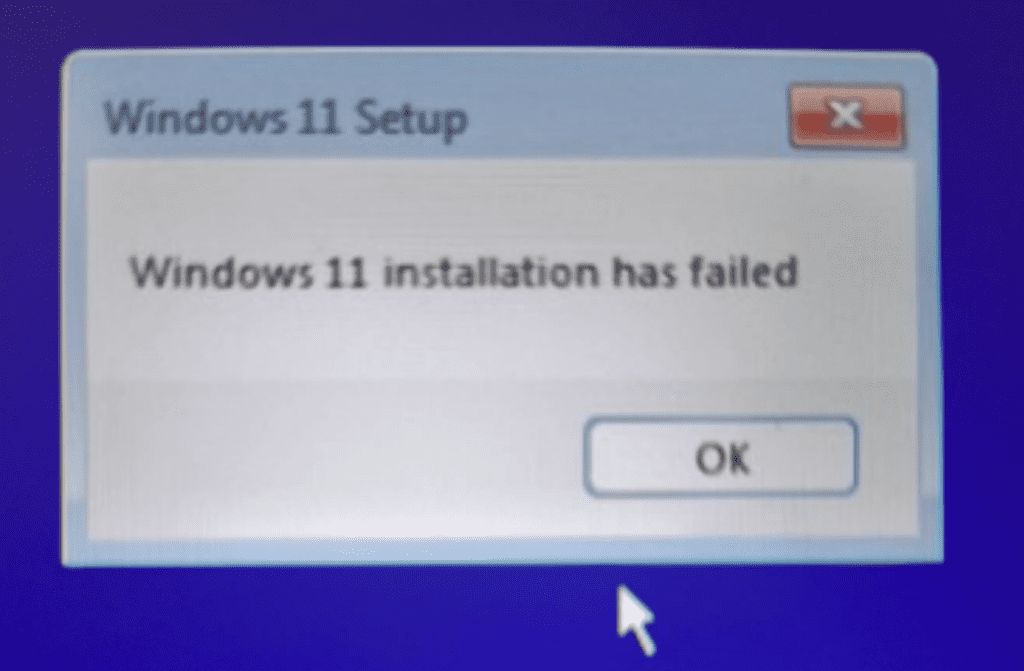
If you use the silent installation feature, this update is definitely worth trying.
Download Rufus 4.15
Visit the official Rufus website and download Rufus 4.15.
Rufus is portable, so there is nothing to install. Just download the executable file and double-click it.
You’ll also need:
- A USB drive with at least 8 GB of free space.
- An official Windows 11 ISO downloaded from Microsoft.
Important: Everything on the USB drive will be erased.
Create the Windows 11 USB
Open Rufus and follow these steps:
- Select your USB drive under Device.
- Click Select and choose your Windows 11 ISO.
- Leave the partition scheme set to GPT for modern UEFI PCs.
- Click Start.
Rufus will then open the Windows User Experience dialog.
Here, you can enable options such as:
- Remove TPM 2.0 requirement
- Remove Secure Boot requirement
- Remove RAM requirement
- Skip Microsoft account requirement
- Disable data collection questions
- Enable automatic local account creation
- Enable Silent Installation
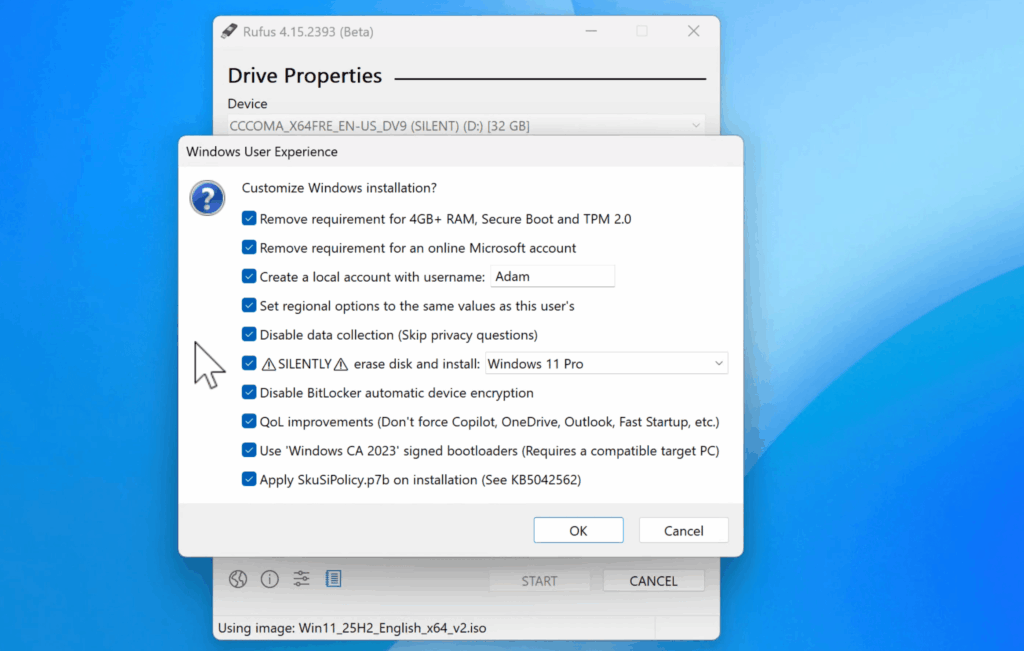
Select the options that fit your needs and click OK.
Rufus 4.15 Adds Better Protection for Silent Mode
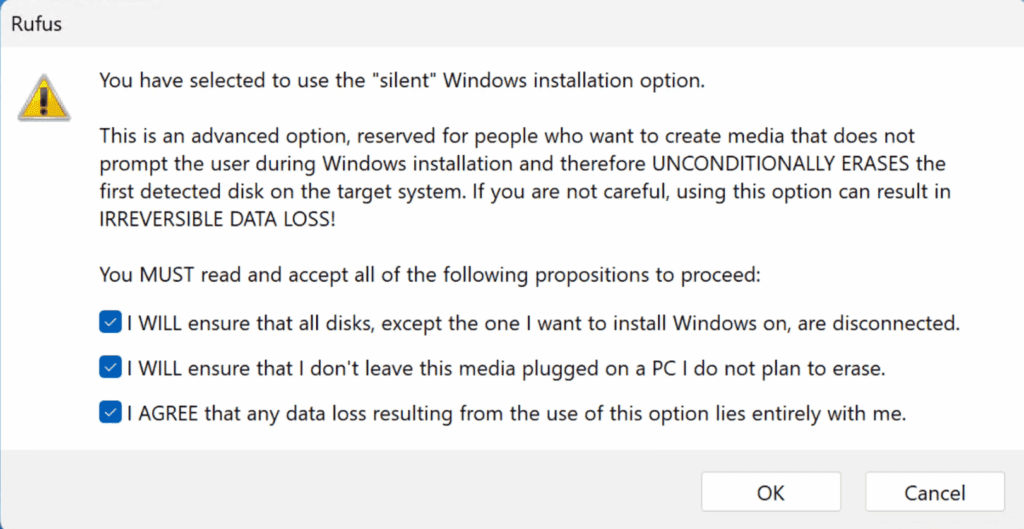
One of the biggest changes in Rufus 4.15 is the new warning screen for silent installations.
Instead of showing a simple Yes/No message, Rufus now requires you to acknowledge three separate warnings before continuing.
You must confirm that:
- All drives except the Windows installation drive are disconnected.
- You will not leave the USB plugged into another computer by mistake.
- You understand that silent installation may cause irreversible data loss if used incorrectly.
This is a welcome improvement.
Silent mode is extremely convenient because Windows installs automatically without asking questions, but it also means Windows can erase and partition disks automatically. Taking a few extra seconds to read the warnings is always worth it.
Start the Installation
Once Rufus finishes writing the USB, plug it into the target PC.
Restart the computer and open the Boot Menu. Select the USB drive.
If Silent Installation is enabled:
- Windows Setup starts automatically.
- The disk is prepared automatically according to the selected configuration.
- Files are copied without user interaction.
- The PC restarts several times.
- Regional settings, privacy options, and the local account are configured automatically.
There is no setup wizard to click through.
The installation simply runs by itself.
Did the 75% Freeze Get Fixed?
In my test, yes.
The installation passed the 75% mark without any issues and completed successfully.
This was one of the biggest problems in Rufus 4.14, so it’s great to see it fixed in this release.
After Installation
After Windows 11 finished installing, everything worked normally.
The only missing component was the Wi-Fi driver, which was not included in the offline installation.
This is normal on some laptops.
Connecting the PC to the internet using an Ethernet cable and running Windows Update usually installs the missing drivers automatically.
Another nice bonus: because this is a clean installation, there is no manufacturer bloatware installed.
You get:
- A clean Windows 11 installation
- No unwanted software
- No unnecessary startup apps
- Better overall system responsiveness
See also: How to Reset a Forgotten Windows 10/11 Password
Should You Use Rufus 4.15?
If you regularly install Windows or want to run Windows 11 on unsupported hardware, Rufus 4.15 is an excellent update.
The fix for the silent installation freeze alone makes upgrading worthwhile, and the improved warning system makes the feature safer to use.
Just remember:
- Double-check the target drive.
- Disconnect unnecessary disks.
- Read the warnings carefully before enabling Silent Mode.
Used correctly, Rufus remains one of the best tools for creating customized Windows installation media.
If you try Rufus 4.15 on your own hardware, I’d love to hear how it works for you.
Pingback: Ventoy: The Last Bootable USB Drive You'll Ever Need