
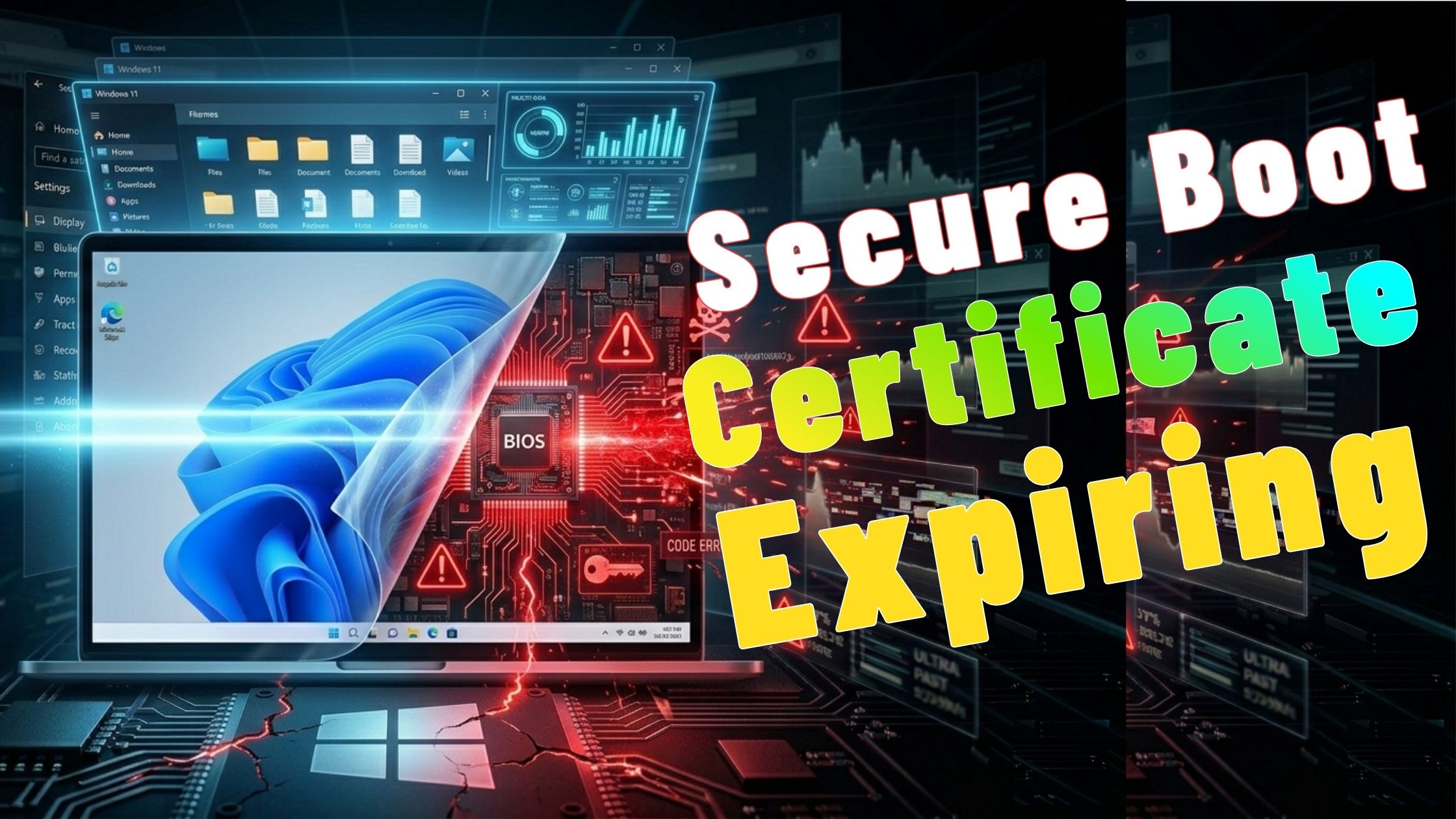
If your Windows PC is a few years old, there’s an important security update you should know about.
Microsoft’s Secure Boot certificate from 2011 officially expires in June 2026. If your system does not receive the newer 2023 certificate before then, your computer will slowly lose access to future boot-level security protections.
Your PC will still work normally, but over time it may become more vulnerable to advanced threats like bootkits and low-level malware.
The good news is that checking your system takes less than a minute — and fixing it is usually simple.
In this guide, I’ll show you:
- how Secure Boot works
- what happens when the certificate expires
- how to check whether your PC is protected
- how to manually update the certificate if needed
What Is Secure Boot?
Secure Boot is a security feature built into your computer’s BIOS or UEFI firmware.
Its job is to verify that everything loading during startup is digitally trusted before Windows begins booting.
Think of it like a security checkpoint at the very beginning of your PC startup process.
If something suspicious or unsigned tries to load before Windows starts, Secure Boot blocks it.
This helps protect against:
- bootkits
- ransomware loaders
- startup malware
- BitLocker bypass attacks
What Happens When the Certificate Expires?
The important thing to understand is this:
Your PC will not suddenly stop working in June 2026.
Normal Windows usage will continue working:
- Windows updates
- apps
- internet access
- gaming
- everyday tasks
However, your system will no longer receive newer Secure Boot trust updates and boot-level protections that rely on the newer 2023 certificate.
Over time, that becomes a growing security risk.
Microsoft also warns users not to disable Secure Boot as a workaround. Doing that removes significantly more protection than the certificate issue itself.
The correct solution is updating the certificate.
Which PCs Are Affected?
According to Microsoft, most computers built before 2024 still use the older: Microsoft Corporation UEFI CA 2011 certificate.
Most systems should receive the newer 2023 certificate automatically through Windows Update.
But some systems may require:
- manual update commands
- BIOS/firmware updates from the manufacturer
- additional Windows updates
If your PC is more than two years old, it’s worth checking.
How to Check Your Secure Boot Certificate
First, open PowerShell as administrator:
- Right-click the Windows Start button
- Click: Terminal (Admin)
- Then run this command:
[System.Text.Encoding]::ASCII.GetString((Get-SecureBootUEFI db).bytes) -match 'Windows UEFI CA 2023'
Press Enter.
Understanding the Result
If the Result Is TRUE
If PowerShell returns: True
your PC already has the 2023 Secure Boot certificate installed.
You are protected and no further action is needed.
If the Result Is FALSE
If PowerShell returns: False
your system still uses the older 2011 certificate and should be updated.
Don’t panic, the fix is straightforward.
If You Get an Error
If the command fails or says Secure Boot is disabled, check your BIOS/UEFI settings first.
Secure Boot must be enabled before this certificate system can work properly.
How to Manually Trigger the Secure Boot Update
If your result was FALSE, keep PowerShell open as administrator and run these two commands.
Command 1 : Set the Update Flag
reg add HKEY_LOCAL_MACHINE\SYSTEM\CurrentControlSet\Control\Secureboot /v AvailableUpdates /t REG_DWORD /d 0x5944 /f
This tells Windows that the Secure Boot certificate update should be applied.
You should see: The operation completed successfully.
Command 2 :Trigger the Update Task
Start-ScheduledTask -TaskName "\Microsoft\Windows\PI\Secure-Boot-Update"
This manually starts the Windows task responsible for applying Secure Boot updates.
Restart Your PC
After running both commands:
Restart your computer.
The Secure Boot update process happens during reboot.
Important: Check Windows Update After Restarting
After rebooting:
- Open: Settings → Windows Update
- Install any pending updates
- Restart again if required
This step is important because the Secure Boot update integrates with Windows Update.
Verify the Update Worked
Once all updates are installed and the PC has restarted fully, run the verification command again:
[System.Text.Encoding]::ASCII.GetString((Get-SecureBootUEFI db).bytes) -match 'Windows UEFI CA 2023'
If everything worked correctly, the result should now be: True
What If It Still Shows FALSE?
If the command still returns FALSE after:
- running both commands
- restarting
- installing all Windows updates
then your PC may require a BIOS or firmware update from your manufacturer.
Check the support page for your:
- motherboard manufacturer
- laptop brand
- PC vendor
Some older systems require firmware-level updates before the 2023 certificate can be installed.
See also: Permanently Remove Copilot from Windows 11
Final Thoughts
This is not an emergency situation, but it is something Windows users should address before June 2026.
The entire process usually takes less than 10 minutes:
- Check your certificate status
- Run the update commands if needed
- Restart
- Install Windows updates
- Verify again
Doing it now gives you plenty of time to troubleshoot if your specific hardware requires additional firmware updates later.
Keeping Secure Boot fully updated helps ensure your system continues receiving future boot-level protections against modern threats.

Pingback: Secure Boot 2023: Which Windows PCs Might Miss the Update?