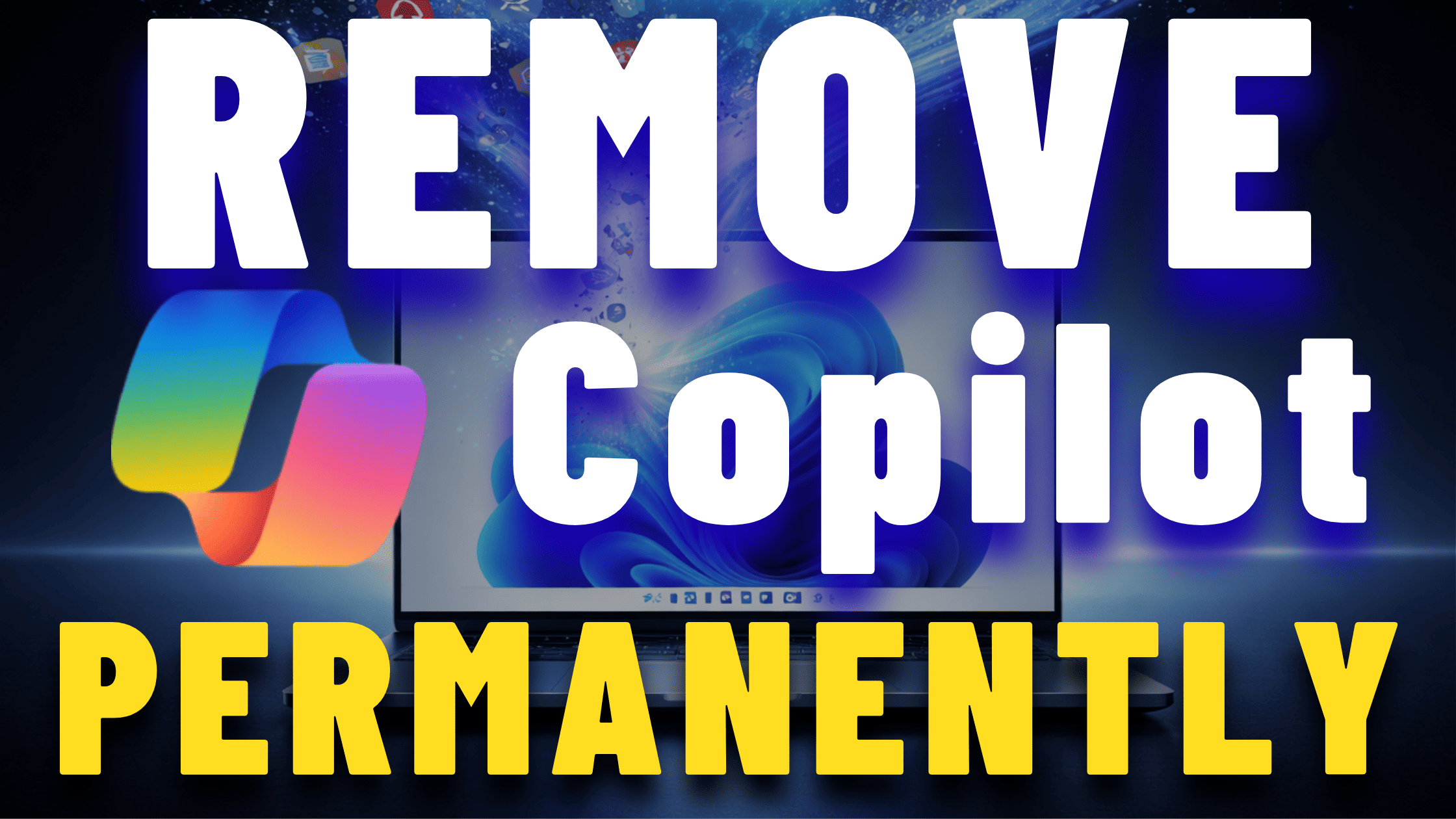
For a long time, removing Microsoft Copilot from Windows 11 felt impossible. You could hide the icon, disable a few settings, or uninstall temporary components, but Copilot usually came back after updates.
Now, Microsoft has finally introduced an official way to permanently remove Copilot from Windows 11. Even better, the new policy can stop Windows from reinstalling it automatically in the future.
In this guide, I’ll show you 3 different methods to remove Copilot from Windows 11. Some methods work only on certain editions, while others work on every version of Windows 11.
Method 1: Remove Copilot Using Group Policy (Pro, Enterprise, Education)
This is the official Microsoft method and works on:
- Windows 11 Pro
- Windows 11 Enterprise
- Windows 11 Education
Unfortunately, Windows 11 Home does not include Group Policy Editor, so if you’re using Home edition, skip to Method 2 or 3.
Steps
- Press Windows + R
- Type: gpedit.msc
- Press Enter
Once Group Policy Editor opens, navigate to:
Local Computer Policy
→ User Configuration
→ Administrative Templates
→ Windows Components
→ Windows AIInside the Windows AI section, look for: Remove Microsoft Copilot app
Double-click it.
A new window will appear explaining that this policy can uninstall Copilot and prevent it from returning automatically.
Enable the Policy
- Select Enabled
- Click Apply
- Click OK
Now restart your computer.
After rebooting, Copilot should be removed from your system. In some cases, the app may still appear inside Installed Apps, but it will now be removable manually from:
Settings → Apps → Installed AppsMethod 2: Remove Copilot Using Registry Editor (All Windows 11 Editions)
This method works on every version of Windows 11, including Home edition.
It does exactly the same thing as the Group Policy method, but manually through the Windows Registry.
Steps
- Press Windows + R
- Type: regedit
- Press Enter
- Click Yes when prompted
Navigate to this path:
HKEY_CURRENT_USER\Software\Policies\Microsoft\WindowsCreate the Windows AI Key
Under the Windows key, check if a folder named: Windows AI
already exists.
- If it exists, click it.
- If not:
- Right-click the Windows key
- Select New → Key
- Name it exactly: Windows AI
Make sure the capitalization matches exactly.
Create the Copilot Removal Value
- Click the Windows AI key
- In the right panel, right-click empty space
- Select: New → DWORD (32-bit) Value
- Name the value: RemoveMicrosoftCopilotApp
- Double-click the new value and set, Value data: 1
Click OK and restart your PC.
After rebooting, Copilot should be removed or become removable through the Installed Apps section.
Method 3: Remove Copilot Instantly with PowerShell
If you want the fastest method, PowerShell is the easiest option.
This works on all Windows 11 editions and removes Copilot immediately.
Steps
- Right-click the Start menu
- Open: Terminal (Admin)
- Paste this command:
Get-AppxPackage -AllUsers -Name "Microsoft.Windows.Ai.Copilot.Provider" | Remove-AppxPackage- Press Enter
PowerShell will instantly remove the Copilot package from all user accounts on the computer.
The process usually completes within a few seconds.
See also: Run these 7 commands when your Internet connection stops working
Important Difference Between the Methods
There’s one important thing to know.
The PowerShell method removes Copilot immediately, but it does not stop future Windows updates from reinstalling it.
The Group Policy and Registry methods are different because they create a policy that tells Windows not to reinstall Copilot automatically.
That means the best solution is:
- Run the PowerShell command first for immediate removal
- Then apply the Registry or Group Policy method for long-term protection
This gives you both:
- instant removal
- protection against future reinstallation
Final Thoughts
Microsoft finally gives users real control over Copilot in Windows 11. Instead of simply hiding the feature, you can now completely remove it and even prevent it from returning after updates.
Whether you prefer Group Policy, Registry Editor, or PowerShell, there’s now a method available for every Windows 11 edition.
If Copilot was taking up space or you simply prefer a cleaner Windows experience, these methods finally make permanent removal possible.

Pingback: Run These 7 Commands When Your Internet Stops Working (Complete Windows Network Reset) - Tips 4 IT
Pingback: How to Restore the Full Right-Click Menu in Windows 11 (Classic Context Menu)
Pingback: How to Create a Windows 11 Recovery Drive (And Use It When Windows Won't Boot)