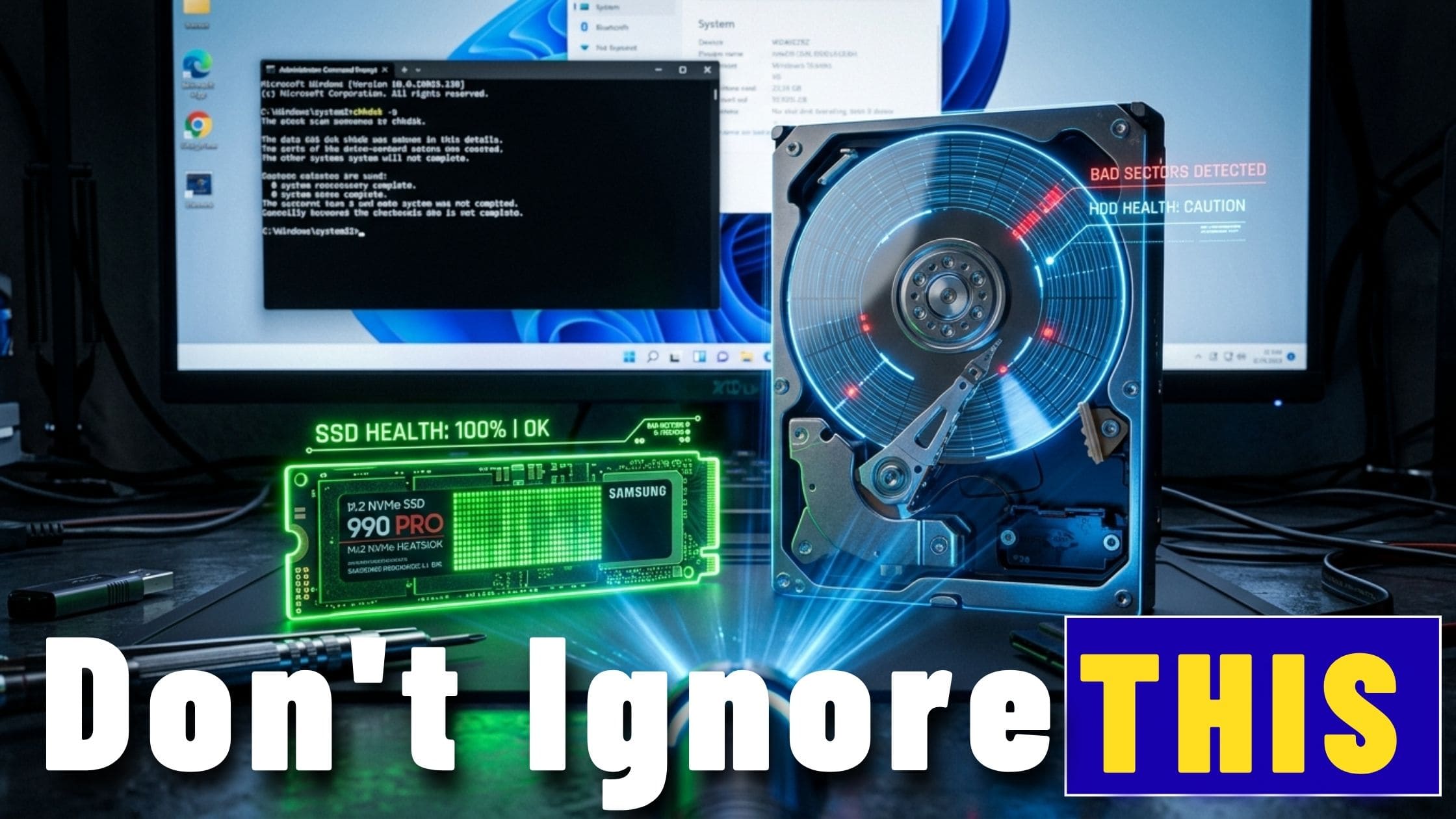
A slow PC doesn’t always mean Windows needs to be reinstalled.
If your computer suddenly takes longer to boot, applications freeze, or files open more slowly than usual, your storage drive could be the real problem.
Fortunately, Windows includes built-in tools that allow you to check the health of your hard drive or SSD in just a few seconds, without the need to install any third-party software.
In this guide, you’ll learn how to check your drive’s health using a simple Command Prompt command, what the results mean, and the modern PowerShell alternative Microsoft recommends for newer versions of Windows.
Why You Should Check Your Drive’s Health
Hard drives and SSDs don’t usually fail without warning.
Before a drive completely stops working, it often shows signs such as:
- Slower-than-normal performance
- Files taking longer to open
- Random freezes or system hangs
- Frequent disk errors
- Unexpected crashes
Most modern storage devices support S.M.A.R.T. (Self-Monitoring, Analysis, and Reporting Technology), a built-in monitoring system that tracks the drive’s health and can detect signs of impending failure.
Windows can read this information using built-in commands.
Method 1: Check Drive Health with Command Prompt
The quickest way to check your storage drive is with a single Command Prompt command.
Step 1: Open Command Prompt as Administrator
- Open the Start menu.
- Search for Command Prompt.
- Right-click Command Prompt and select Run as administrator.
- Click Yes if prompted by User Account Control.
Administrator privileges ensure Windows can access the drive’s health information without permission issues.
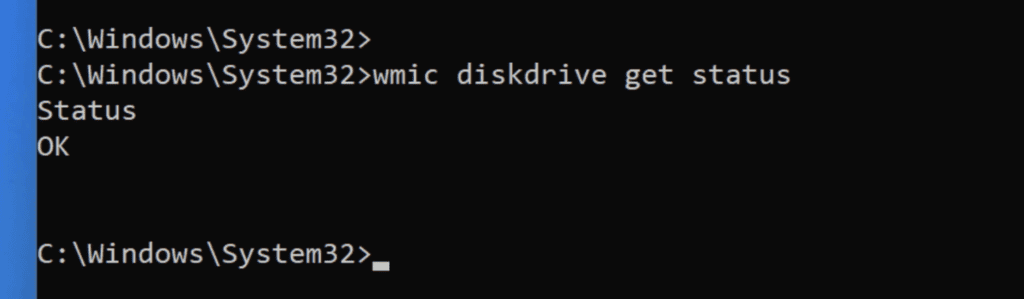
Step 2: Run the Command
Type the following command and press Enter:
wmic diskdrive get statusWindows will query the S.M.A.R.T. data for each connected storage device and display a simple health status.
Understanding the Results
The command typically returns one of three values.
OK
This is the result you want to see.
It means the drive’s S.M.A.R.T. data isn’t reporting any known hardware problems.
While it doesn’t guarantee the drive will never fail, it indicates that all monitored attributes are currently within acceptable limits.
Pred Fail
This stands for Predictive Failure.
One or more S.M.A.R.T. values have exceeded their warning threshold, suggesting the drive may fail soon.
If you see this result:
- Back up your important files immediately.
- Avoid storing new data on the drive.
- Plan to replace it as soon as possible.
Don’t ignore this warning, many drives that report “Pred Fail” eventually stop working completely.
Unknown
An Unknown status means Windows couldn’t retrieve the drive’s S.M.A.R.T. information.
This is common with:
- External USB drives
- Older storage controllers
- Some RAID configurations
In these cases, you’ll need to use the drive manufacturer’s diagnostic software or a third-party utility for more detailed information.
See also: Convert MBR to GPT Without Data Loss
What If the WMIC Command Doesn’t Work?
If you’re using a recent version of Windows 11, you may receive an error similar to:

That’s because Microsoft removed WMIC from many newer Windows installations.
Fortunately, you have two options.
Option 1: Install WMIC
You can reinstall it as an optional Windows feature.
- Open Settings.
- Go to System > Optional Features.
- Click View features next to Add an optional feature.
- Search for WMIC.
- Select it and click Install.
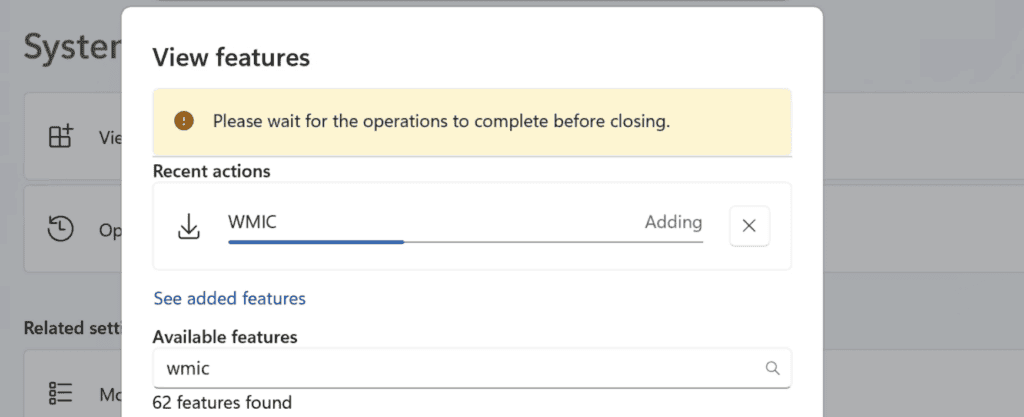
Once the installation finishes, the original command will work again.
Method 2: Use PowerShell (Recommended)
Microsoft now recommends using PowerShell instead of WMIC.
It provides more detailed information and is actively maintained.
Step 1: Open PowerShell as Administrator
Search for PowerShell, right-click it, and choose Run as administrator.
Step 2: Run the Command
Get-PhysicalDisk | Select FriendlyName, HealthStatus, OperationalStatusYou’ll see information similar to this:
| Drive | Health Status | Operational Status |
|---|---|---|
| NVMe Samsung 1024GB | Healthy | OK |
| WD Blue HDD | Healthy | OK |
What the PowerShell Results Mean
HealthStatus
This indicates the overall health of the drive.
Possible values include:
- Healthy
- Warning
- Unhealthy
OperationalStatus
This describes whether Windows considers the drive operational.
An OK status means everything is functioning normally.
Any other result should be investigated further.
What to Do If Your Drive Shows a Warning
If your drive reports Warning, Pred Fail, or Unhealthy, don’t wait.
Take these steps immediately.
1. Back Up Your Data
Copy your important files to:
- Another internal drive
- An external hard drive
- Cloud storage
Never assume the drive will continue working.
2. Replace the Drive
A failing drive rarely repairs itself.
Once hardware problems begin appearing, replacement is usually the safest option.
3. Run More Detailed Diagnostics
The built-in Windows commands only provide a basic health check.
For a complete analysis, including temperature, total power-on hours, reallocated sectors, and SSD wear level, you’ll need a dedicated S.M.A.R.T. monitoring tool.
Utilities such as CrystalDiskInfo can display far more detailed health information and often detect issues long before Windows reports a failure.
How Often Should You Check Your Drive?
For most home users, checking your storage health every few months is enough.
If your computer stores important work, family photos, or business data, consider installing a monitoring tool that automatically alerts you when your drive’s health changes.
Detecting a failing drive early is much easier and far less stressful than recovering data after it stops working.
Final Thoughts
Checking your hard drive or SSD health takes less than two minutes and requires nothing more than a built-in Windows command.
If you’re using an older version of Windows, the WMIC command still provides a quick snapshot of your drive’s condition.
On newer versions of Windows 11, PowerShell is Microsoft’s preferred method and offers a more modern way to monitor storage devices.
Whichever method you choose, making drive health checks part of your regular PC maintenance can help you spot potential problems before they turn into data loss.