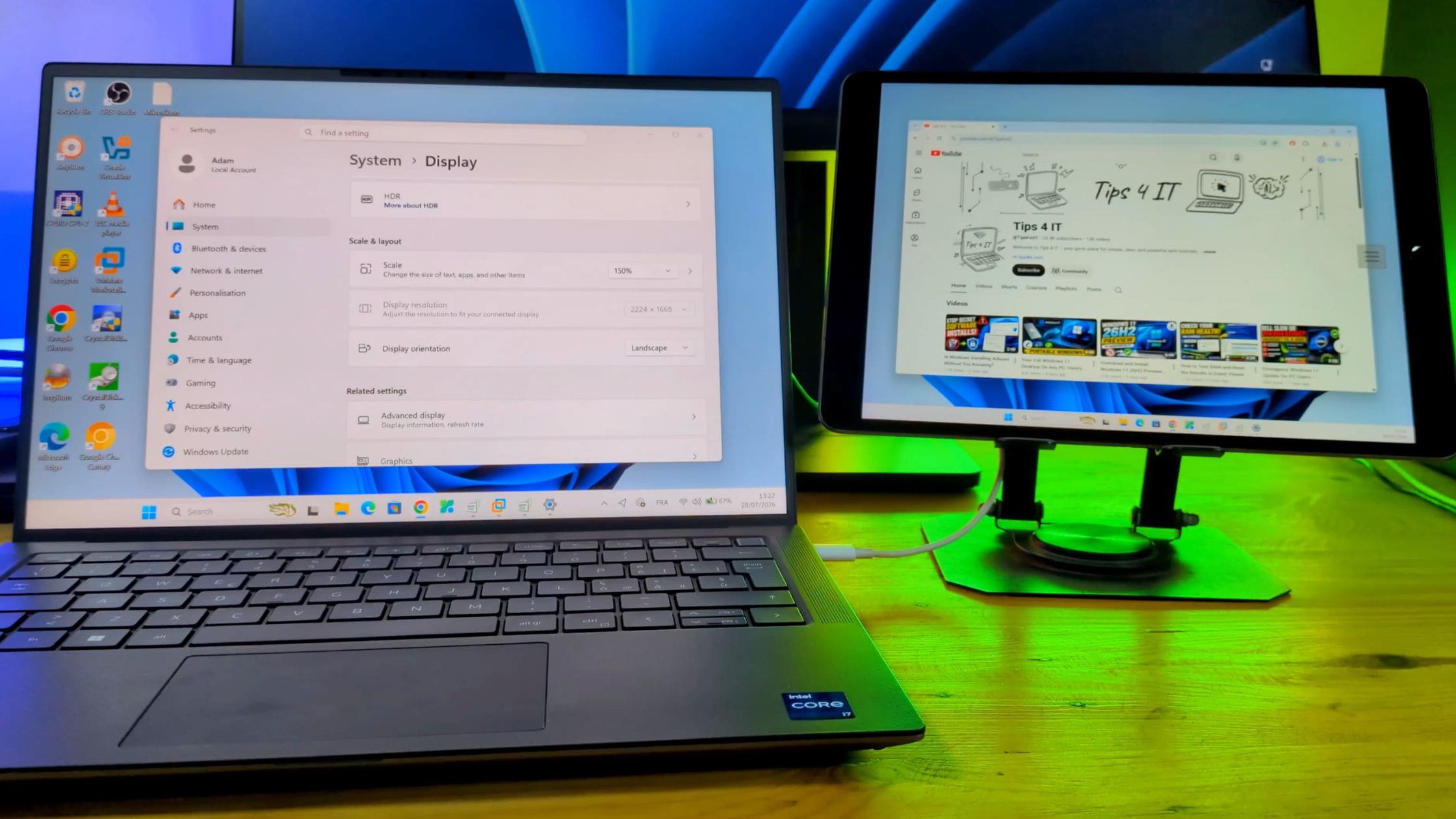
Having a second monitor can dramatically improve productivity.
You can keep your main screen focused on your work while using the second display for:
- Chat applications
- Documentation
- Music players
- Monitoring tools
- Video tutorials
- Reference materials
But buying another monitor is not always convenient.
What if you could use the device you already have sitting on your desk?
Your Android phone, iPhone, iPad, or tablet can become a fully functional second monitor for your Windows PC using a free application called Spacedesk.
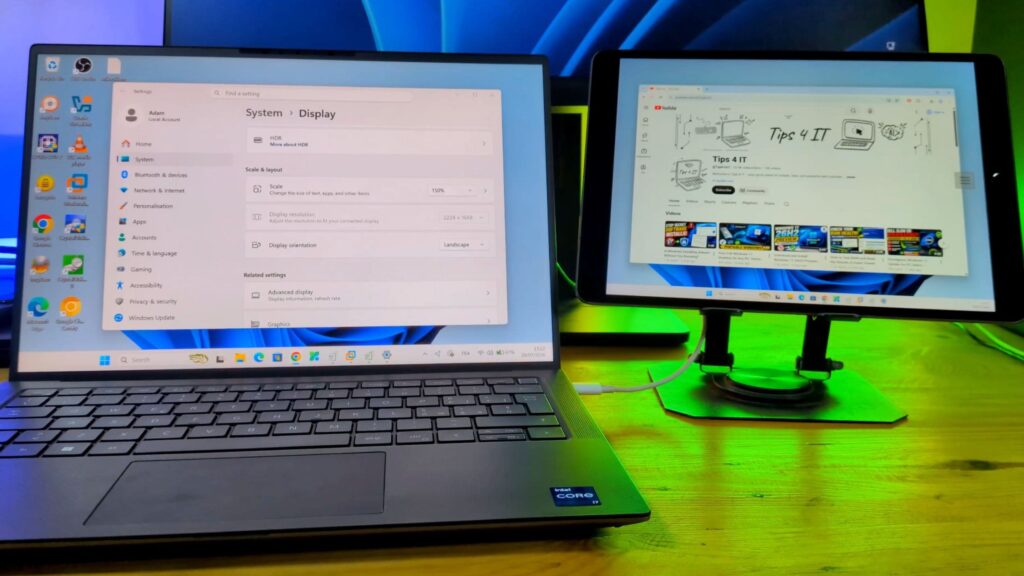
Once configured, your mobile device appears inside Windows Display Settings as a normal secondary display. You can move your mouse between screens, drag applications, and use it exactly like a physical monitor.
In this guide, you’ll learn how to set up Spacedesk using:
- Wireless WiFi connection
- USB cable connection for better stability and lower latency
What You Need
Before starting, make sure you have:
- A Windows 10 or Windows 11 PC
- An Android phone, iPhone, iPad, or tablet
- A WiFi network (for wireless mode)
- A USB cable (for wired mode)
- The Spacedesk application
For the best experience, connect both devices to the same local network.
What Is Spacedesk?
Spacedesk is a free software solution that allows you to use another device as an additional display for your Windows computer.
It works by installing:
- A driver on your Windows PC
- A viewer application on your mobile device
After installation, Windows detects your phone or tablet as an additional monitor.
The setup does not require:
- Additional hardware
- HDMI adapters
- Capture cards
- Paid software
Install Spacedesk on Your Windows PC
First, install the Spacedesk driver on your computer.
Download the Windows Driver
Open your browser and go to the official Spacedesk website.
Download the Windows driver matching your version of Windows.
Run the installer.
Accept the license agreement and continue with the installation.
Allow Spacedesk Through Windows Firewall
During installation, Windows may ask for firewall permission.
This step is important.
Spacedesk communicates through your local network, so Windows Firewall must allow the connection.
Allow Spacedesk access on:
- Private networks
- Public networks (if needed)
For a home network, enabling private network access is usually sufficient.
After installation:
- Spacedesk runs as a background service
- It starts automatically with Windows
- No additional configuration is required
Configure Spacedesk on Your PC
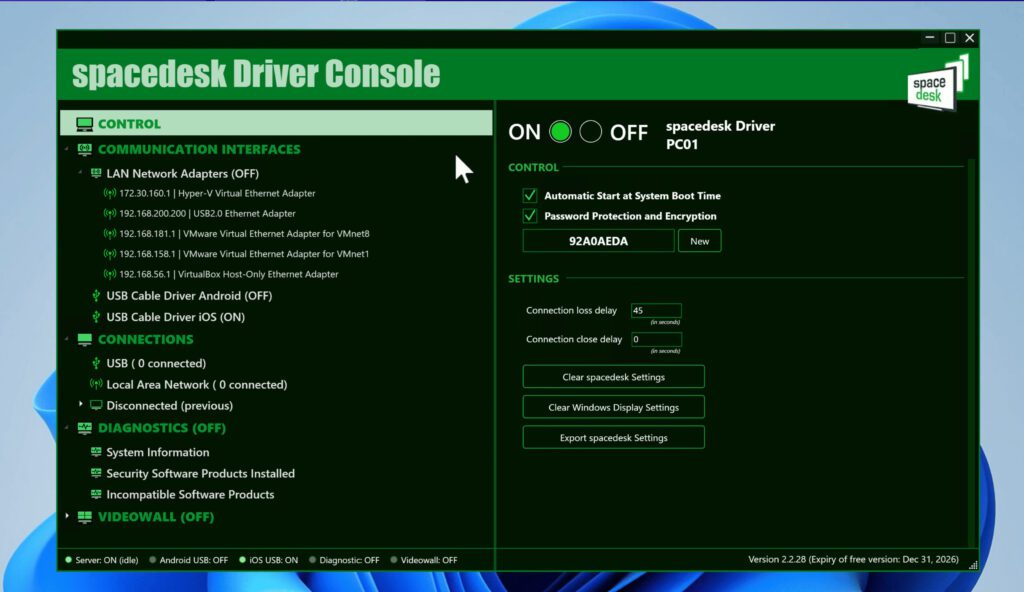
Open the Spacedesk driver console.
You can find it:
- In the Windows Start menu
- In the system tray
You can optionally configure a password.
A password is recommended if multiple people use the same network.
This prevents unauthorized devices from connecting to your PC.
Install Spacedesk on Your Phone or Tablet
Now install the viewer application on your mobile device.
Open your phone’s app store:
- Google Play Store for Android
- Apple App Store for iPhone and iPad
- Amazon Appstore for compatible devices
Search for: Spacedesk Viewer
Download and install the official application.
Open the app after installation.
Method 1: Connect Your Phone as a Second Monitor Using WiFi
Wireless mode is the easiest setup.
Step 1: Connect Both Devices to the Same Network
Your:
- Windows PC
- Phone
- Tablet
- iPad
must be connected to the same WiFi network.
Step 2: Connect from the Spacedesk App
Open Spacedesk Viewer on your phone.
The application automatically scans your network.
Your PC should appear with:
- Computer name
- IP address
Tap your computer name.
The connection starts automatically.
Within a few seconds, your phone screen becomes an extended Windows display.
You will see:
- Your Windows desktop background
- A mouse cursor moving onto the phone screen
- A fully interactive second display
Your phone is now acting as a real monitor.
Configure the Second Display in Windows
After connecting, adjust the display settings.
Right-click your Windows desktop.
Select:
Display Settings
Windows should show your phone as another display.
Usually:
- Display 1 = Main monitor
- Display 2 = Phone/tablet
Enable Extended Display Mode
Under:
Multiple displays
Select: Extend these displays
This creates a true dual-monitor setup.
You can now move applications between screens.
Adjust the Resolution
Your phone may initially display an incorrect resolution.
To fix it:
- Click the phone display inside Display Settings.
- Find:
Display resolution
- Select your phone’s native resolution.
- Apply the changes.
The image should now fit correctly across the entire screen.
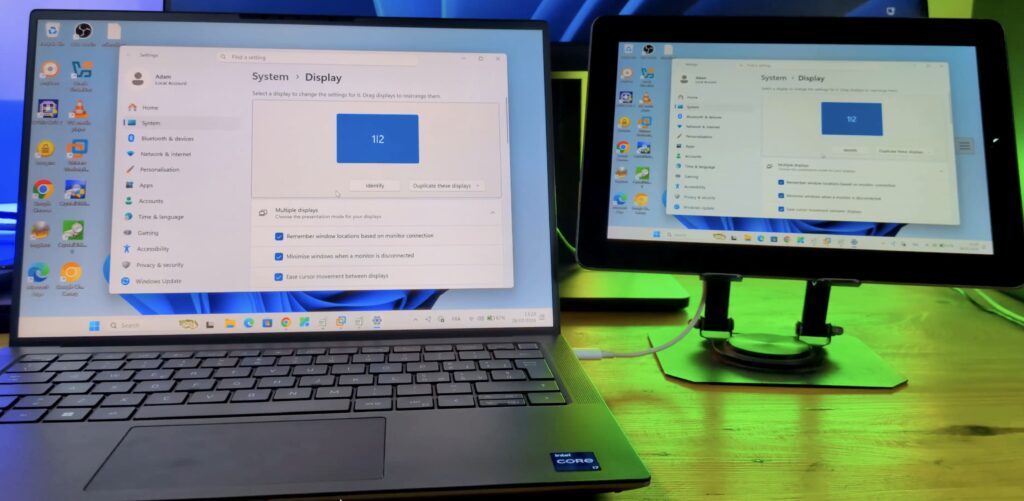
How to Use Your Phone as a Second Screen
Once everything is configured:
Move your mouse toward the edge of your main monitor.
The cursor will move onto your phone screen.
You can now drag any application onto your mobile display.
Examples:
Keep Communication Apps Visible
Move:
- Discord
- Microsoft Teams
- WhatsApp Web
to your phone screen.
Use It as a Reference Display
Keep:
- Documentation
- Tutorials
- Manuals
- Notes
on the second screen while working.
Use It as a Media Display
Move:
- YouTube videos
- Music players
- Monitoring dashboards
to your phone.
Your PC and phone now work together as one large extended desktop.
Method 2: Use USB Cable for Better Performance
Although WiFi works well, some users may experience:
- Network delays
- Image compression
- Occasional lag
For a more stable connection, Spacedesk also supports USB connections.
USB mode is useful when:
- Your WiFi network is congested
- You need lower latency
- You use the second display for interactive tasks
See also: How to Use Your Laptop as a Monitor for Any PC
Connect Spacedesk Using USB
Step 1: Connect Your Phone
Connect your phone or tablet to your PC using a USB cable.
If prompted:
Allow USB debugging?
Approve the request.
Step 2: Enable USB Connection in Spacedesk
On Windows:
- Open the Spacedesk driver console.
- Locate the connection settings.
- Enable:
USB Cable Connection
Step 3: Connect Through the Mobile App
Open Spacedesk Viewer.
The USB connection should appear alongside the network connection.
Select the USB connection.
The display will now run through the cable instead of WiFi.
This provides:
- Lower latency
- More stable performance
- Reduced network dependency
Common Problems and Solutions
Spacedesk Cannot Find My PC
Check:
- Both devices are connected to the same network
- Windows Firewall allows Spacedesk
- The Spacedesk service is running
The Display Is Lagging
Try:
- Using USB instead of WiFi
- Moving closer to the router
- Using a less congested WiFi network
- Lowering the display resolution
The Screen Is Black
Try:
- Restarting Spacedesk
- Reconnecting the mobile app
- Updating the Windows driver
Frequently Asked Questions
Can I use an iPhone as a second monitor?
Yes.
Spacedesk supports iPhone and iPad through the official viewer application.
Does this work with Windows 11?
Yes.
Spacedesk works with Windows 10 and Windows 11.
Is Spacedesk free?
Yes.
The basic version allows you to use your phone or tablet as an additional display.
Can I use multiple phones or tablets?
Yes.
Depending on your PC hardware and network performance, multiple additional displays may be possible.
Does USB work better than WiFi?
Usually yes.
USB provides a more stable connection with lower latency because it avoids wireless interference.
Final Thoughts
You don’t need to buy another monitor to get a dual-screen setup.
With Spacedesk, your existing phone, tablet, or iPad can become a useful second display in just a few minutes.
Whether you need extra space for productivity, monitoring tools, communication apps, or reference materials, a portable second screen can make your workflow much more efficient.
For the best experience, use an external tablet or phone connected through USB, especially for tasks requiring smooth performance.
Your old device sitting in a drawer could become a valuable productivity tool.