Windows 11 includes one of the strongest built-in security platforms Microsoft has ever released. Features like Microsoft Defender, BitLocker, Secure Boot, and virtualization-based security provide excellent protection right out of the box.
However, many of the operating system’s most effective security and privacy features are either disabled by default or configured for convenience rather than maximum protection.
The good news is that you don’t need to install antivirus software, privacy scripts, or registry “tweaks” downloaded from the internet.
Everything you need is already built into Windows.
In this guide, we’ll show you how to harden Windows 11 using native tools, including Windows Security, Settings, Group Policy, PowerShell, and the Registry Editor.
Why Harden Windows 11?
Windows 11 is secure enough for most users, but Microsoft’s default configuration balances security, usability, and cloud integration.
That means several optional protections are left disabled to reduce compatibility issues or simplify the user experience.
If you store sensitive documents, work remotely, or simply want better privacy, enabling these features can significantly reduce your attack surface without installing additional software.
1. Enable Microsoft Defender Attack Surface Reduction (ASR) Rules
One of Windows Defender’s most powerful enterprise security features is Attack Surface Reduction (ASR).
These rules proactively block common malware techniques before malicious software can execute.
Among the most useful rules are those that:
- Prevent credential theft from the LSASS process.
- Block Office applications from launching executable malware.
- Stop JavaScript and VBScript from downloading malicious payloads.
- Prevent vulnerable signed drivers from being abused to gain elevated privileges.
To enable them, open PowerShell as Administrator and run the following commands.
Block Credential Theft from LSASS
This rule prevents malicious tools, such as Mimikatz, from reading credentials stored in Windows memory :
Add-MpPreference -AttackSurfaceReductionRules_Ids 9e6c4e1f-7d60-472f-ba1a-a39ef669e4b0 -AttackSurfaceReductionRules_Actions EnabledBlock Office Applications from Creating Executable Files
This helps stop malicious Office documents from dropping malware onto your PC :
Add-MpPreference -AttackSurfaceReductionRules_Ids 3b576869-a4ec-4529-8536-b80a7769e899 -AttackSurfaceReductionRules_Actions EnabledBlock JavaScript and VBScript from Launching Downloaded Files
This rule blocks script-based attacks commonly delivered through email or compromised websites :
Add-MpPreference -AttackSurfaceReductionRules_Ids d3e037e1-3eb8-44c8-a917-57927947596d -AttackSurfaceReductionRules_Actions EnabledBlock Vulnerable Signed Drivers
Attackers sometimes abuse legitimate but vulnerable drivers to bypass Windows security. This rule prevents that technique :
Add-MpPreference -AttackSurfaceReductionRules_Ids 56a863a9-875e-4185-98a7-b882c64b5ce5 -AttackSurfaceReductionRules_Actions EnabledVerify That the Rules Are Enabled
Run the following command to display all configured ASR rules:
Get-MpPreference | Select-Object AttackSurfaceReductionRules_Ids,AttackSurfaceReductionRules_Actions2. Hide Sensitive Information on the Lock Screen
Your computer may be locked, but the lock screen can still reveal more information than many users realize.
Calendar events, weather information, notifications, and application alerts can often be viewed without signing in.
For better privacy:
- Disable lock screen notifications.
- Remove widgets and lock screen status information.
- Prevent applications from displaying sensitive content before authentication.
Although these changes won’t stop an attacker from accessing your computer, they reduce the amount of information visible to anyone standing in front of it.
3. Enable Memory Integrity (HVCI)
Another powerful feature built into Windows 11 is Memory Integrity, also known as Hypervisor-Protected Code Integrity (HVCI).
Instead of allowing Windows to verify kernel code directly, HVCI uses hardware virtualization to isolate those security checks inside a protected hypervisor.
This makes it much more difficult for malware to inject malicious code into the Windows kernel, even if it gains administrator privileges.
You can enable Memory Integrity from:
Settings → Privacy & Security → Windows Security → Device Security → Core Isolation
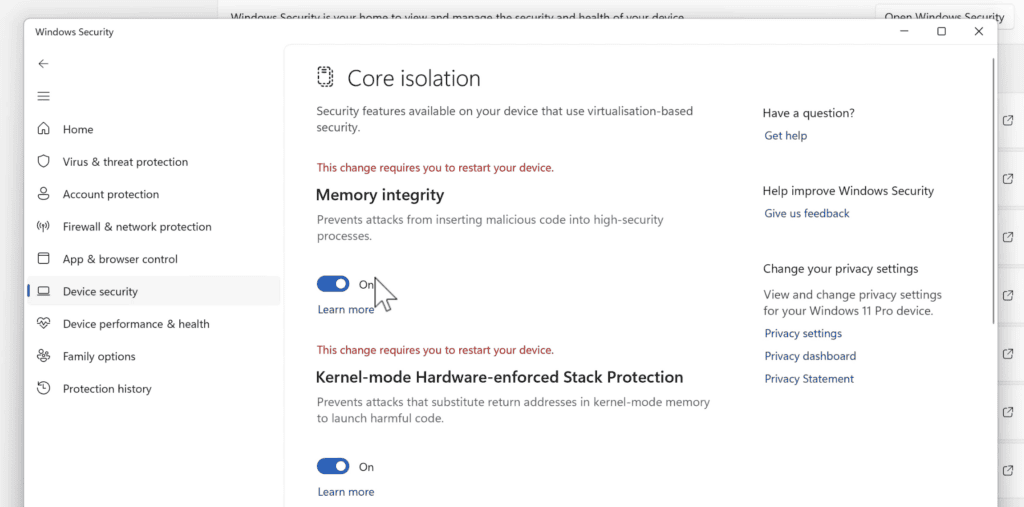
Most modern computers support this feature without issue.
For registry-based enforcement : enabling HVCI in strict mode via the command line:
Open Command Prompt as administrator and run:
reg add "HKLM\SYSTEM\CurrentControlSet\Control\DeviceGuard\Scenarios\HypervisorEnforcedCodeIntegrity" /v "Enabled" /t REG_DWORD /d 1 /fPress Enter. Restart your PC for the change to take effect.
Older systems may experience a slight performance impact, particularly those using processors released before Intel’s 8th Generation Core series or AMD Ryzen 2000.
If your hardware is relatively recent, the performance difference is generally negligible.
4. Review Your Windows Security Configuration
After making security changes, it’s worth reviewing Windows Security to confirm everything is working correctly.
Open Windows Security and verify:
- Microsoft Defender Real-Time Protection is enabled.
- Cloud-delivered protection is active.
- SmartScreen is protecting apps and downloaded files.
- Potentially Unwanted App (PUA) protection is enabled.
- Memory Integrity is turned on.
- Device Security reports no issues.
This final review ensures every layer of Windows’ built-in security is functioning as expected.
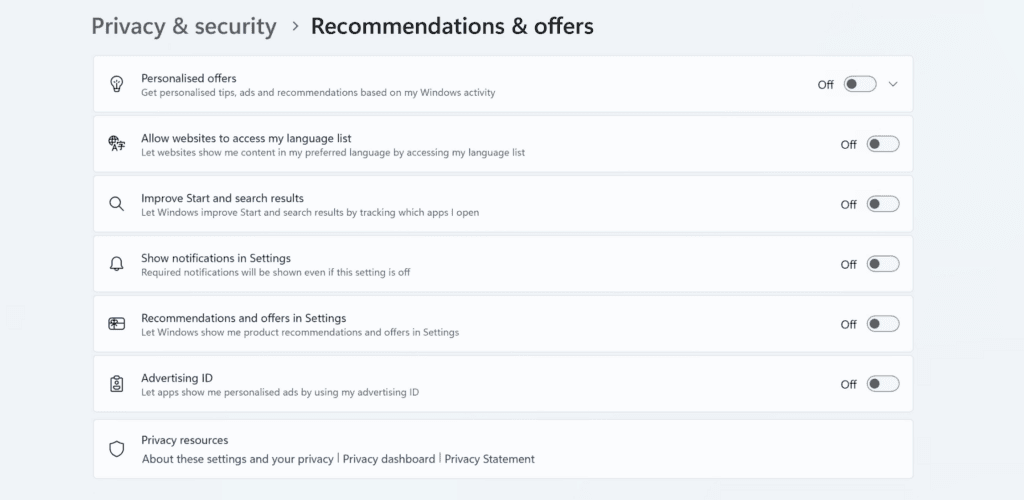
5. Disable Advertising and Reduce Data Collection
Windows generates an advertising ID that apps can use to personalize ads and recommendations.
It also sends diagnostic information and cloud search requests to Microsoft unless you change the default settings.
To improve privacy:
- Disable the Windows advertising ID.
- Turn off personalized recommendations.
- Disable cloud search if you don’t use it.
- Clear and disable local search history.
- Set diagnostic data to Required only.
- Disable Tailored Experiences.
- Set Feedback Frequency to Never.
You should also review Delivery Optimization under Windows Update.
By default, Windows may use your PC to help distribute Windows updates to other devices. Restrict this feature to your local network or disable it entirely if you don’t need it.
These changes won’t affect Windows functionality, but they do reduce unnecessary data sharing.
See also: Windows 11’s New Point-in-Time Restore
Should You Use a Microsoft Account or a Local Account?
Many privacy-conscious users choose a local account because it reduces synchronization between Windows and Microsoft’s online services.
A local account offers:
- Less cloud synchronization
- Greater privacy
- Fewer personalized services
A Microsoft account, on the other hand, enables useful features such as:
- OneDrive backup
- Microsoft Store purchases
- Windows settings synchronization
- BitLocker recovery key storage
- Password recovery
Neither option is inherently more secure.
The right choice depends on whether you value convenience or minimizing cloud integration.
Do You Still Need Third-Party Security Software?
For most home users, the answer is no.
Microsoft Defender has become one of the highest-rated antivirus solutions in independent security testing, and Windows 11 already includes:
- Secure Boot
- Microsoft Defender Antivirus
- Microsoft Defender Firewall
- SmartScreen
- BitLocker
- Virtualization-Based Security
- Memory Integrity
- Credential Guard (supported editions)
When properly configured, these built-in protections provide excellent security without installing additional software.
Final Thoughts
Windows 11 is already one of the most secure desktop operating systems available, but its default configuration doesn’t take full advantage of everything Microsoft provides.
By disabling unnecessary tracking features, enabling Attack Surface Reduction rules, strengthening BitLocker, hiding lock screen information, turning on Memory Integrity, and reviewing your Windows Security settings, you can significantly improve both your privacy and your system’s resilience against modern attacks.
Best of all, every change described in this guide uses built-in Windows tools. No third-party utilities, privacy scripts, or registry hacks downloaded from unknown websites are required.