Copying files in Windows is something most of us do every day. Whether you’re moving photos to an external drive, backing up important documents, or transferring hundreds of gigabytes between SSDs, the built-in Windows file copy tool gets the job done, most of the time.
But if you’ve ever copied a large folder only to wonder whether every file transferred correctly, or watched Windows struggle with slow speeds and confusing error messages, you know its limitations.
That’s where TeraCopy comes in.
TeraCopy is a free file transfer utility that replaces the standard Windows copy dialog with a faster, more reliable alternative. Beyond improving transfer speeds, it can verify every copied file, recover gracefully from errors, and give you much more control over your transfers.
Here’s why it’s worth installing.
Why the Windows File Copy Tool Isn’t Always Enough
For everyday file transfers, Windows File Explorer works perfectly well.
However, once you start moving large files, creating backups, or copying data between multiple drives, its shortcomings become much more noticeable.
Some of the biggest limitations include:
- No built-in file verification after copying
- Limited pause and resume controls
- Poor handling of transfer errors
- No detailed transfer history
- Inaccurate time estimates during large transfers
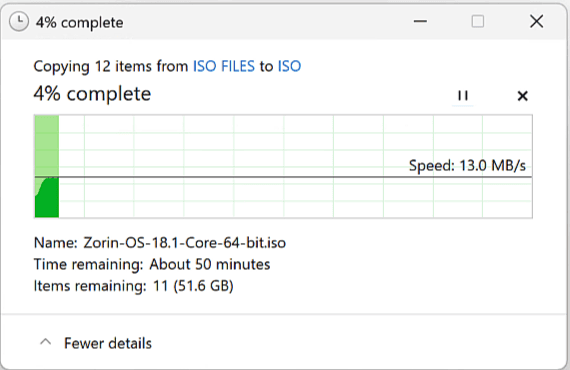
Perhaps the biggest issue is file integrity.
Windows assumes a file copied successfully if no obvious error occurs. It doesn’t verify that the destination file is an exact match to the original.
Most of the time that’s fine, but if you’re transferring important documents, backups, or virtual machines, silent file corruption is something you definitely want to avoid.
What Is TeraCopy?
TeraCopy is a file copy manager developed by Code Sector that replaces Windows’ default copy dialog.
Its goal is simple:
Make copying files faster, safer, and easier to manage.
Unlike Windows Explorer, TeraCopy offers:
- Faster file transfers
- Automatic checksum verification
- Better error recovery
- Detailed transfer logs
- Queue management
- Pause and resume controls
- Drag-and-drop integration with File Explorer
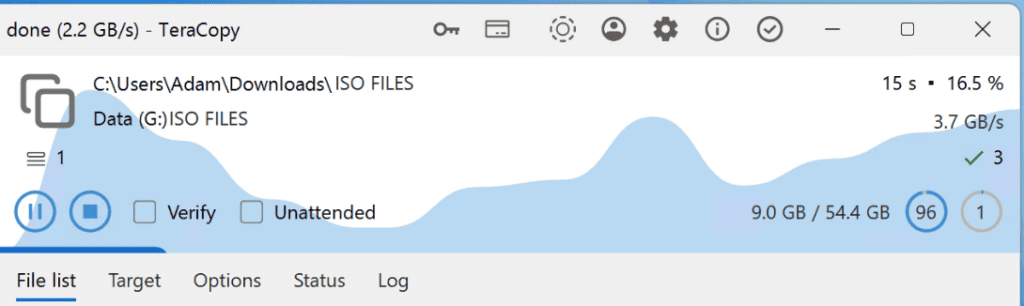
The software is free for personal use, while businesses can purchase a Pro license with additional features.
Faster File Transfers
One of TeraCopy’s biggest advantages is speed.
The application uses optimized copy algorithms along with asynchronous reading and writing to improve performance, particularly when transferring:
- Large video files
- ISO images
- Virtual machines
- Backup archives
- Thousands of small files
The speed improvement varies depending on your storage devices, but many users notice smoother and more consistent transfers compared to Windows Explorer.
Verify Every File After Copying
This is the feature that truly sets TeraCopy apart.
After copying files, TeraCopy can automatically perform checksum verification.
Instead of simply assuming the transfer succeeded, it compares the source and destination files byte for byte.
If the checksums match, you know the copied file is identical to the original.
If they don’t, TeraCopy immediately flags the affected file so you can copy it again.
For anyone handling important backups, archived data, or professional projects, this provides peace of mind that Windows simply doesn’t offer.
Better Error Handling
Windows can sometimes stop an entire transfer because a single file can’t be copied.
TeraCopy handles these situations much more intelligently.
If one file encounters an error, whether due to permissions, a read failure, or a damaged drive, the software skips that file, continues copying the rest, and records the failure in its log.
Once the transfer finishes, you can retry only the failed files instead of starting over.
This can save a huge amount of time when copying hundreds or thousands of files.
Detailed Logs and Transfer History
Another feature professionals will appreciate is TeraCopy’s logging system.
Every transfer is recorded, including:
- Files copied
- Transfer time
- Speed
- Errors
- Verification results
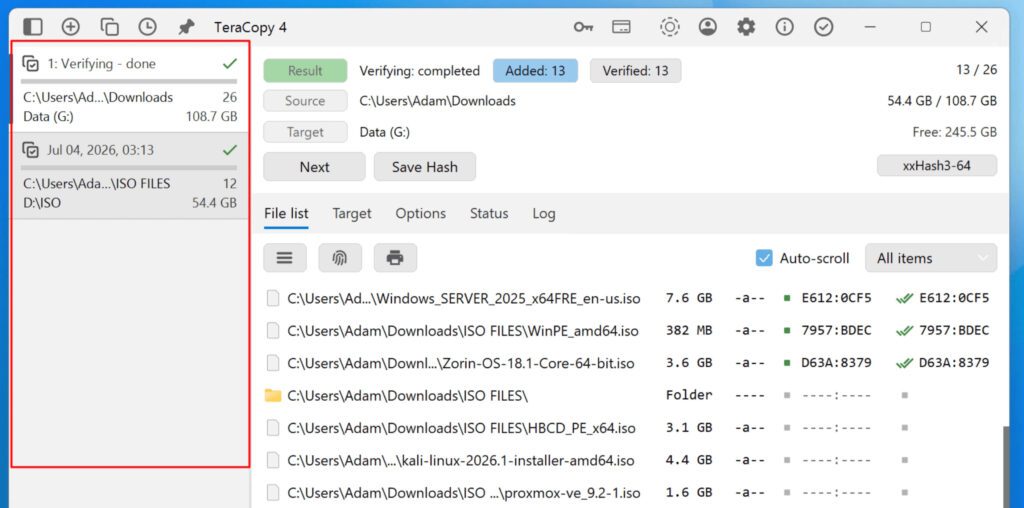
This history makes it easy to review previous transfers or troubleshoot problems later.
Easy to Install and Use
Getting started with TeraCopy only takes a minute.
Simply download the installer from the official website and complete the setup.
Once installed, TeraCopy integrates with Windows File Explorer, allowing you to copy or move files using the same drag-and-drop workflow you’re already familiar with.
You can also launch TeraCopy directly to manually create transfer queues or configure advanced options.
Customize the Way Files Are Copied
TeraCopy offers several useful settings that aren’t available in Windows.
For example, you can:
- Enable or disable automatic verification
- Exclude specific file types
- Keep a permanent transfer history
- Receive notifications when transfers finish
- Automatically shut down or put your PC to sleep after a large transfer completes
These options are especially useful for overnight backups or long-running file transfers.
Copy or Move Files with Confidence
Using TeraCopy is straightforward.
Simply select the files you want to transfer, choose your destination, and decide whether to Copy or Move them.
If verification is enabled, TeraCopy automatically checks every file after the transfer finishes.
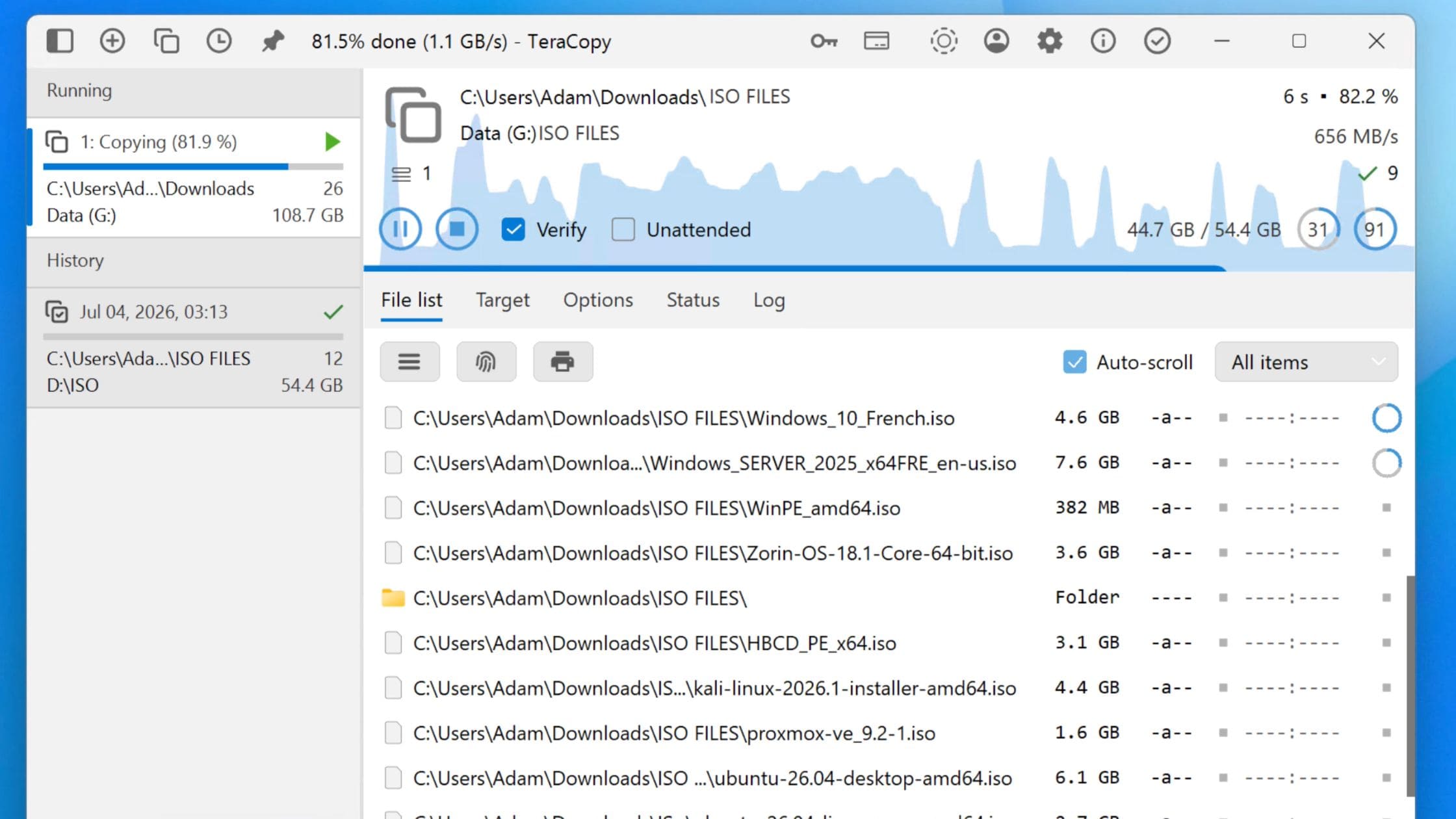
During the process, you can monitor:
- Current transfer speed
- Remaining files
- Progress percentage
- Verification status
- Transfer history
Everything is presented clearly, making it much easier to understand what’s happening than the standard Windows progress dialog.
Is TeraCopy Worth Using?
If you only copy a few documents every week, Windows’ built-in file copy tool is probably sufficient.
However, TeraCopy becomes extremely valuable if you regularly:
- Back up important files
- Transfer large video projects
- Move data between SSDs or NAS devices
- Copy virtual machines
- Archive business documents
- Manage large photo collections
The ability to verify every file after copying alone makes it worth installing.
Knowing your backup completed successfully is far better than discovering months later that one of your most important files became corrupted during the transfer.
Final Thoughts
Windows’ built-in file copy tool has improved over the years, but it still lacks many features that power users and professionals rely on.
TeraCopy fills those gaps by delivering faster transfers, smarter error handling, detailed logging, and most importantly, automatic file verification.
If your data matters, spending a few minutes installing TeraCopy is a small investment that can save you hours of frustration and provide confidence that every file arrived exactly as it should.