
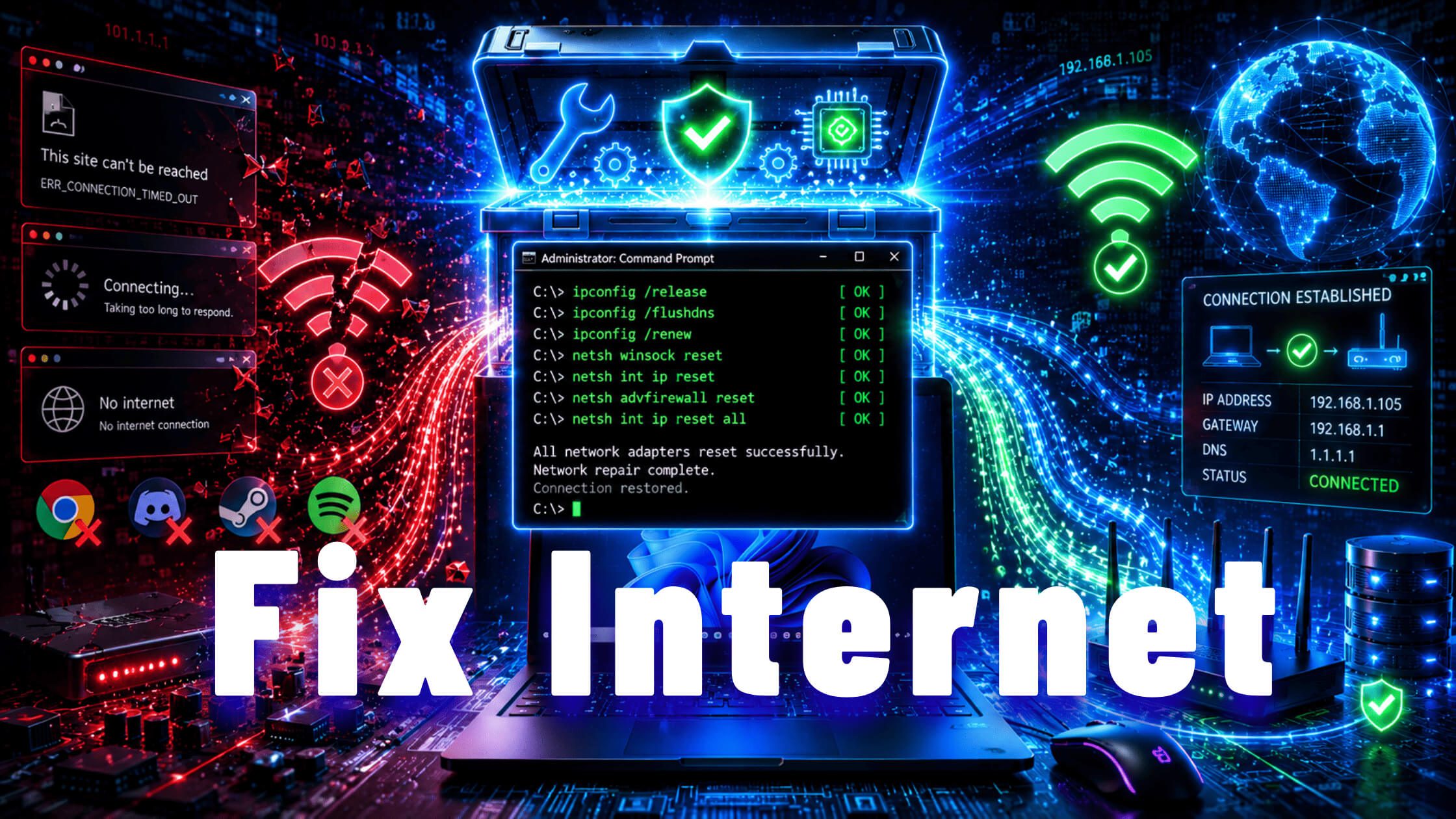
When your internet suddenly stops working or becomes extremely slow on your Windows PC, it doesn’t always mean your router or ISP is the problem.
In many cases, the issue comes from corrupted network settings inside Windows itself.
Before calling support or restarting your router 10 times, try this simple fix: a full Windows network reset using 7 Windows Commands.
These commands reset your network stack at the software level and solve the most common connection issues.
How to Open the Command Terminal
First, you need to open an administrator terminal:
- Right-click the Windows Start button
- Click Terminal (Admin)
This opens PowerShell or Command Prompt with full permissions.
Now run the commands one by one.
Command 1: Flush DNS Cache
ipconfig /flushdnsThis clears your DNS cache, a local memory of website addresses.
If it becomes outdated or corrupted, websites may stop loading even when your internet is working.
Command 2: Release Your IP Address
ipconfig /releaseThis disconnects your PC from the network at the IP level.
You will temporarily lose internet; this is normal.
Command 3: Renew Your IP Address
ipconfig /renewThis requests a fresh IP address from your router.
It fixes issues like IP conflicts or broken DHCP assignments.
See also: Top Network CMD Commands for Windows
Command 4: Reset Winsock
netsh winsock resetThis resets the Windows networking catalog used by all apps.
It is one of the most powerful fixes for cases where:
- Internet shows connected, but nothing loads
- Apps fail to connect
- Browsers stop working
Command 5: Reset TCP/IP Stack
netsh int ip resetThis restores the core network settings of Windows to default.
It fixes issues caused by misconfigurations, VPNs, or third-party tools.
Command 6: Reset TCP Settings
netsh int tcp resetThis resets advanced TCP settings like connection handling and timeouts.
It helps fix unstable or inconsistent connections.
Command 7: Reset Windows Firewall
netsh advfirewall resetThis restores Windows Firewall to default settings.
It removes any broken or overly strict rules that may block internet traffic.
See also: Permanently Remove Copilot from Windows 11
Final Step: Restart Your PC
Once all commands are complete, restart your computer.
This step is very important because several of these changes only take full effect after a reboot.
After Restart
Test your internet connection:
- Open a browser
- Visit multiple websites
- Try apps that were not working
In most cases, your connection will be fully restored.
If the Problem Still Exists
If your internet still doesn’t work after this:
The issue is likely not Windows anymore.
Check:
- Ethernet cable
- Router ports
- Network driver updates
- Other devices on the same network
If all devices are affected, the issue is probably your router or ISP.
Final Thoughts
This 7-command sequence is one of the most effective Windows network resets you can do.
It takes less than 2 minutes, and it solves a large number of “connected but no internet” problems without technical tools.
Save this guide; it can save you a lot of troubleshooting time in the future.



Pingback: Top Network CMD Commands for Windows: Complete Troubleshooting & Diagnostic Guide
Pingback: How to Delete or Format Any Disk Partition on Windows Using DiskPart (Complete Guide)
Pingback: The Complete Windows Repair Toolkit: Every CMD Command You Need to Fix Windows 11