Microsoft has already made Windows 11 version 26H2 available to Windows Insiders, giving enthusiasts and IT professionals an early opportunity to test the next major Windows release before its expected public rollout later in 2026.
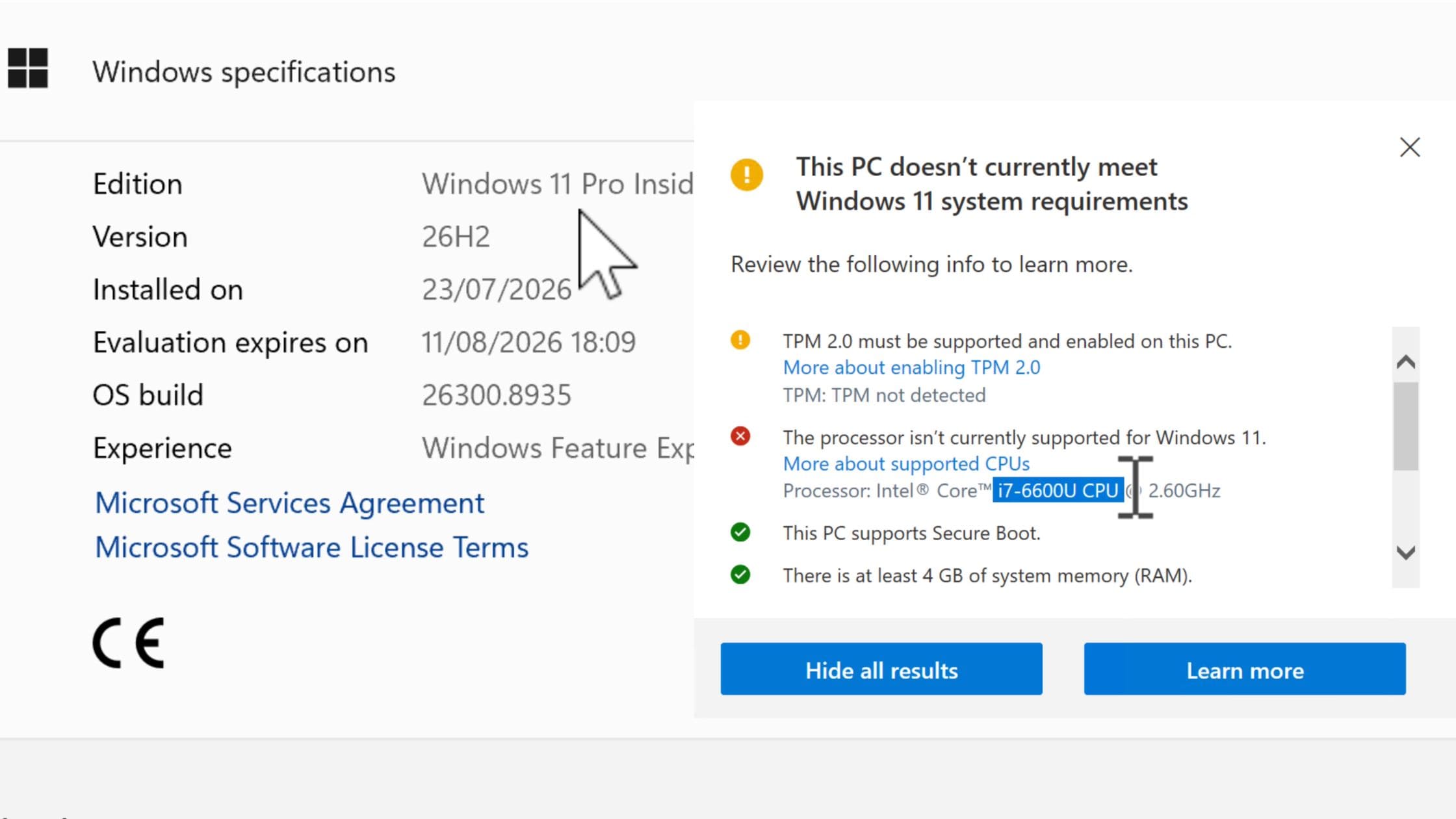
If you have an older computer that doesn’t officially meet Windows 11’s hardware requirements, you may be wondering whether the latest preview build can still be installed.
The answer is yes.
With the help of Rufus, you can create a bootable USB drive that bypasses Windows 11’s TPM, Secure Boot, and CPU requirements, allowing you to install the latest Insider Preview on unsupported hardware.
In this guide, you’ll learn how to:
- Download the official Windows 11 26H2 Preview ISO
- Create a bootable USB drive with Rufus
- Install Windows 11 26H2 on unsupported hardware
- Verify that the installation completed successfully
- Check whether Windows Update continues to work
Important: Windows 11 26H2 is still a preview release. It is intended for testing and evaluation, not for production environments. Avoid installing it on your primary computer unless you’re comfortable using pre-release software.
Before You Begin
You’ll need the following:
- A Microsoft account
- A stable internet connection
- An 8GB (or larger) USB flash drive
- Rufus (latest version)
- A spare PC or virtual machine for testing
Remember that creating a bootable USB drive will erase all existing data on the USB device, so back up anything important first.
Download the Official Windows 11 26H2 Preview ISO
Microsoft distributes Insider Preview ISOs through the Windows Insider Program website.
Open your web browser and search for: Windows Insider Preview Downloads
Open the official Microsoft download page.
If prompted, sign in with your Microsoft account.
Scroll down until you reach the Windows 11 Insider Preview section.
Select the latest available Insider Preview build.
Don’t Be Confused by the Download Label
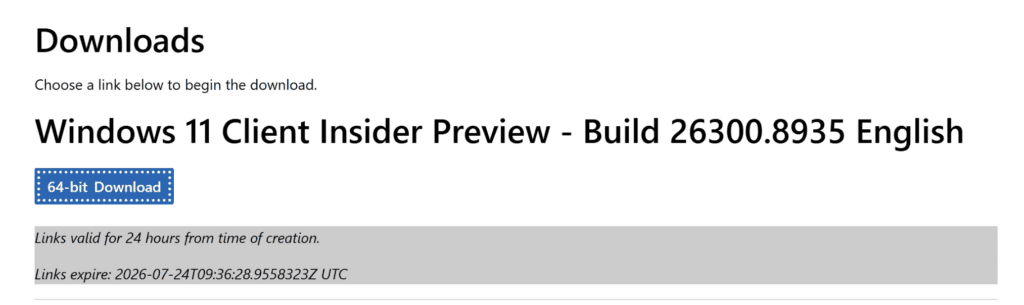
At the time of writing, Microsoft may still label the download as Windows 11 25H2.
However, the important detail is the build number, not the marketing label.
If the available ISO belongs to the 26300 build series or later, you’re actually downloading the Windows 26H2 Preview.
Microsoft often updates the download page title after development has already moved to the next Windows version.
Always verify the build number before downloading.
Choose Your Language and Download the ISO
After selecting the Insider Preview:
- Click Confirm.
- Choose your preferred language.
- Click Confirm again.
- Select 64-bit Download.
While the ISO downloads, you can prepare your bootable USB drive.
See also: How to Back Up Drivers and Integrate Them Into a Windows ISO
Download Rufus
Visit the official Rufus website and download the latest stable release.
Rufus is a lightweight, portable application that does not require installation.
Download the executable and launch it.
Create a Bootable Windows 11 26H2 USB Drive
Insert your USB flash drive into your computer.
Open Rufus.
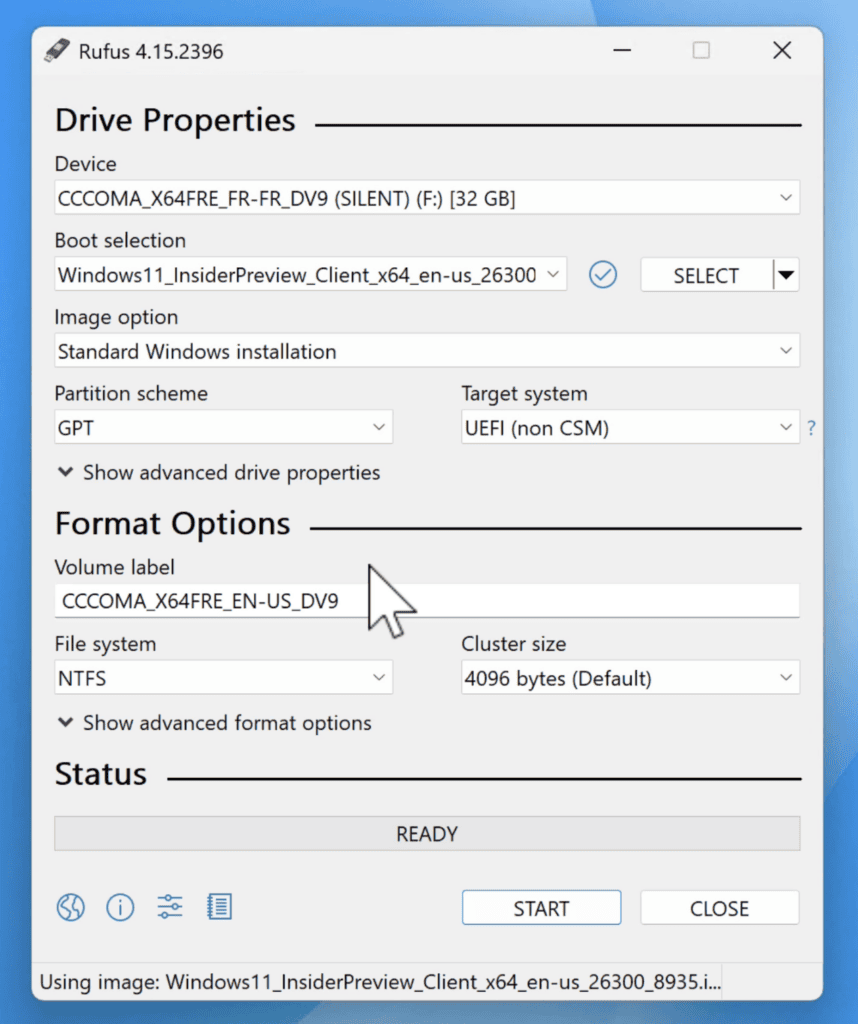
Verify that the correct USB device is selected.
Under Boot Selection, click Select and browse to the Windows 11 26H2 ISO you downloaded.
Rufus automatically detects the image and fills in most of the required settings.
For modern computers, use:
- Partition Scheme: GPT
- Target System: UEFI (non-CSM)
Configure Rufus to Bypass Windows 11 Hardware Requirements
Click Start.
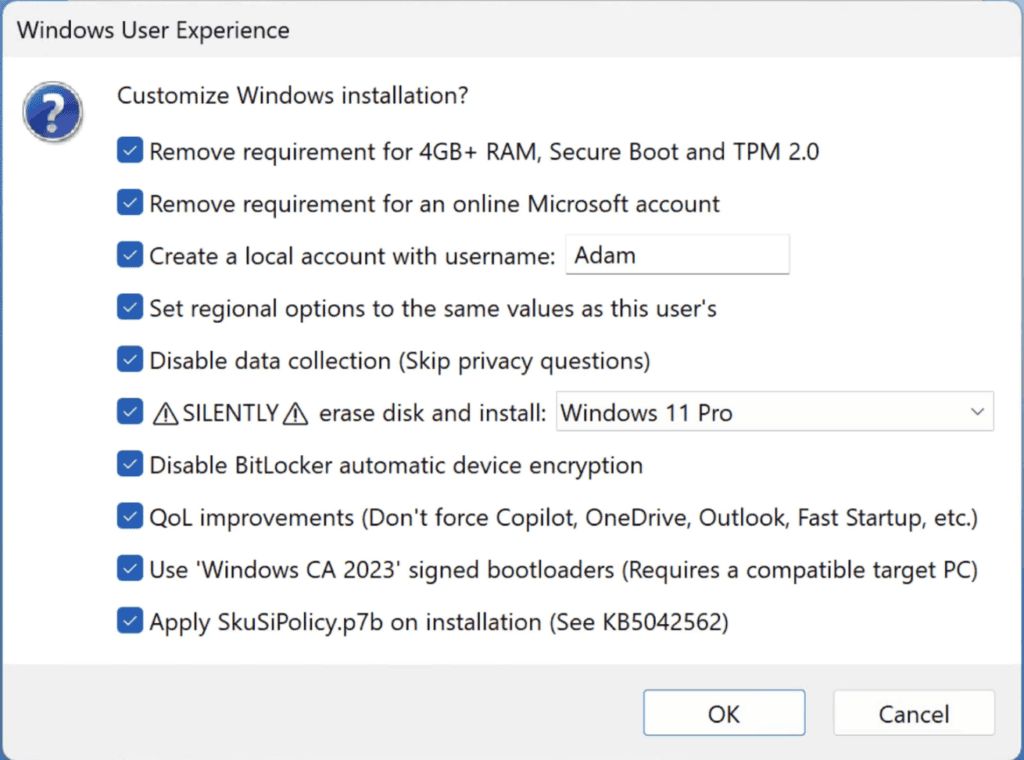
Rufus displays the Windows User Experience dialog.
This is where Rufus offers several options that simplify the Windows installation process.
For unsupported hardware, you can enable options such as:
- Remove the TPM requirement
- Remove the Secure Boot requirement
- Remove the minimum RAM requirement
- Bypass Microsoft account requirements
- Create a local account automatically
- Disable data collection prompts
- Configure regional settings automatically
If you want a largely unattended installation, you can enable the available automation options so Windows Setup requires very little user interaction.
After selecting your preferred options, click OK.
Rufus will warn you that the USB drive will be erased.
Confirm the warning and wait while the bootable USB is created.
Depending on your USB drive’s speed, this usually takes between 5 and 20 minutes.
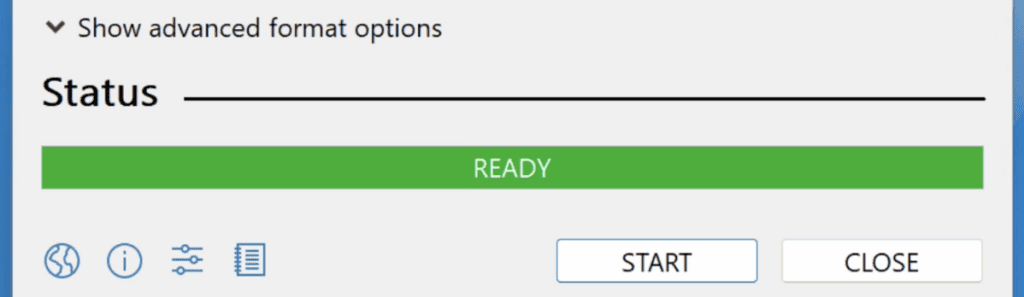
Once the status changes to Ready, your installation media is complete.
Boot from the USB Drive
Insert the USB drive into the computer where you want to install Windows 11 26H2.
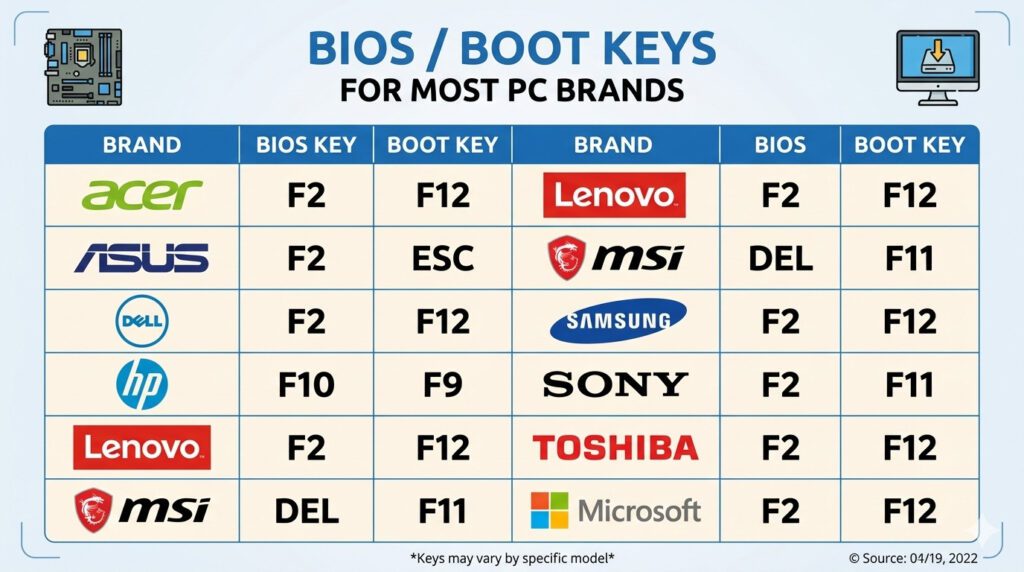
Restart the system and open the Boot Menu.
Common boot keys include:
- Dell — F12
- HP — F11
- ASUS — F9
- Lenovo — F12
- Acer — F12
Select the USB drive and press Enter.
If the boot menu doesn’t appear, enter the BIOS or UEFI firmware settings (usually F2 or Delete) and temporarily set the USB drive as the first boot device.
Save the changes and restart.
Windows Setup will begin loading.
Install Windows 11 26H2
If you configured Rufus for an unattended installation, Windows Setup performs most of the installation automatically.
There is little or no manual intervention required.
Windows copies the installation files, installs the operating system, and restarts several times.
After the final restart, the Out-of-Box Experience (OOBE) appears.
Because Rufus removed the Microsoft account requirement, you can complete the setup using a local account if desired.
Once setup finishes, Windows loads the desktop.
Verify the Installation
After signing in, it’s a good idea to confirm that the installation completed successfully.
Open:
Settings → System → About
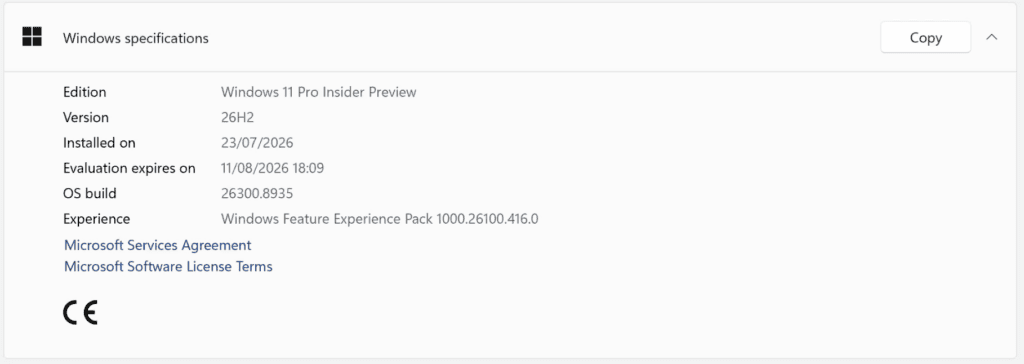
Under Windows Specifications, verify the following:
- Edition: Windows 11 Home or Pro
- Version: 26H2
- OS Build: A build in the 26300 series (or newer)
If those values are present, Windows 11 26H2 has been successfully installed.
Check Windows Update
Next, verify that the system continues to receive updates.
Go to: Settings → Windows Update
Click: Check for updates
If Windows successfully downloads and installs updates, your Insider installation is properly connected to Microsoft’s update infrastructure.
This confirms that the installation behaves like a normal Insider Preview installation.
Is It Safe to Install Windows 11 26H2 Preview?
The Insider Preview is designed primarily for:
- IT professionals
- System administrators
- Software developers
- Windows enthusiasts
- Test laboratories
Because it’s still under development, you may encounter:
- Software bugs
- Driver compatibility issues
- Performance problems
- Incomplete features
- Unexpected crashes
For this reason, it’s best installed on:
- A spare computer
- A virtual machine
- A secondary SSD
- A dedicated test environment
Avoid using Insider Preview builds for business-critical or production systems.
Frequently Asked Questions
Can I install Windows 11 26H2 on an unsupported PC?
Yes.
Using Rufus, you can bypass TPM, Secure Boot, RAM, and CPU checks during installation.
Does Windows Update still work afterward?
Yes.
If the installation completes successfully and you’re using an official Insider Preview ISO, Windows Update should continue receiving Insider updates.
Is the ISO official?
Yes.
The ISO is downloaded directly from Microsoft’s Windows Insider Program website.
Will my files be erased?
A clean installation removes existing data on the target Windows partition.
Always back up important files before installing a preview operating system.
Should I install 26H2 on my primary PC?
No.
Preview builds are intended for testing and may contain bugs or unfinished features.
Final Thoughts
Windows 11 26H2 offers an early look at Microsoft’s next major Windows update, and thanks to Rufus, testing it on unsupported hardware is easier than ever.
By downloading the official Insider Preview ISO, creating a bootable USB drive, and enabling Rufus’ hardware bypass options, you can install and evaluate the latest Windows features even on older PCs.
Just remember that preview builds are not final releases. If you’re experimenting with Windows 11 26H2, use a test machine or virtual machine and keep reliable backups of any important data.