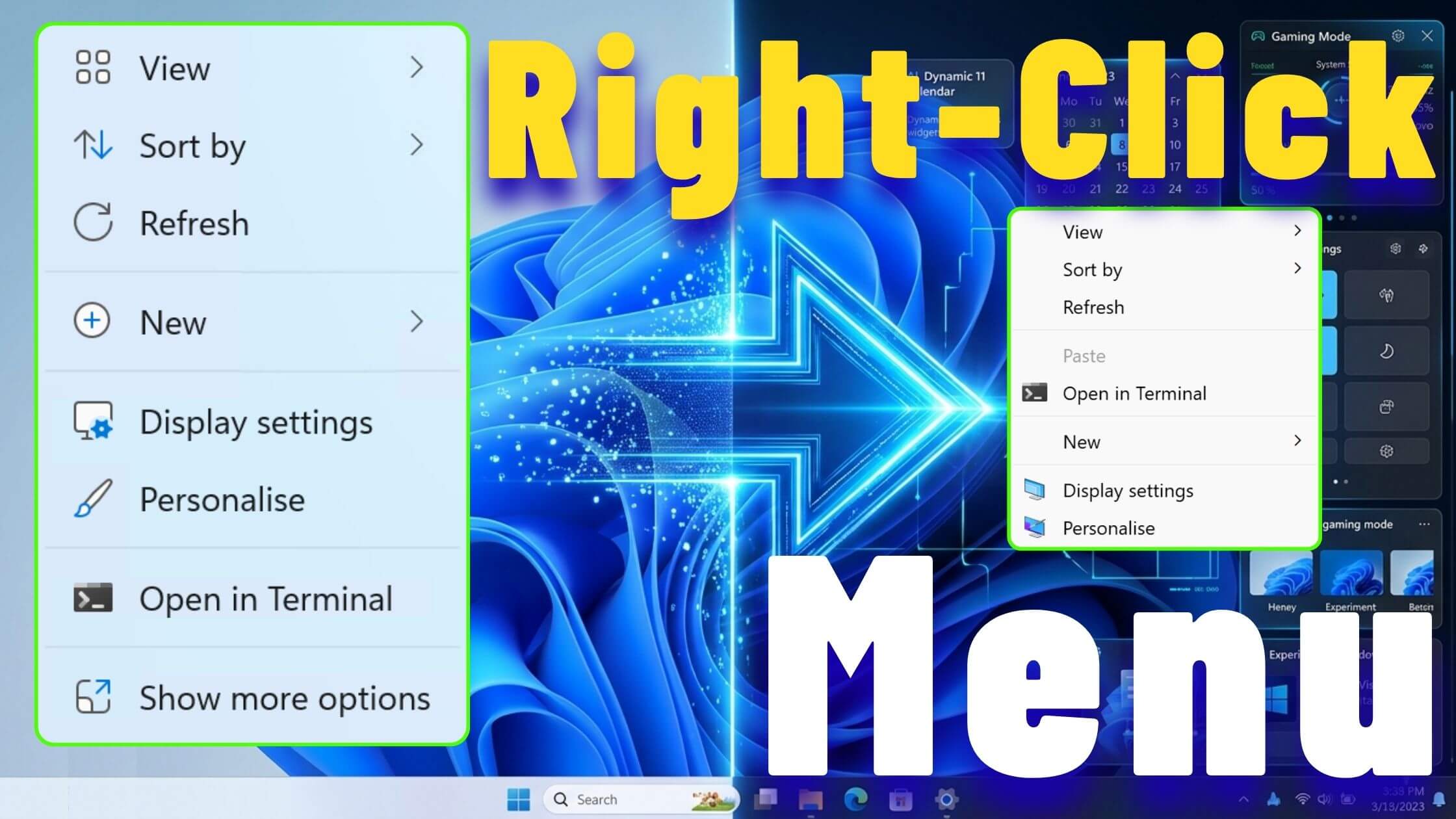
One of the most controversial changes in Windows 11 is the redesigned right-click context menu.
Instead of showing all available options immediately, Windows 11 displays a simplified menu and hides many common actions behind an extra “Show more options” button.
For users who frequently use options like Open With, Send To, third-party application shortcuts, or advanced file management commands, this extra click quickly becomes frustrating.
Fortunately, there’s a simple way to restore the classic Windows 10-style context menu permanently. Even better, the change is completely reversible if you decide you prefer the modern Windows 11 design.
In this guide, you’ll learn how to switch between the classic and modern context menus in just a few minutes.
Why Does Windows 11 Hide Menu Options?
Microsoft redesigned the context menu to create a cleaner and more modern appearance.
The new menu prioritizes commonly used actions while hiding many advanced options behind: Show more options
While this simplifies the interface for some users, it can slow down workflows for power users who regularly access advanced right-click functions.
If you’d rather see the full menu immediately, the classic menu can be restored with a simple Registry modification.
Method 1: Restore the Classic Right-Click Menu
The fastest method uses a single command in an elevated terminal.
Step 1: Open Terminal as Administrator
- Right-click the Start button
- Select: Terminal (Admin)
- Approve the User Account Control prompt
Step 2: Add the Registry Key
Copy and run the following command:
reg add "HKCU\Software\Classes\CLSID\{86ca1aa0-34aa-4e8b-a509-50c905bae2a2}\InprocServer32" /f /vePress Enter.
If successful, Windows should display: The operation completed successfully.
Step 3: Restart File Explorer
To apply the change immediately, restart Windows Explorer.
Run:
taskkill /f /im explorer.exeYour taskbar and desktop will briefly disappear.
Next run:
start explorer.exeYour desktop and taskbar will reappear.
Step 4: Test the Change
Right-click anywhere on the desktop or inside File Explorer.
You should now see the complete classic context menu immediately, including:
- Open With
- Send To
- Third-party application entries
- Advanced file operations
- All context menu extensions
No additional click is required.
See also: Permanently Remove Copilot from Windows 11
Method 2: Return to the Windows 11 Context Menu
If you later decide you prefer Microsoft’s modern menu design, reverting the change is easy.
Step 1: Open Terminal as Administrator
Again, open: Terminal (Admin)
Step 2: Remove the Registry Key
Run:
reg delete "HKCU\Software\Classes\CLSID\{86ca1aa0-34aa-4e8b-a509-50c905bae2a2}"Press Enter.
Windows will ask for confirmation.
Type: Y
and press Enter again.
Step 3: Restart File Explorer
Run:
taskkill /f /im explorer.exeThen:
start explorer.exeExplorer will restart and apply the change.
Step 4: Verify the Reversion
Right-click anywhere on your desktop.
The modern Windows 11 context menu should now be restored, including the: Show more options
Is This Safe?
Yes.
This tweak only changes how Windows displays the context menu.
It does not:
- Modify system files
- Remove Windows features
- Affect performance
- Impact security
The change simply enables a hidden Registry configuration that restores the classic context menu behavior.
Because the modification is limited to your user account, it’s also easy to reverse at any time.
Which Menu Should You Use?
The answer depends on your workflow.
Choose the Classic Menu If:
- You frequently use right-click options
- You work with files and folders all day
- You use many third-party applications
- You want fewer clicks
Choose the Modern Menu If:
- You prefer a cleaner interface
- You rarely use advanced context menu options
- You want the default Windows 11 experience
The good news is that switching between the two takes only a few seconds.
Final Thoughts
The Windows 11 context menu looks modern, but many users find the extra click required for advanced options unnecessary.
Fortunately, Microsoft still allows users to restore the classic Windows 10-style menu with a simple Registry modification.
Whether you prefer the classic menu or the modern one, you can switch between them whenever you like without reinstalling Windows or making permanent changes to your system.
If you use advanced right-click options regularly, restoring the classic context menu can make Windows 11 feel much faster and more efficient.

Pingback: Windows 11 Finally Lets You Customize the Start Menu — Small, Large, or Completely Empty - Tips 4 IT
Pingback: Windows 11 Point-in-Time Restore: Full Setup, Features, and Recovery Guide