
Imagine pressing the power button on your computer and being greeted by a black screen, a blue error message, or an endless reboot loop instead of your desktop.
You can’t access your files. You can’t launch Windows. And suddenly, everything important is locked behind a system that refuses to start.
This is exactly why every Windows user should create a Recovery Drive before something goes wrong.
A Windows 11 Recovery Drive is a bootable USB that gives you access to powerful recovery and repair tools, even when Windows itself won’t load. In this guide, you’ll learn how to create one and, more importantly, how to use it if your PC ever fails to boot.
What Is a Windows 11 Recovery Drive?
A Recovery Drive is a bootable USB device that contains the Windows Recovery Environment (WinRE).
Because it runs from a USB drive instead of your internal storage, it can help troubleshoot and repair problems even when Windows is completely unusable.
Depending on how you create it, a Recovery Drive can include:
- Startup Repair tools
- System Restore
- Command Prompt recovery tools
- Windows reset options
- Driver rollback tools
- Windows installation files for reinstalling Windows
For the best protection, it’s recommended to include system files when creating the drive. This allows you to reinstall Windows directly from the USB without needing a separate installation media or internet connection.
What You’ll Need
Before you start, make sure you have:
- A USB flash drive with at least 16 GB of storage
- Administrator access to your Windows PC
Keep in mind that creating the Recovery Drive will erase everything currently stored on the USB drive. If you have important files on it, back them up first.
The process typically takes between 15 and 45 minutes depending on your USB drive speed and system performance.
How to Create a Windows 11 Recovery Drive
Creating a Recovery Drive is surprisingly simple.
Step 1: Open Recovery Settings
Click the Windows Search box and type: Control Panel
Open Control Panel and switch the View setting to Large icons or Small icons.
Locate and click: Recovery
Then select: Create a recovery drive
If prompted by User Account Control, click Yes.
Step 2: Include System Files
When the Recovery Drive wizard opens, you’ll see an option labeled: Back up system files to the recovery drive
Make sure this option is checked.
Including system files provides the ability to reinstall Windows directly from the recovery USB if necessary.
Click Next.
Step 3: Select Your USB Drive
Windows will scan for available USB devices.
Select your USB drive carefully and verify that you’ve chosen the correct one.
Click Next.
Step 4: Create the Recovery Drive
Windows will warn you that all data on the USB drive will be deleted.
If you’re ready, click: Create
The creation process will begin.
Do not:
- Remove the USB drive
- Shut down the computer
- Put the computer to sleep
When the process completes, click Finish.
Label the drive clearly, such as: Windows 11 Recovery Drive
Store it somewhere safe and easy to find.
See also: Permanently Remove Copilot from Windows 11
How to Boot From the Recovery Drive
If your PC ever refuses to start normally, the Recovery Drive becomes your emergency toolkit.
Insert the USB drive and power on the computer.
There are several ways to boot from it.
Method 1: Use the Boot Menu
Most computers allow you to access a temporary boot menu during startup.
Common keys include:
- F12 (Dell)
- F11 (HP)
- F9 (ASUS)
- Esc (some HP models)
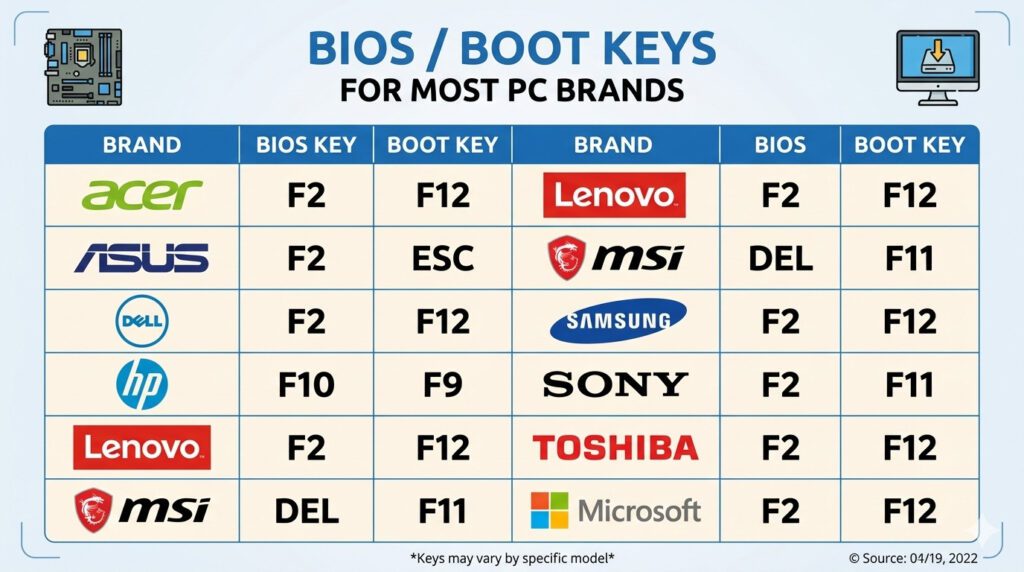
Press the appropriate key repeatedly during startup and select the USB drive.
Method 2: Advanced Startup
If you can still reach the Windows login screen:
- Hold Shift
- Click Restart
- Select Use a Device
- Choose your USB drive
Method 3: Change Boot Order in BIOS
If neither method works:
- Enter BIOS/UEFI settings (usually F2 or Delete)
- Navigate to Boot settings
- Set the USB drive as the first boot device
- Save and restart
Your PC should now load the Windows Recovery Environment.
Understanding the Windows Recovery Environment
After booting from the Recovery Drive, you’ll see a screen titled: Choose an option
The most useful option is: Troubleshoot
Click it to access Windows recovery tools.
Startup Repair
If Windows won’t boot, Startup Repair should usually be your first choice.
This tool automatically scans for common boot problems, including:
- Corrupted boot files
- Missing startup components
- Damaged boot configuration data
Select Startup Repair, choose your Windows installation, and let Windows attempt the repair automatically.
System Restore
If the problem started after a driver installation, software update, or configuration change, System Restore may help.
This tool rolls Windows back to an earlier restore point without affecting your personal files.
Simply choose a restore point created before the problem appeared and follow the prompts.
System Image Recovery
If you’ve previously created a full system image backup, this option allows you to restore your entire computer exactly as it was when the backup was created.
This includes:
- Windows
- Installed applications
- Settings
- Personal files
It’s one of the most complete recovery methods available.
Command Prompt Recovery Tools
For advanced troubleshooting, Command Prompt provides direct access to repair commands.
Some useful examples include:
bootrec /fixmbrRepairs the Master Boot Record.
bootrec /fixboot<br>Repairs the boot sector.
bootrec /rebuildbcd<br>Rebuilds the Boot Configuration Data.
sfc /scannowScans and repairs corrupted system files.
chkdsk C: /f /rChecks the drive for errors and bad sectors.
Uninstall Updates
Sometimes a Windows update can introduce startup issues.
The Uninstall Updates option allows you to remove the most recent quality or feature update and restore system stability.
UEFI Firmware Settings
This option restarts your computer directly into BIOS/UEFI settings.
It can be useful for:
- Adjusting boot order
- Changing Secure Boot settings
- Troubleshooting hardware-level issues
When Everything Else Fails: Reset This PC
If none of the repair tools work, you can reinstall Windows directly from the Recovery Drive.
You’ll have two choices:
Keep My Files
Windows is reinstalled while preserving your personal files.
Applications and settings are removed and must be reinstalled.
Remove Everything
Completely wipes the system and performs a clean installation of Windows.
Because you included system files when creating the Recovery Drive, this process can be completed entirely from the USB drive without requiring internet access.
Keep Your Recovery Drive Up to Date
A Recovery Drive reflects the version of Windows that existed when it was created.
After major Windows 11 upgrades, it’s a good idea to create a new Recovery Drive so it contains the latest system files and recovery tools.
Keep the old drive until you’ve confirmed the new one works properly.
Final Thoughts
A Windows 11 Recovery Drive is one of the simplest yet most valuable tools you can create.
It takes less than an hour to make, costs almost nothing, and can save you from hours of troubleshooting—or even complete data loss—when Windows refuses to boot.
Create one while your PC is healthy, label it clearly, and store it somewhere safe.
If disaster ever strikes, you’ll already have the tools you need to get your system back up and running.
Pingback: How to Back Up All Windows Drivers Before Reinstalling Windows