Have you been thinking about leaving Windows behind?
Whether you’re frustrated by system slowdowns, unwanted pre-installed software, increasing advertisements, or simply want an operating system that gives you more control, Ubuntu is an excellent alternative.
Ubuntu is one of the most beginner-friendly Linux distributions available. It’s free, secure, regularly updated, and supported by a large community.
In this guide, you’ll learn how to completely replace Windows with Ubuntu 26.04 LTS. We’ll cover every important step, including:
- Backing up your files
- Saving your Windows product key
- Disabling BitLocker
- Creating a bootable Ubuntu USB
- Installing Ubuntu from scratch
- Completing the first-time setup
By the end, your PC will be running a clean installation of Ubuntu and ready for everyday use.
Warning: This tutorial performs a clean installation of Ubuntu. Everything currently stored on the Windows drive—including files, applications, and settings—will be permanently deleted.
Before You Start: Back Up Your Data
Before making any changes, back up everything you want to keep.
A clean Ubuntu installation erases the entire Windows partition.
Be sure to save:
- Documents
- Photos
- Videos
- Music
- Browser bookmarks
- Password databases
- Virtual machines
- Project files
- Software license keys
Store your backup on:
- An external hard drive
- An external SSD
- A USB drive
- Cloud storage
Once Windows is erased, recovering lost data is extremely difficult.
Save Your Windows Product Key
If you ever decide to reinstall Windows, it’s helpful to keep a copy of your product key.
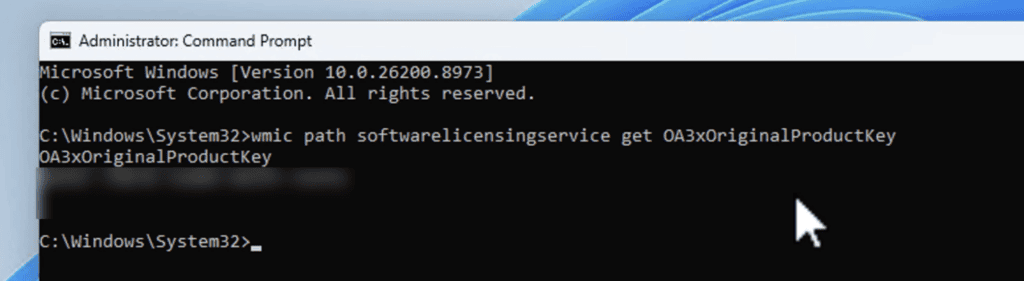
Open Command Prompt as Administrator and run:
wmic path softwarelicensingservice get OA3xOriginalProductKeyIf Windows reports that the WMIC command isn’t available, install it first.
Go to:
Settings → System → Optional Features
Then:
- Click View features.
- Search for WMIC.
- Install the feature.
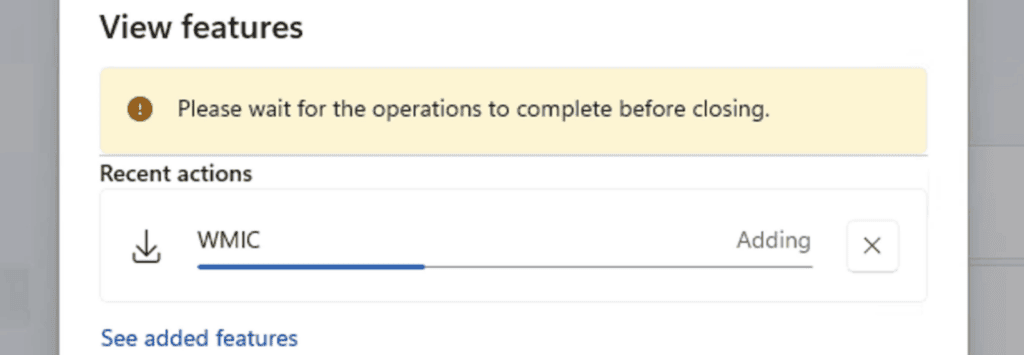
After installation, run the command again.
If your PC uses a retail license, Windows displays your product key.
Write it down and store it somewhere safe.
What If No Product Key Appears?
A blank result usually means one of the following:
- Your Windows license is linked to your Microsoft account.
- Your computer uses an OEM license embedded in the motherboard firmware.
In either case, note this information for future reference.
Disable BitLocker Before Installing Ubuntu
If BitLocker encryption is enabled, disable it before installing Ubuntu.
Attempting to install another operating system while the Windows partition is still encrypted may complicate the installation process and make data recovery impossible if something goes wrong.
Check the BitLocker Status
Open Command Prompt as Administrator and run:
manage-bde -statusLook for the Protection Status of your Windows drive.
If Protection Is Off
You’re ready to continue.
If Protection Is On
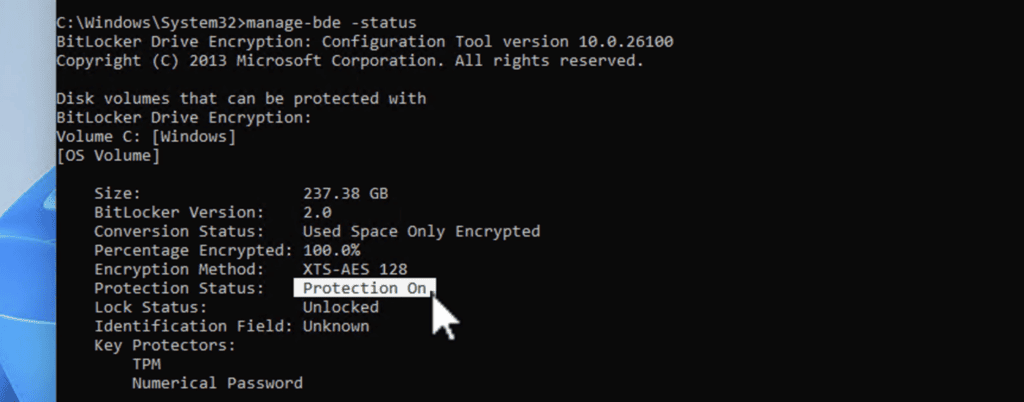
Temporarily disable BitLocker with:
manage-bde -protectors -disable C:If that command doesn’t work, use:
manage-bde -off C:Windows begins decrypting the drive in the background.
Depending on the size and speed of your storage device, this process may take anywhere from several minutes to over an hour.
You can monitor the progress by periodically running:
manage-bde -statusWait until the decryption reaches 100% before continuing.
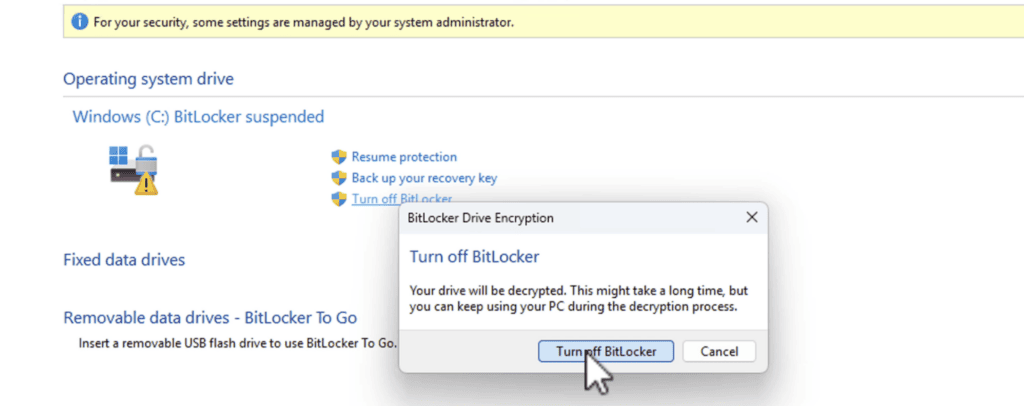
You can also disable BitLocker from:
Control Panel → BitLocker Drive Encryption
Download Ubuntu 26.04 LTS
Next, download the latest Ubuntu Long-Term Support (LTS) release.
Visit Ubuntu’s official website and navigate to:
Products → Ubuntu Desktop
Download:
Ubuntu 26.04 LTS
The LTS version receives security updates for five years, making it the best choice for most users.
If your computer has an Intel or AMD processor, download the standard desktop edition.
The ISO image is approximately 5–6 GB.
Download Rufus
While Ubuntu downloads, get Rufus ready.
Download the latest version from the official Rufus website.
Rufus is portable and doesn’t require installation.
Create a Bootable Ubuntu USB Drive
Insert an 8 GB or larger USB flash drive into your computer.
Note: Everything on the USB drive will be erased.
Open Rufus.
Configure it as follows:
- Device: Select your USB drive.
- Boot Selection: Choose the Ubuntu ISO.
- Partition Scheme: GPT
- File System: Leave the default value.
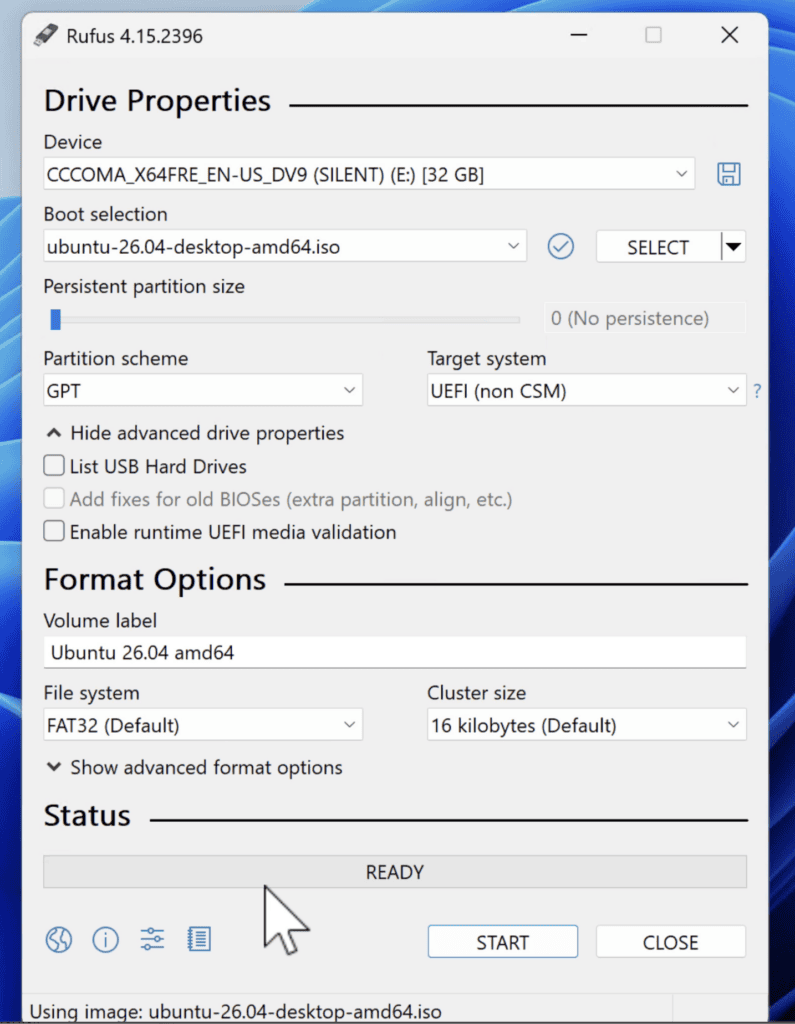
Click Start.
When prompted, choose:
Write in ISO Image mode
Confirm the warning that the USB drive will be erased.
Wait until Rufus displays:
Ready
Your Ubuntu installation media is now complete.
Boot from the Ubuntu USB
Insert the USB drive into the computer where you want to install Ubuntu.
Restart the computer and open the Boot Menu.
Common boot keys include:
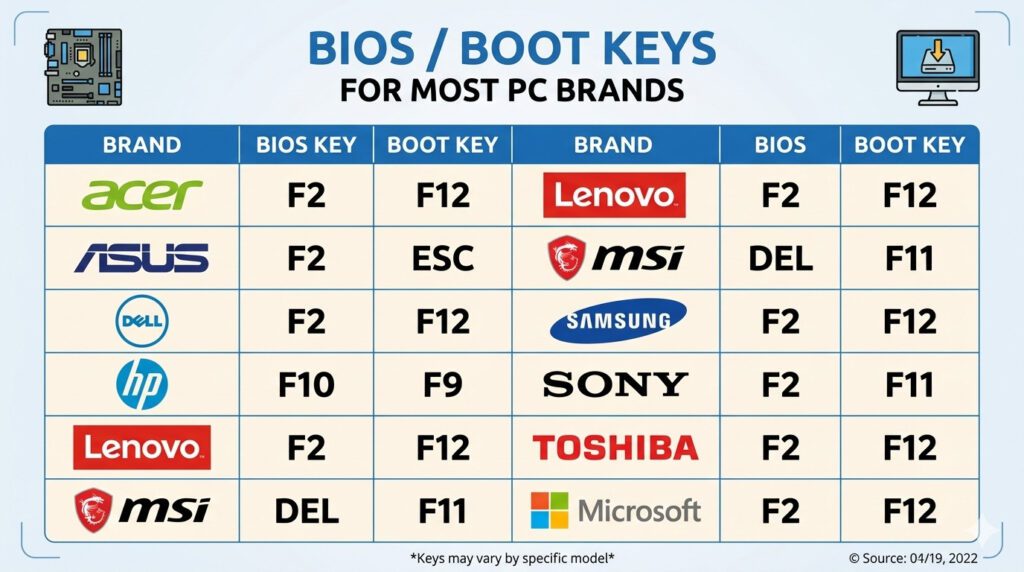
Select the USB drive.
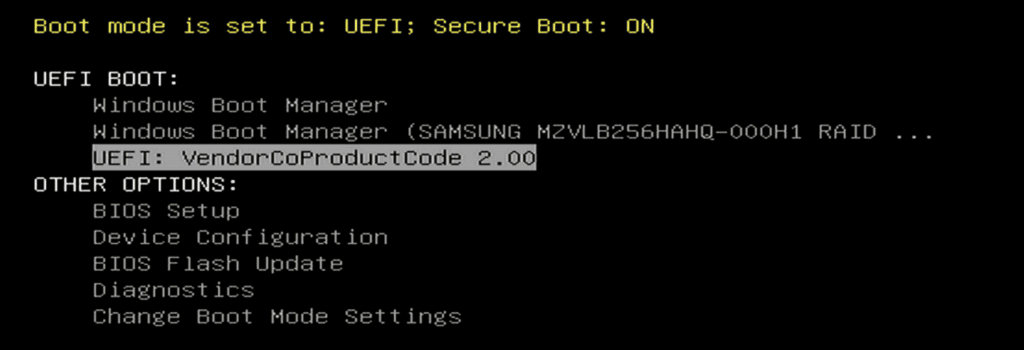
Ubuntu loads into the live environment.
Choose:
Try or Install Ubuntu
After a short loading process, the Ubuntu installer opens.
Fix the RAID/RST Installation Error (If Necessary)
Some computers—especially Dell laptops—ship with Intel Rapid Storage Technology (RST) or RAID mode enabled.
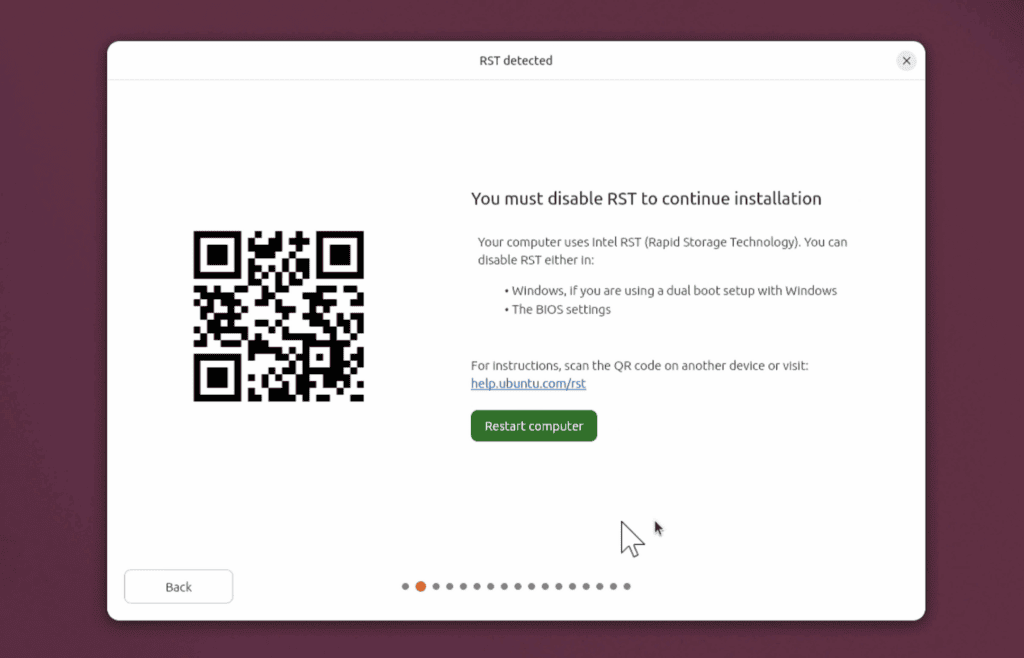
Ubuntu may display an error stating that installation cannot continue until RAID is disabled.
If this happens:
- Restart the computer.
- Enter the BIOS or UEFI firmware settings (usually F2 or Delete).
- Locate the storage configuration.
- Change:
RAID / Intel RST
to:
AHCI
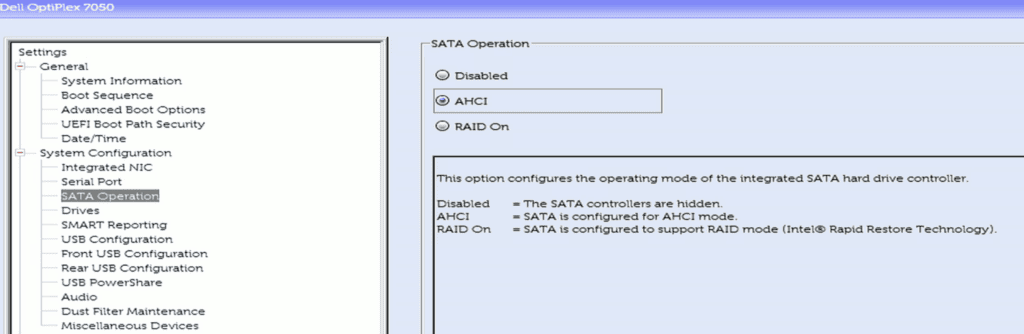
Save the changes and restart.
Boot from the Ubuntu USB again.
Install Ubuntu
Follow the installer step by step.
Select Language and Keyboard Layout
Choose your preferred language and keyboard layout.
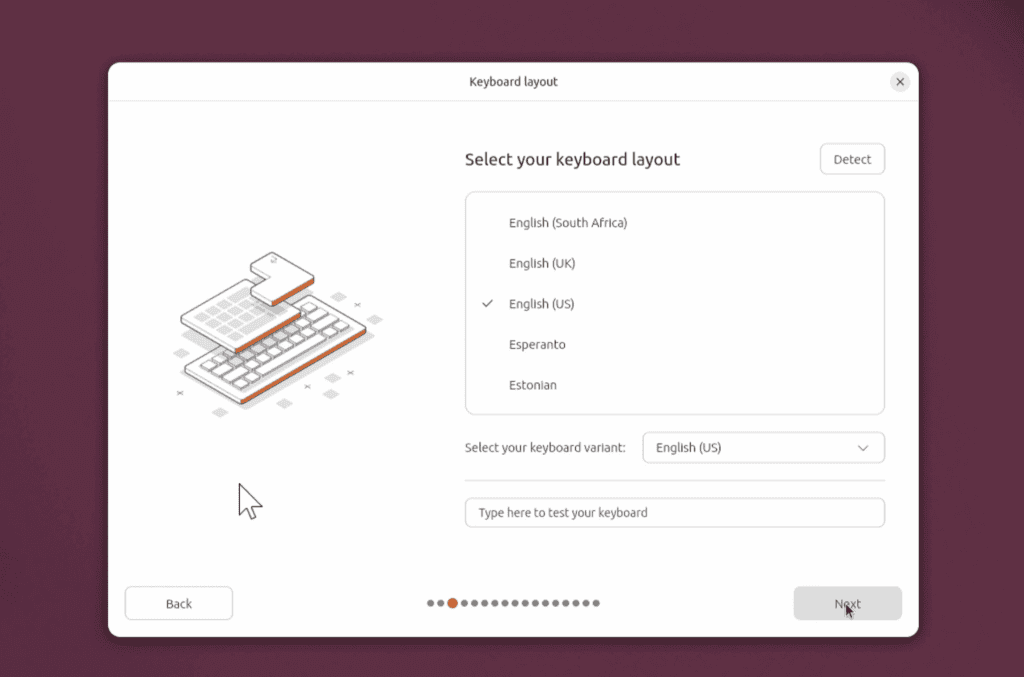
Click Next.
Connect to the Internet
If possible, connect to:
- Wi-Fi
- Ethernet
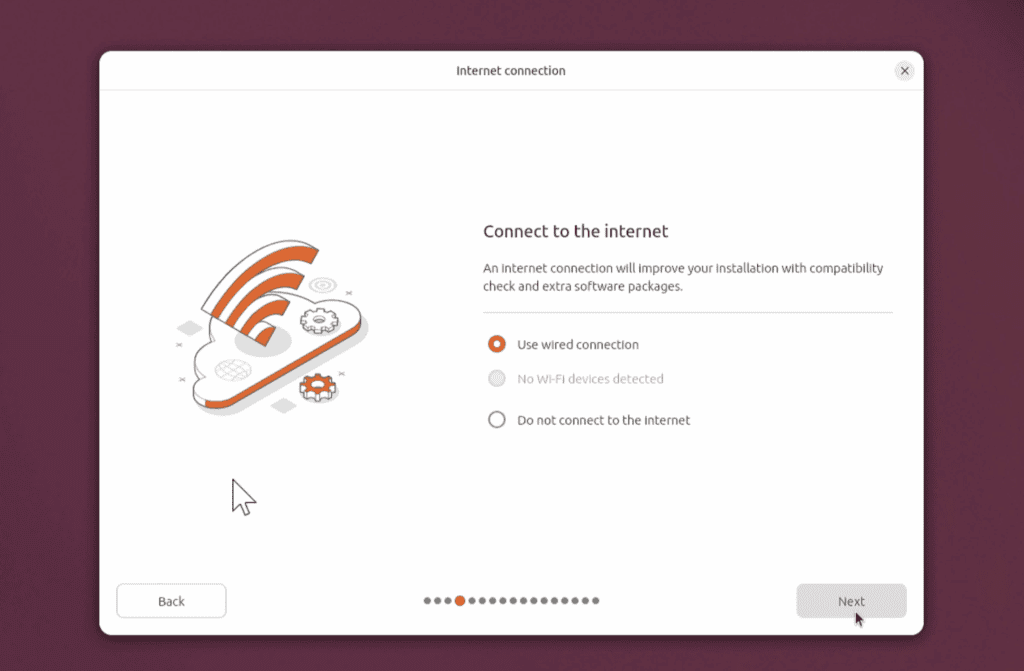
An internet connection allows Ubuntu to download updates and hardware drivers during installation.
Choose Installation Type
Select:
Install Ubuntu
Then choose:
Interactive Installation
This provides the full graphical installation experience.
Choose the Software Selection
Select:
Extended Selection
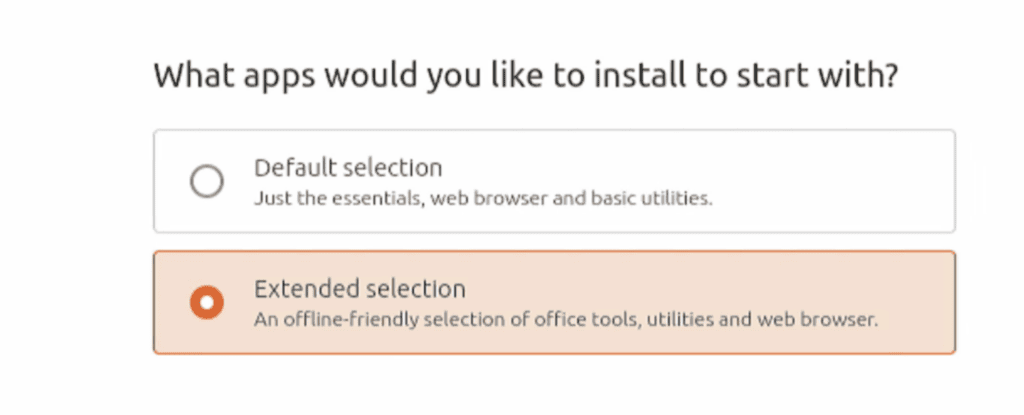
This installs useful applications such as:
- LibreOffice
- Media codecs
- Essential utilities
It’s an excellent starting point for most users.
Install Third-Party Software
Enable both available options:
- Download updates while installing Ubuntu
- Install third-party software for graphics and Wi-Fi hardware
This improves hardware compatibility and reduces the amount of configuration required after installation.
Erase Windows and Install Ubuntu
This is the most important step.
When asked how Ubuntu should use the disk, choose:
Erase disk and install Ubuntu
This option completely removes:
- Windows
- Applications
- Personal files
- Existing partitions
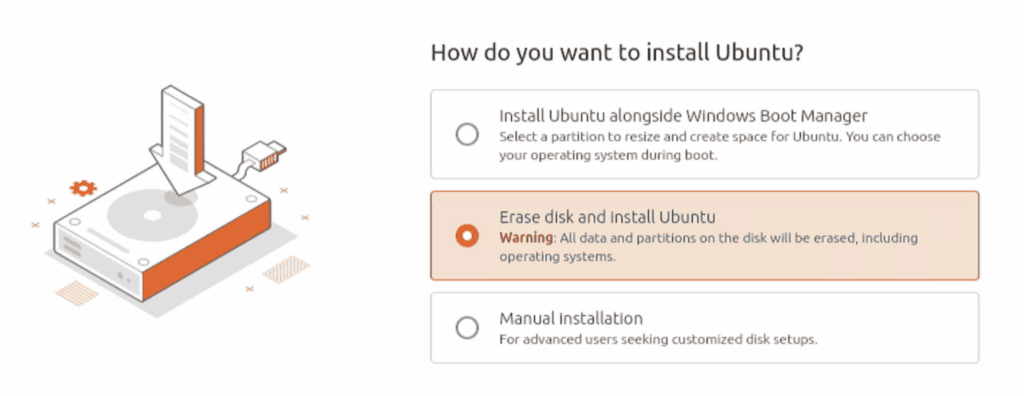
Double-check that you’ve selected the correct storage device before continuing.
Once you confirm this step, the process cannot be undone.
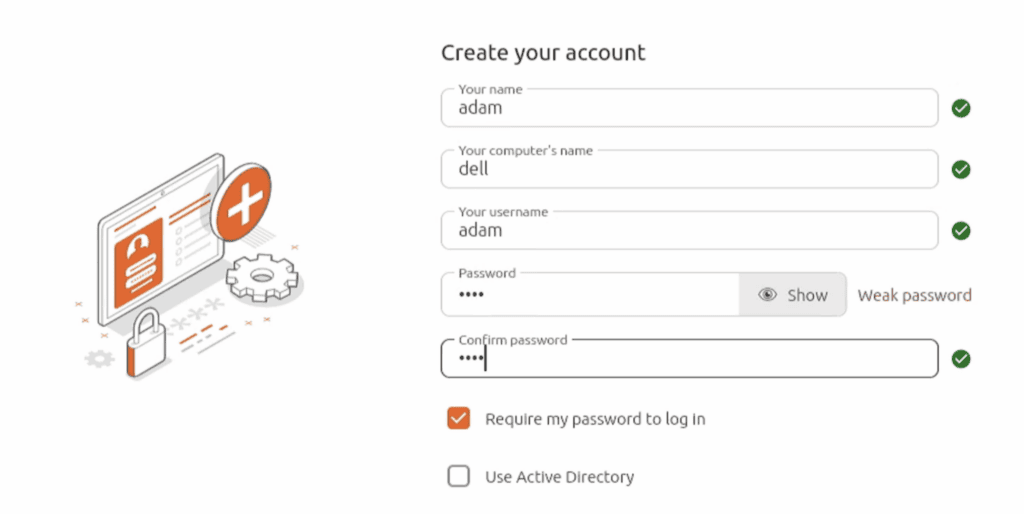
Create Your User Account
Enter:
- Your name
- Computer name
- Username
- Password
Choose a strong password because this account will also be used for administrative tasks.
Next, select your time zone.
Review your settings and click:
Install
Ubuntu begins copying files and installing the operating system.
Installation typically takes:
- 10–20 minutes on modern SSDs
- Longer on older hardware
When prompted, click:
Restart Now
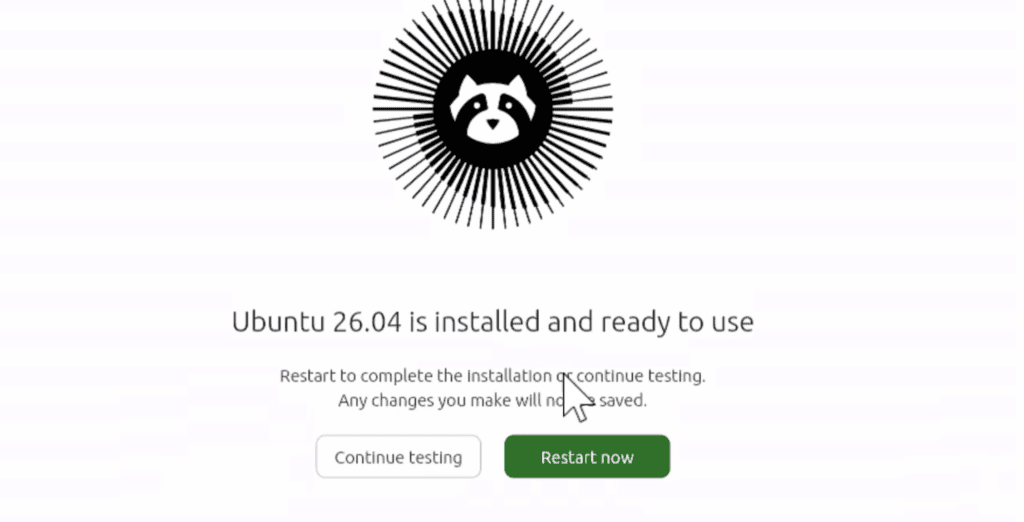
Remove the USB drive when instructed.
Ubuntu will boot from the internal drive.
First Boot into Ubuntu
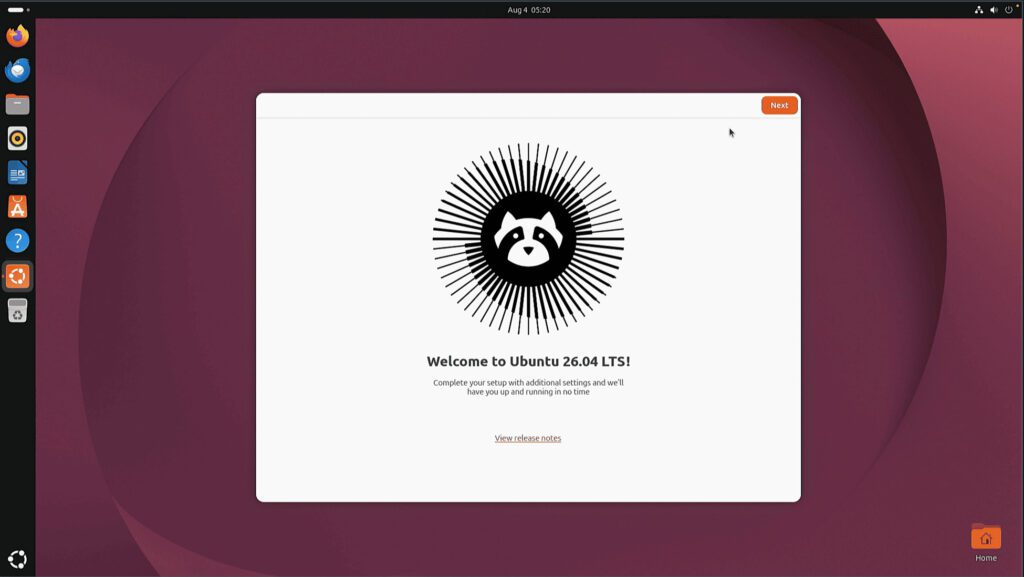
Sign in using the password you created.
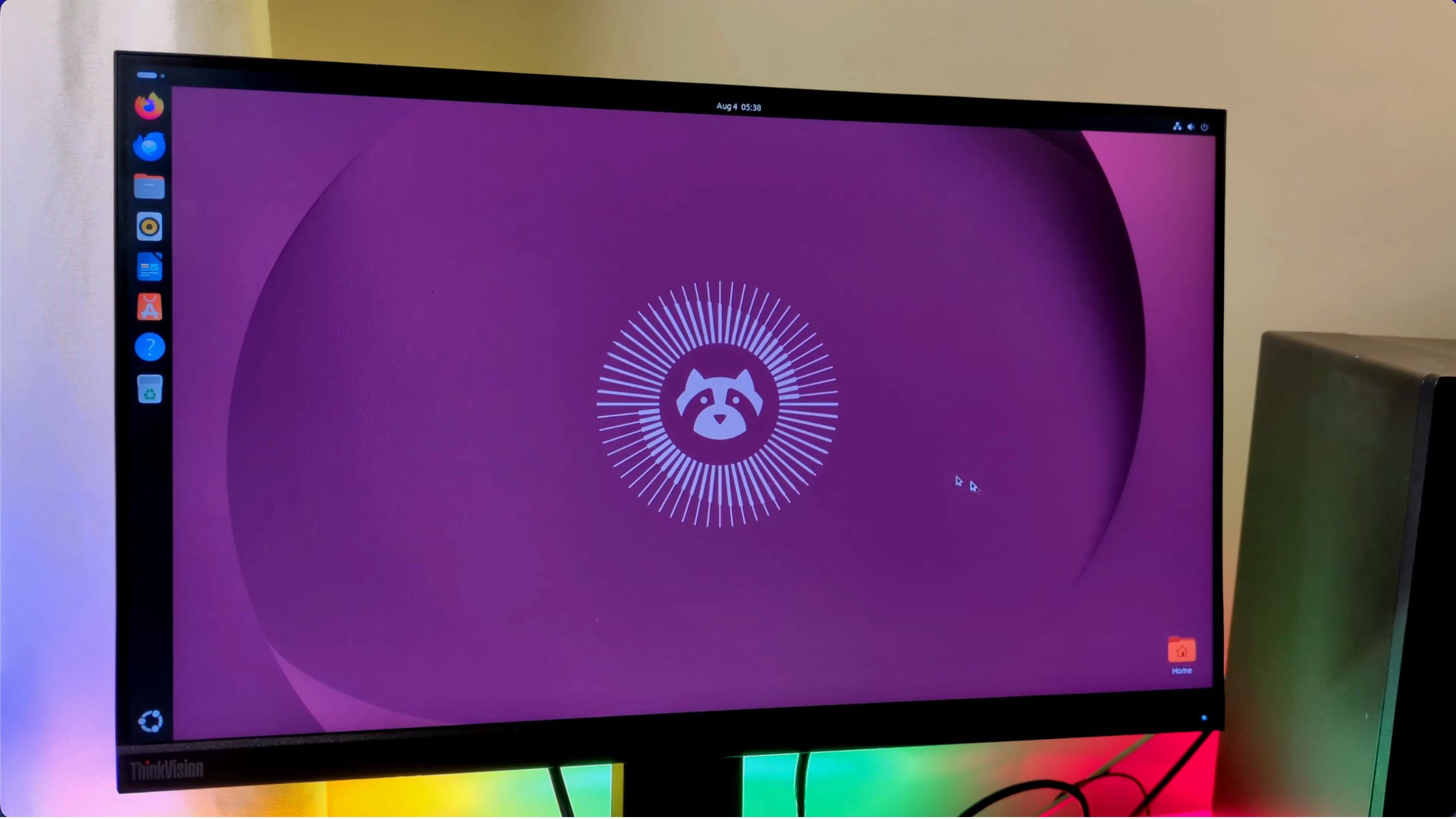
You’ll arrive at the Ubuntu desktop running the latest GNOME desktop environment.
Take a few minutes to explore the interface.
You’ll notice:
- A clean desktop
- A modern application launcher
- Improved system settings
- Better overall responsiveness
Update Ubuntu Immediately
Before installing additional software, update your system.
Open Terminal and run:
sudo apt updateEnter your password when prompted.
Next, install the latest updates:
sudo apt upgradeWhen Ubuntu asks for confirmation, type: Y
and press Enter.
Allow the update process to complete.
Restart the computer if Ubuntu requests it.
Install Your Favorite Applications
Ubuntu includes many useful applications out of the box, including Firefox and LibreOffice.
You can install additional software using the App Center.
Popular choices include:
- Brave Browser
- Chromium
- Visual Studio Code
- VLC Media Player
- GIMP
- Steam
- Discord
- Docker Desktop
- VirtualBox
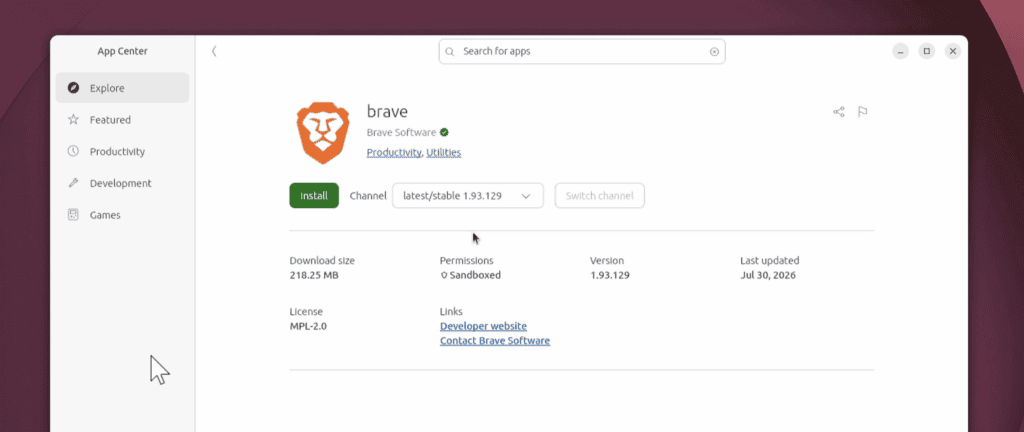
Simply search for the application and click Install.
Check That Your Hardware Works Correctly
Open:
Settings → System → About
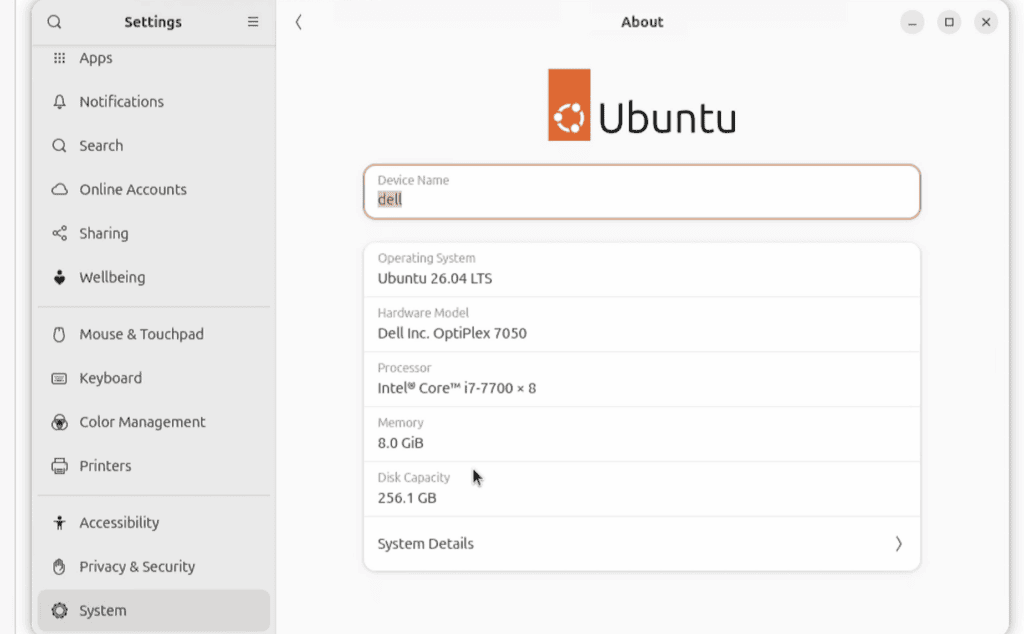
Verify that Ubuntu correctly detects your:
- Processor
- Memory
- Graphics
- Storage
Next, test:
- Wi-Fi
- Bluetooth
- Audio
- Webcam
- Microphone
If a device isn’t working correctly, open:
Software & Updates → Additional Drivers
Ubuntu will often recommend proprietary drivers for compatible hardware.
See also: How to Run macOS 26 Tahoe in VMware on Windows
Tips for New Linux Users
Switching from Windows to Linux comes with a learning curve, but Ubuntu is designed to make the transition as smooth as possible.
Here are a few tips:
- Learn basic Terminal commands gradually—you don’t need to master them on day one.
- Install software through the App Center whenever possible.
- Keep your system updated regularly.
- Explore Ubuntu’s built-in Help resources and community forums.
- Don’t be afraid to experiment. Linux gives you much more flexibility than Windows.
After a few days, many users find Ubuntu faster, cleaner, and easier to maintain than they expected.
Frequently Asked Questions
Will Ubuntu delete Windows?
Yes.
If you choose Erase disk and install Ubuntu, Windows and all existing data on the drive will be permanently removed.
Can I reinstall Windows later?
Yes.
As long as you have Windows installation media and your product key or digital license, you can reinstall Windows at any time.
Is Ubuntu free?
Yes.
Ubuntu is completely free to download, install, and use.
Do I need antivirus software on Ubuntu?
Linux is generally less susceptible to malware than Windows, but good security practices—such as keeping your system updated and installing software from trusted sources—are still important.
Can I run Windows applications on Ubuntu?
Some Windows applications work using compatibility tools such as Wine or through virtual machines. However, not every Windows program has native Linux support.
Final Thoughts
Migrating from Windows to Ubuntu is one of the best ways to breathe new life into an older PC or gain more control over your operating system.
By backing up your files, saving your Windows license information, disabling BitLocker, and performing a clean installation, you’ll have a modern Linux desktop that’s secure, responsive, and free from unnecessary software.
Ubuntu 26.04 LTS is designed for long-term stability and ease of use, making it an excellent choice whether you’re trying Linux for the first time or returning after years of using Windows.
Pingback: Run Kali Linux With a Full Desktop GUI on Windows Using WSL2