

Have you ever needed your Wi-Fi password but couldn’t remember it?
Maybe you want to connect a new phone, share the password with someone, or set up a new computer. If your Windows PC has connected to the network before, there’s good news: Windows saves the password automatically.
Using a few simple Command Prompt commands, you can view the passwords of all Wi-Fi networks saved on your computer.
Let’s see how.
Open Command Prompt as Administrator
First, open Command Prompt with administrator privileges.
- Click the Search button.
- Type CMD.
- Right-click Command Prompt.
- Select Run as administrator.
- Click Yes if Windows asks for permission.
Administrator access is required if you want to display saved passwords.
List All Saved Wi-Fi Networks
To see every Wi-Fi network stored on your PC, run:
netsh wlan show profilesWindows will display something like:
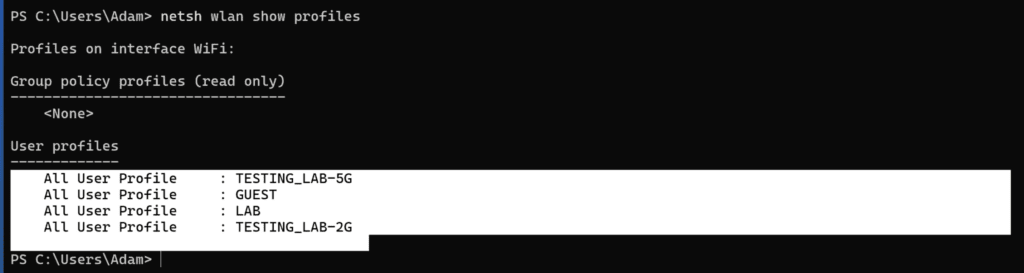
These are all the Wi-Fi networks your computer remembers.
Find the Password for a Specific Wi-Fi Network
Once you know the network name, use this command:
netsh wlan show profile name="NetworkName" key=clearReplace NetworkName with the exact Wi-Fi name.
For example:
netsh wlan show profile name="GUEST" key=clearPress Enter.
Scroll down to the Security settings section and look for: Key Content : MySecretPassword
The text next to Key Content is your Wi-Fi password.
Find the Password of Your Current Wi-Fi Connection
If you don’t remember the network name, first run:
netsh wlan show interfacesLook for: SSID : GUEST
This is the network you’re currently connected to.
Then run:
netsh wlan show profile name="GUEST" key=clearAgain, check the Key Content line to see the password.
Export All Saved Wi-Fi Profiles
You can also export every saved Wi-Fi profile, including passwords.
Run:
netsh wlan export profile folder=C:\ key=clearWindows will create XML files in the *C:* drive.
Open any exported XML file with Notepad and search for:
<keyMaterial>The text inside this tag is the Wi-Fi password.
This is useful if:
- You’re moving to a new PC.
- You want to keep a backup of your Wi-Fi settings.
- You manage multiple networks.
Import a Wi-Fi Profile on Another Computer
To import an exported profile, use:
netsh wlan add profile filename="C:\NetworkName.xml"Windows will add the network settings and password automatically.
Other Useful Wi-Fi Commands
Show Wi-Fi Connection Details
netsh wlan show interfacesDisplays:
- Signal strength
- Connection speed
- Channel
- SSID
- BSSID
- Radio type
Show Nearby Wi-Fi Networks
netsh wlan show networksLists all Wi-Fi networks currently visible to your computer.
Disconnect from Wi-Fi
netsh wlan disconnectDisconnects the current Wi-Fi connection.
Connect to a Saved Network
netsh wlan connect name="NetworkName"Connects to a previously saved Wi-Fi network.
Delete a Saved Wi-Fi Profile
netsh wlan delete profile name="NetworkName"Removes a saved network from Windows.
Check Wi-Fi Driver Information
netsh wlan show driversShows details about your wireless adapter and its drivers.
See also: Top Network CMD Commands for Windows
Final Thoughts
Windows stores the passwords of Wi-Fi networks you’ve connected to, and with a few simple commands, you can retrieve them in seconds.
The most useful commands to remember are:
netsh wlan show profilesLists all saved Wi-Fi networks.
netsh wlan show profile name="NetworkName" key=clearDisplays the password of a specific network.
These commands are perfect for recovering forgotten Wi-Fi passwords, setting up a new device, or backing up your network settings without needing to reset your router.