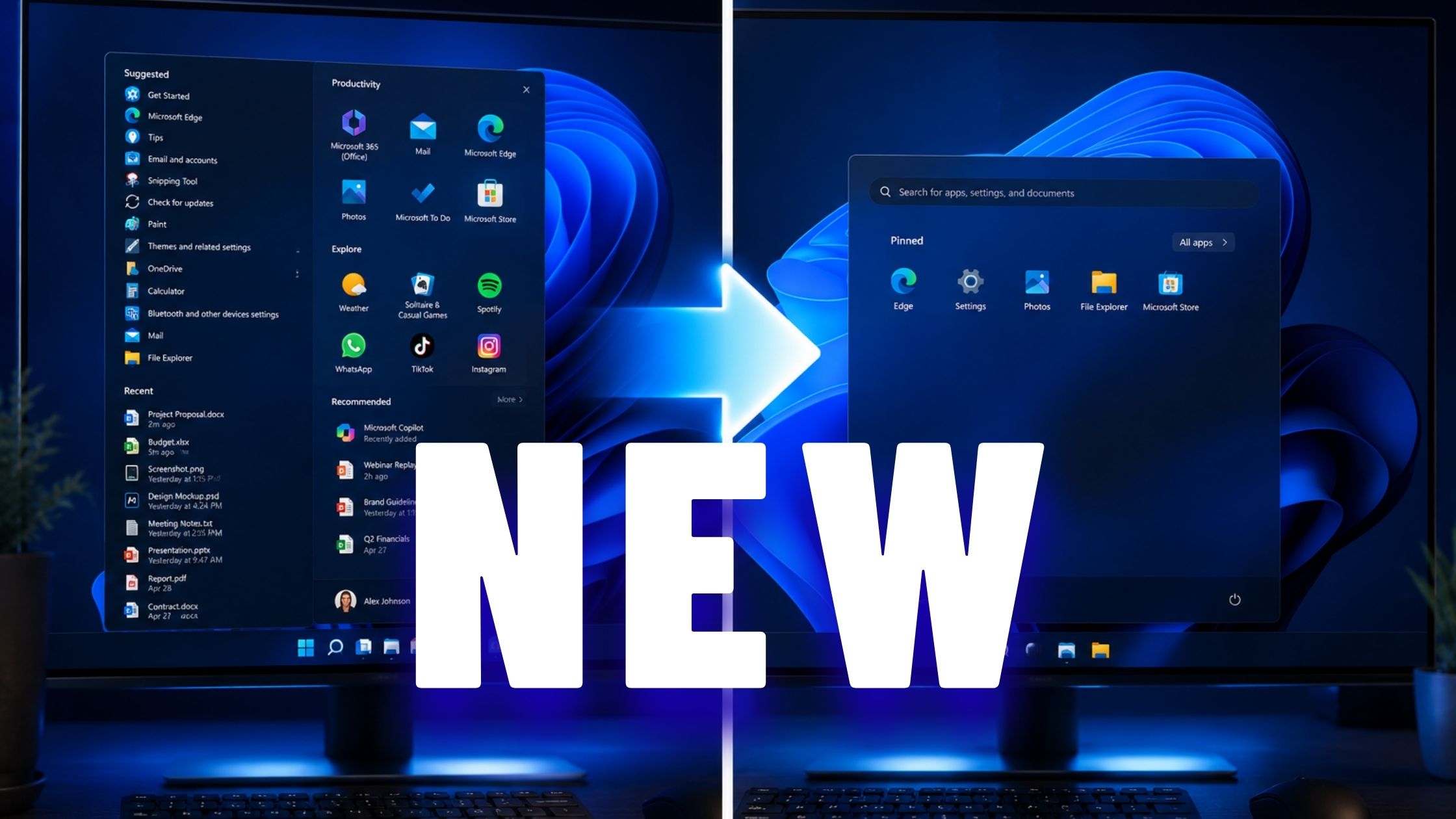
One of the biggest complaints about Windows 11 since its launch has been the lack of Start Menu customization. Unlike Windows 10, users had very little control over how the Start Menu looked and behaved. The layout was fixed, recommendations couldn’t be fully removed, and personalization options were limited.
That is finally changing.
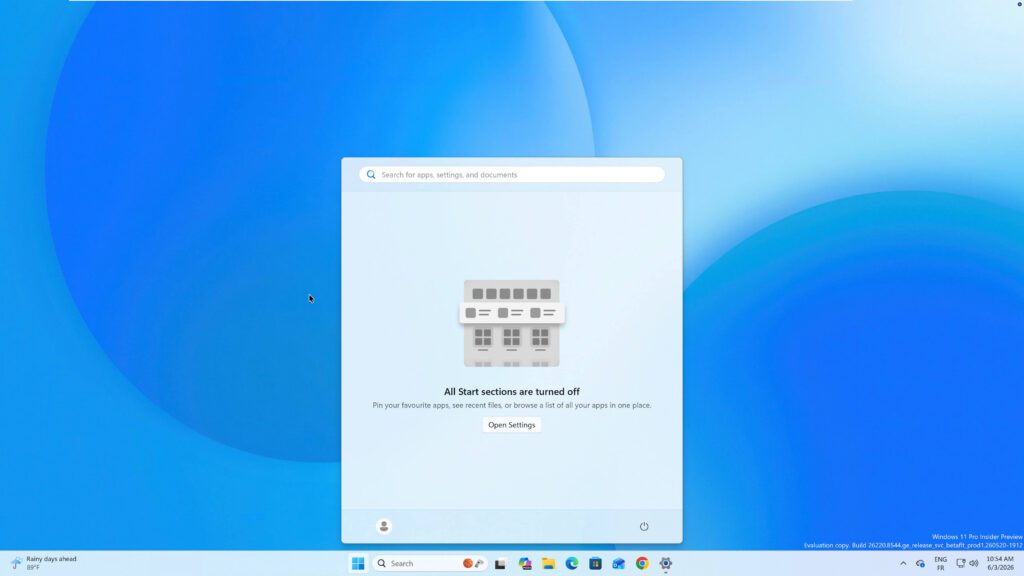
Microsoft is introducing a major update that gives Windows 11 users much more control over the Start Menu. You can now resize it, hide recommendations, remove pinned apps, hide account information, and even create a completely empty Start Menu if you prefer a minimalist desktop experience.
In this guide, we’ll look at everything that’s new and how to enable these features if they haven’t appeared on your PC yet.
Why This Update Matters
When Windows 11 launched in 2021, Microsoft removed several customization features that users had relied on for years.
Some of the most criticized changes included:
- A fixed Start Menu layout
- No ability to resize the Start Menu
- No option to remove recommendations completely
- Limited taskbar customization
- No way to hide account information
These restrictions frustrated many users who preferred a cleaner, more personalized desktop environment.
After years of feedback, Microsoft has started restoring many of these customization options, beginning with taskbar improvements and now extending to the Start Menu.
What’s New in the Windows 11 Start Menu?
The latest Start Menu update introduces several long-requested customization options.
New Features Include:
- Small, Automatic, and Large Start Menu sizes
- Option to hide pinned apps
- Individual recommendation controls
- Ability to remove recently opened files
- Option to disable app suggestions and tips
- Hide profile picture and account information
- Create a completely empty Start Menu
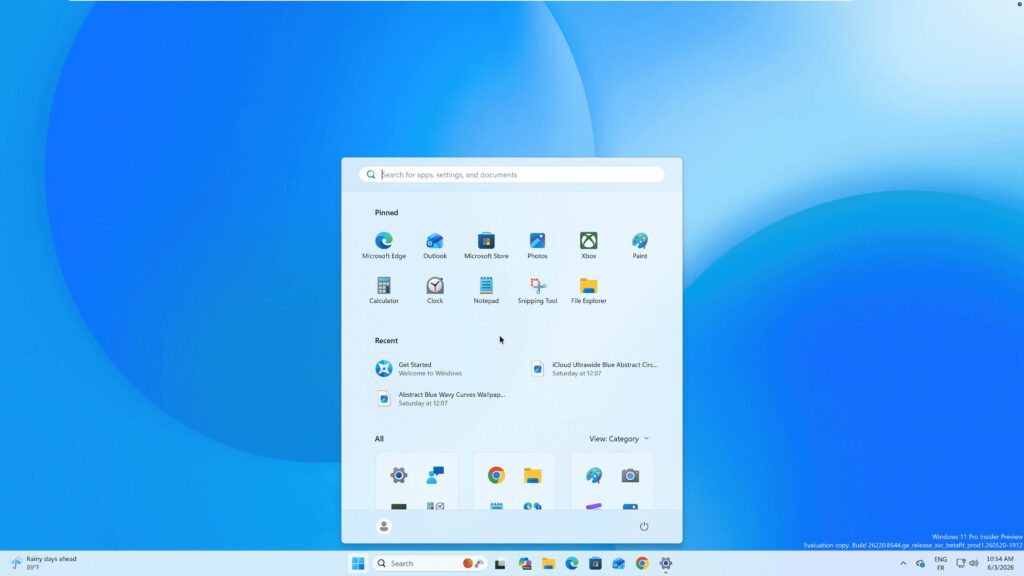
Together, these changes allow users to build a much cleaner and more personalized Windows experience.
How to Enable These Features Using ViVeTool
Because Microsoft is rolling out the feature gradually, it may not be available on every Windows 11 installation yet.
If you want to enable it immediately, you can use ViVeTool.
Step 1: Download ViVeTool
Download the latest version of ViVeTool from its GitHub repository and extract it to a folder such as: C:\ViVeTool
Step 2: Open Command Prompt as Administrator
Search for CMD, right-click it, and select: Run as administrator
Step 3: Navigate to the ViVeTool Folder
Run: cd C:\ViVeTool
Step 4: Enable the New Features
Run:
vivetool /enable /id:61754985,61225604,61596616,61596617,61596618,61596619You should receive a success message indicating that the features have been enabled.
Step 5: Restart Your PC
After restarting, navigate to:
Settings → Personalization → Start
The new customization options should now appear.
If you ever want to reverse the changes, use this command with:
vivetool /disable /id:61754985,61225604,61596616,61596617,61596618,61596619and restart again.
See also: How to Restore the Full Right-Click Menu in Windows 11 (Classic Context Menu)
Recommended Minimal Windows 11 Setup
If you prefer a clean, distraction-free desktop, consider the following configuration:
Start Menu
- Size: Small
- Recommendations: Disabled
- Tips and suggestions: Disabled
- Account information: Hidden
Taskbar
- Smaller taskbar buttons enabled
- Remove unused icons
- Choose left or center alignment based on preference
Application Launching
Use:
- PowerToys Run
- Flow Launcher
for fast keyboard-driven application launching.
The result is a modern Windows 11 desktop that feels significantly cleaner and more efficient.
Is Microsoft Finally Listening to Users?
These new Start Menu options represent a significant shift in Microsoft’s approach.
Many of the customization features now being restored existed in Windows 10 before being removed in Windows 11.
The return of:
- Taskbar customization
- Smaller taskbar options
- Start Menu personalization
suggests Microsoft is paying closer attention to user feedback than it did during Windows 11’s early years.
Regardless of the reason, the result is positive for Windows users. More customization means more control over how your desktop works and looks.
Final Thoughts
The latest Windows 11 Start Menu update gives users something they’ve wanted since launch: choice.
Whether you prefer a compact launcher, a large app-focused menu, or a completely empty Start Menu, Windows 11 now offers enough flexibility to fit a wide range of workflows.
If the feature hasn’t arrived on your system yet, ViVeTool provides an easy way to unlock it today.
For many users, this is one of the most meaningful Windows 11 improvements Microsoft has released in years.